![PlanetBids_Logo-Default.png]](https://training.planetbids.com/hs-fs/hubfs/PlanetBids_Logo-Default.png?height=40&name=PlanetBids_Logo-Default.png)
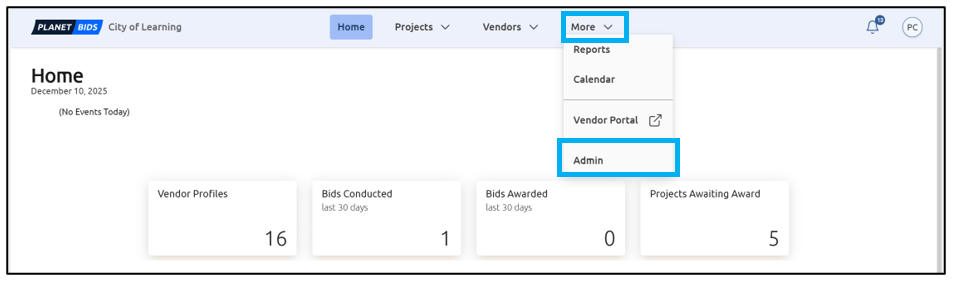
Sometimes, users may want to lock certain areas of documents to prevent editing. This is most commonly done for templates, but it can also be used for many other reasons. To allow users to lock content, those permissions must be assigned via the Admin menu. To access the Admin menu, click More and then Admin:
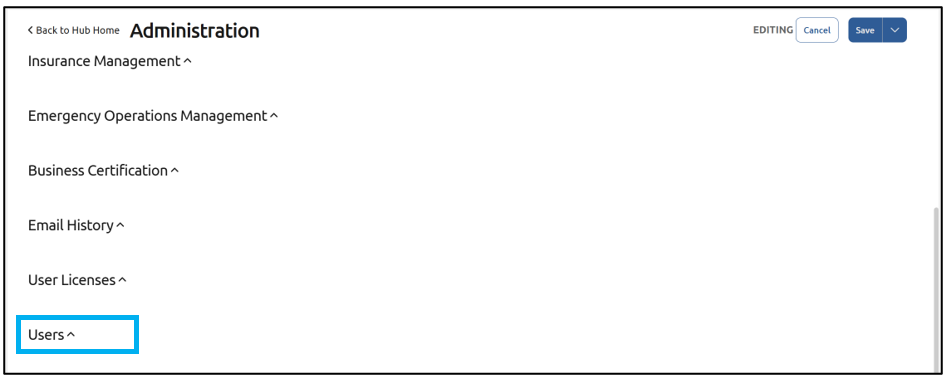
Scroll down and select Users:
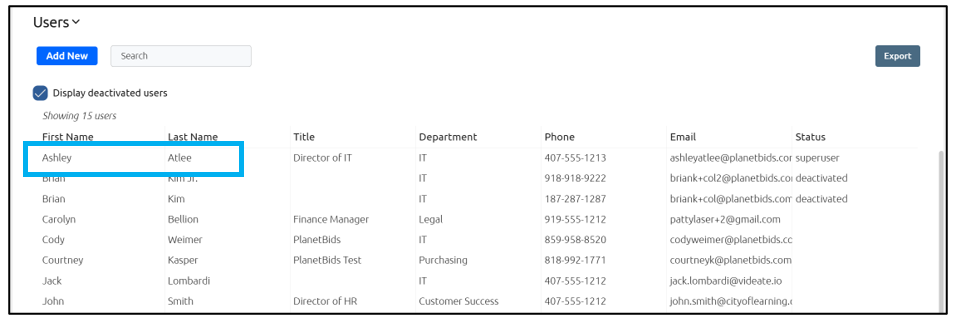
Click the name of the user you wish to apply the permissions to:
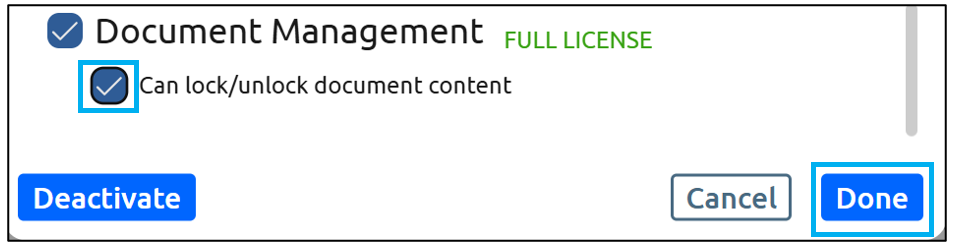
Scroll down to Document Management and select the checkbox to the left of Can Lock/Unlock Document Content, and then click Done:
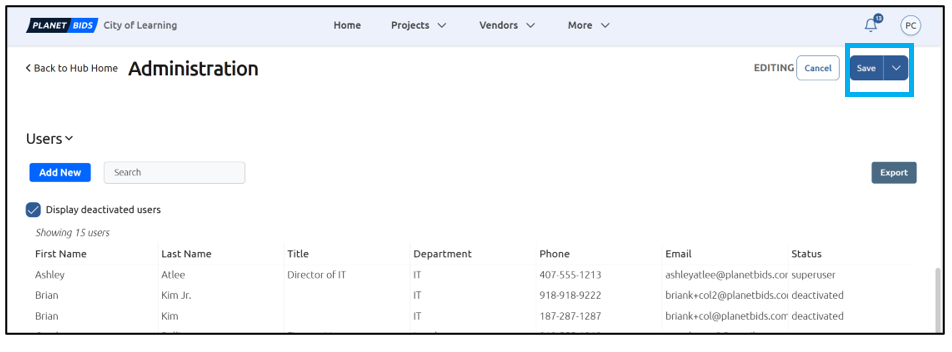
Click Save:
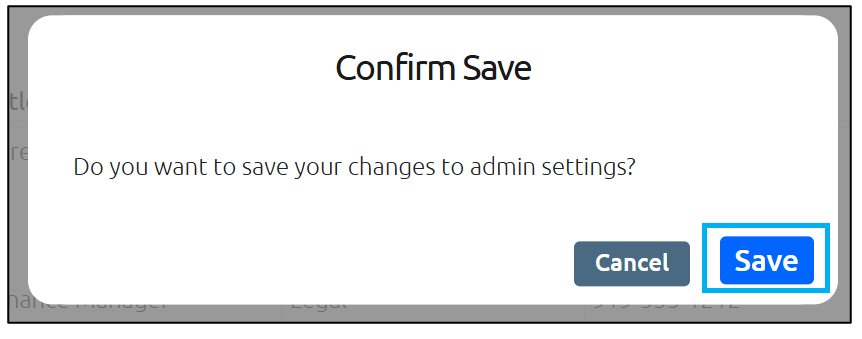
Confirm by clicking Save:
The user can now lock content within documents.
Note: It is a best practice to limit this permission to just a few users in your agency, as this is a global permission across all documents.