![PlanetBids_Logo-Default.png]](https://training.planetbids.com/hs-fs/hubfs/PlanetBids_Logo-Default.png?height=40&name=PlanetBids_Logo-Default.png)
Once a Request has been approved, you may want to use some details from the Request to create a Contract. To do this, go to Projects, then Requests :
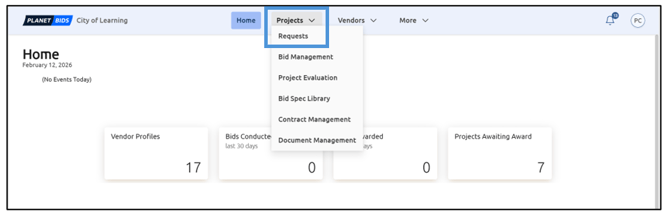
Note: Creating a Contract is permission-based. Only users assigned the privilege to create Contracts will see this option.
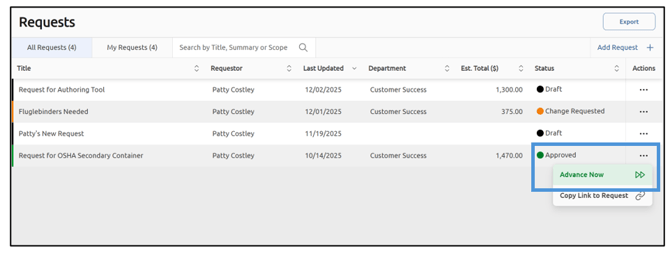
There are two ways to advance the Request. The first option is to click the three dots in the Actions column of your approved Request. This displays the option to Advance Now:
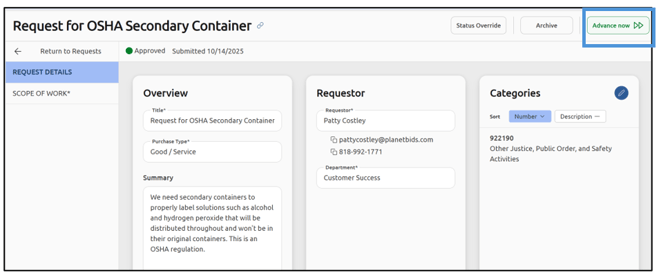
Alternatively, you can open your approved Request and see Advance Now in the upper right corner:
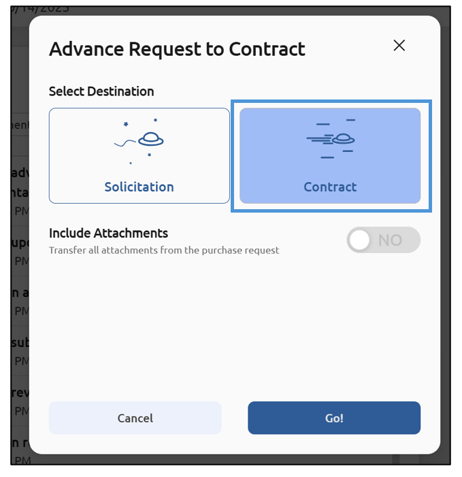
A box will pop up with some options. To advance to a Contract, select Contract as the destination:
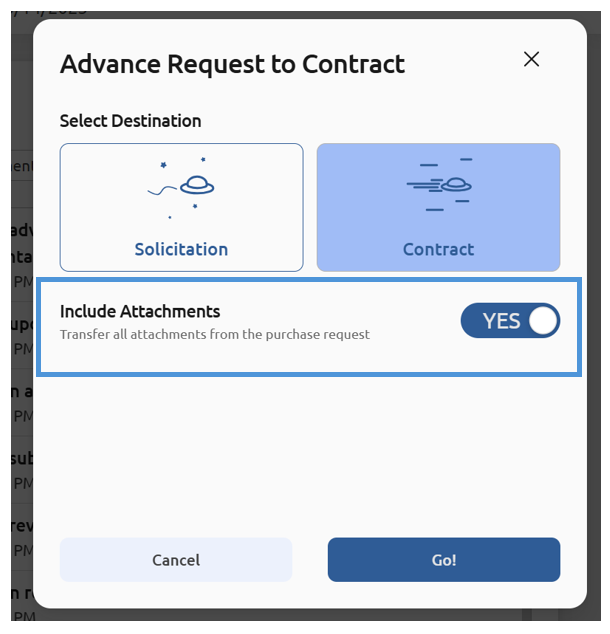
If your Request has attachments you’d like to have as part of the Contract, toggle the Include Attachments button to Yes:
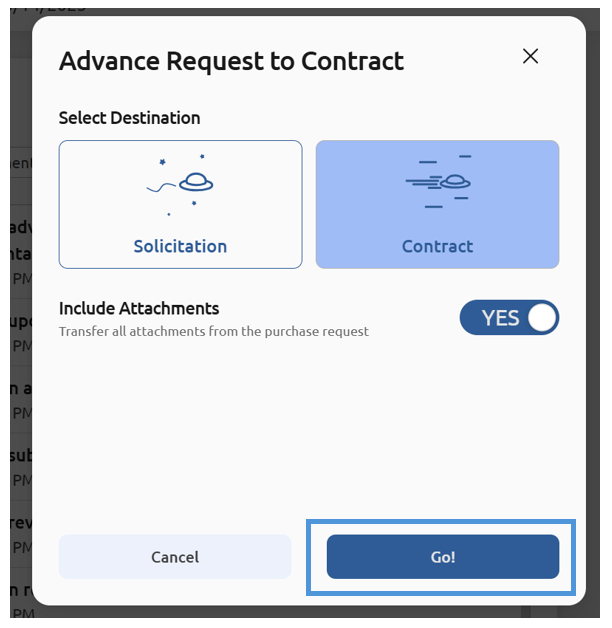
Then click Go! To create the contract:
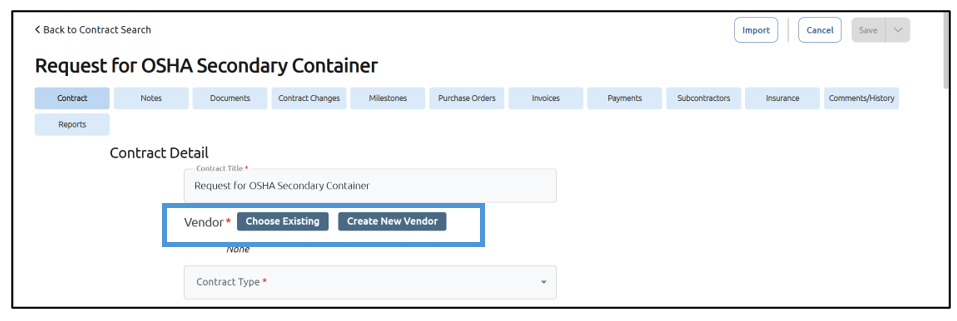
Before saving your work, you must choose the Vendor for the contract. Choose an existing vendor or create a new one:
Once you have selected the Vendor and filled out any other required fields, click Save:
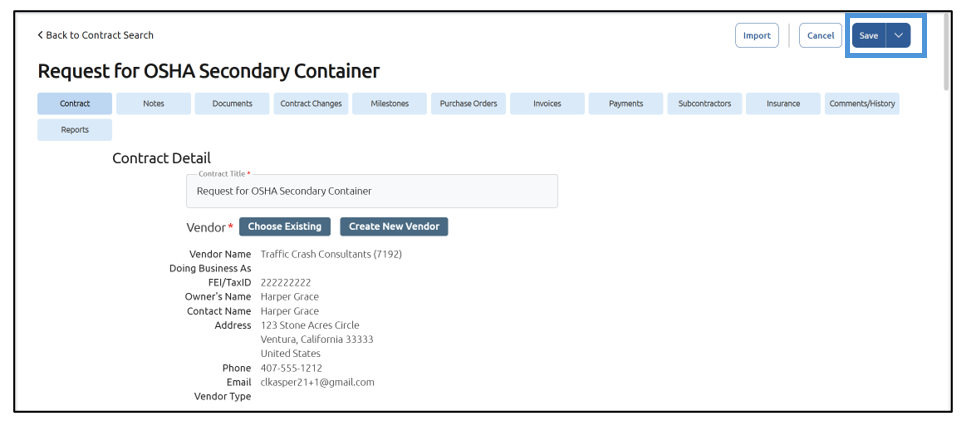
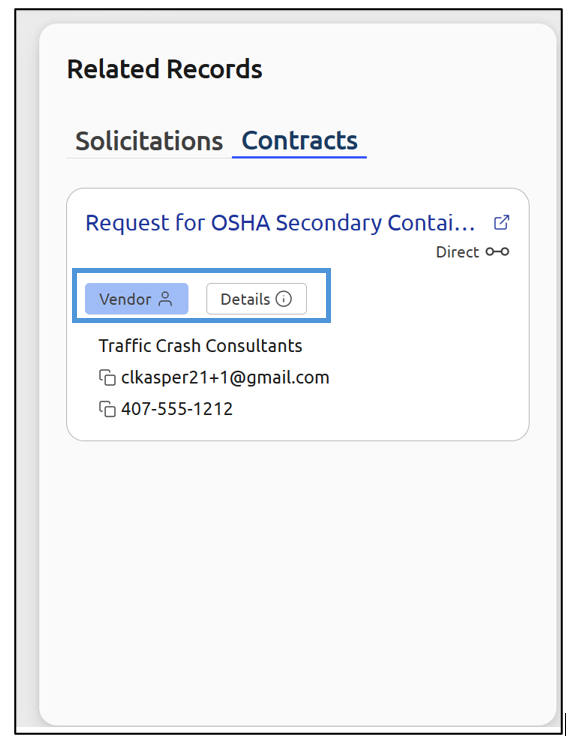
You will now see a Related Records section in the Contract, giving you more information about related Requests, Solicitations, or Contracts (if applicable):
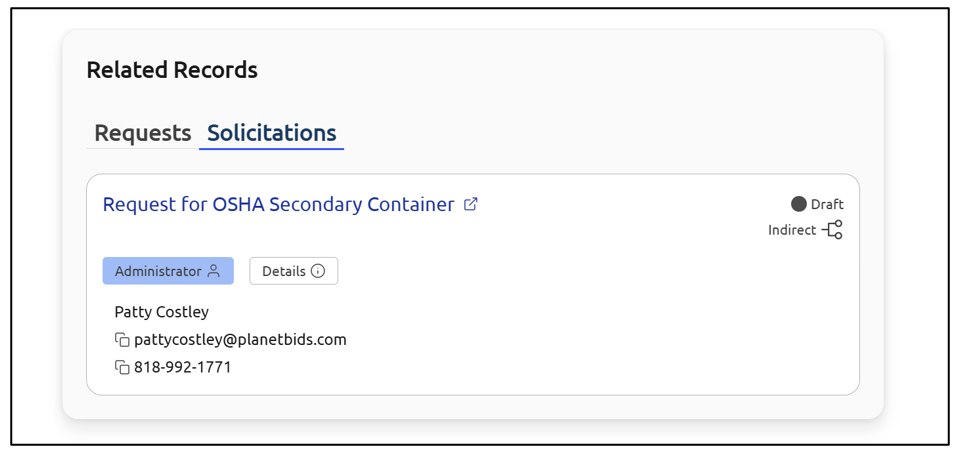
The Related Records section in Requests has been updated with Vendor and Contract details: