![PlanetBids_Logo-Default.png]](https://training.planetbids.com/hs-fs/hubfs/PlanetBids_Logo-Default.png?height=40&name=PlanetBids_Logo-Default.png)
Once a Request has been approved, you may want to use some details from the Request to create a Solicitation. To do this, go to Projects, then Requests :
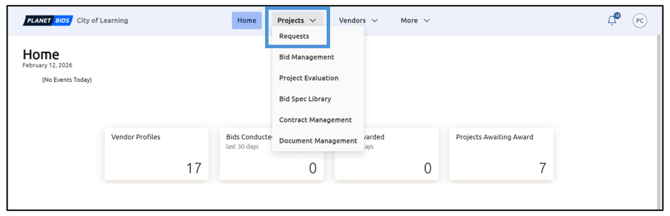
Note: Creating a Solicitation is permission-based. Only users assigned the privilege to create Solicitations will see this option.
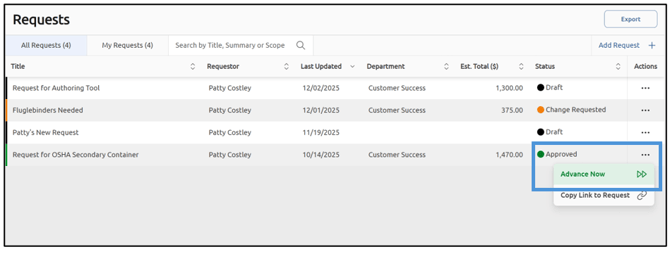
There are two ways to advance the Request. The first option is to click the three dots in the Actions column of your approved Request. This displays the option to Advance Now:
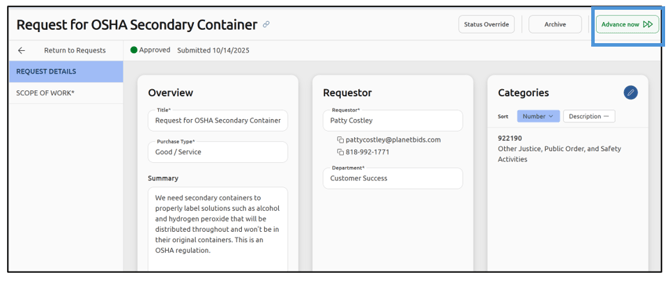
Alternatively, you can open your approved Request and see Advance Now in the upper right corner:
A box will pop up with some options. To advance to a Solicitation, select Solicitation as the destination:
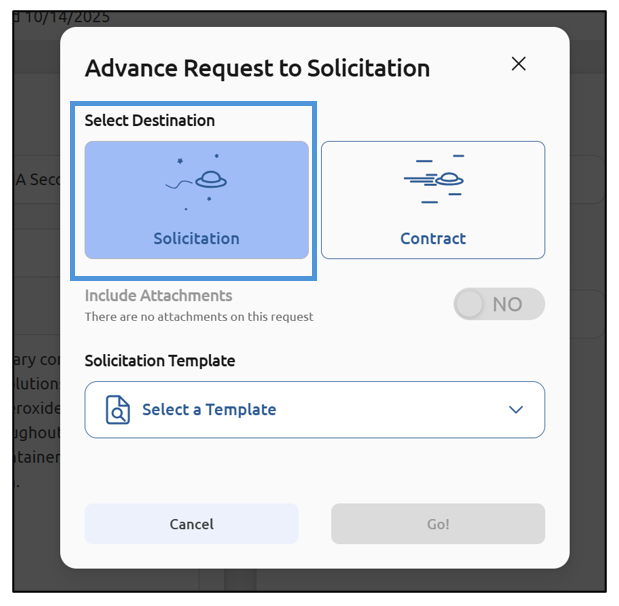
If your Request has attachments you’d like to have as part of the Solicitation, toggle the Include Attachments button to Yes:
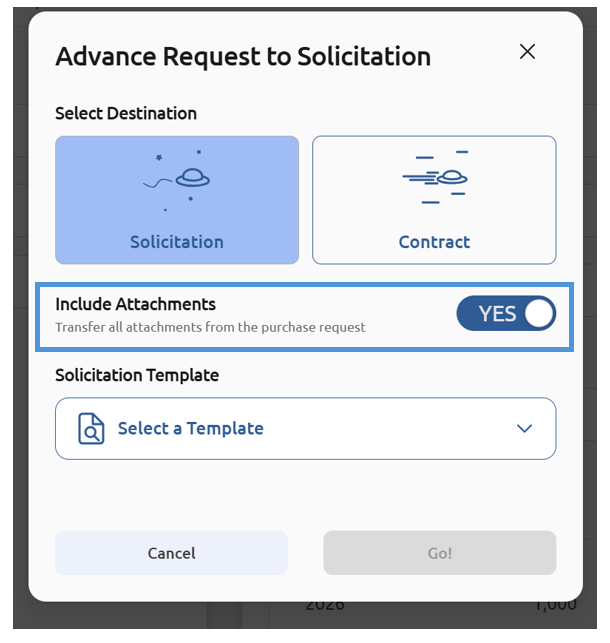
Choose your Solicitation Template from the drop-down:
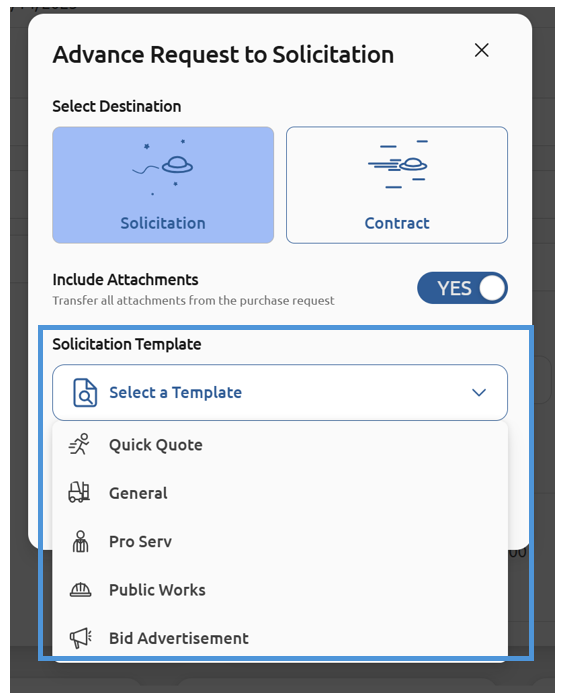
Note: only template types that you have permission to use will appear in this menu.
Once you have made your selections, click Go!:
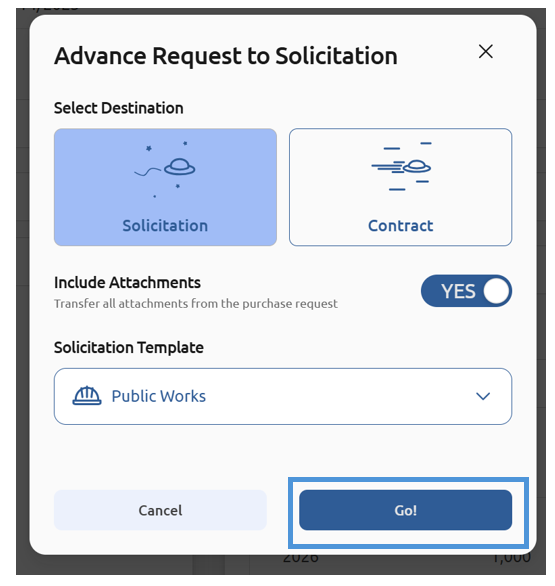
This will create your Solicitation. Click Save to preserve your work:
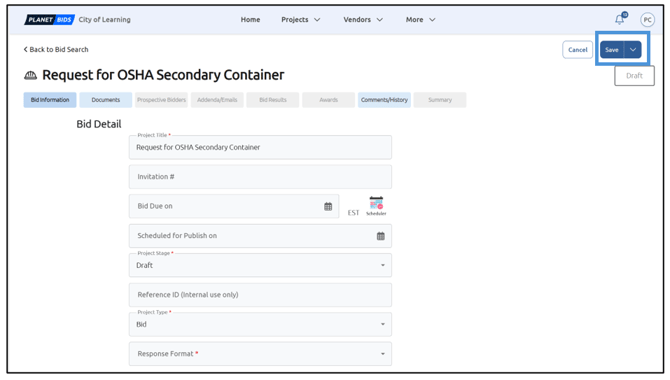
Note: After you initially save the Solicitation, ensure all required fields are completed.
Anyone with view permissions to this Solicitation will now see a section with Related Records information. Those with view permissions for the Request can click the hyperlink to be taken to the associated Request:
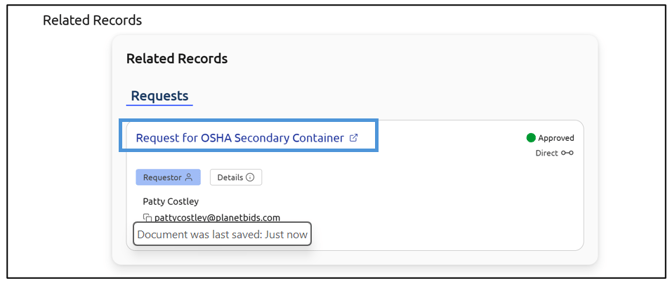
You can see information about the Requestor:
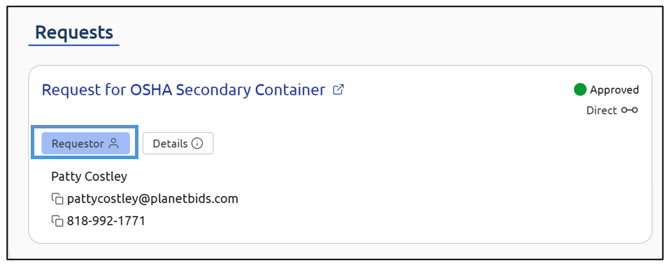
As well as additional details about the Request:
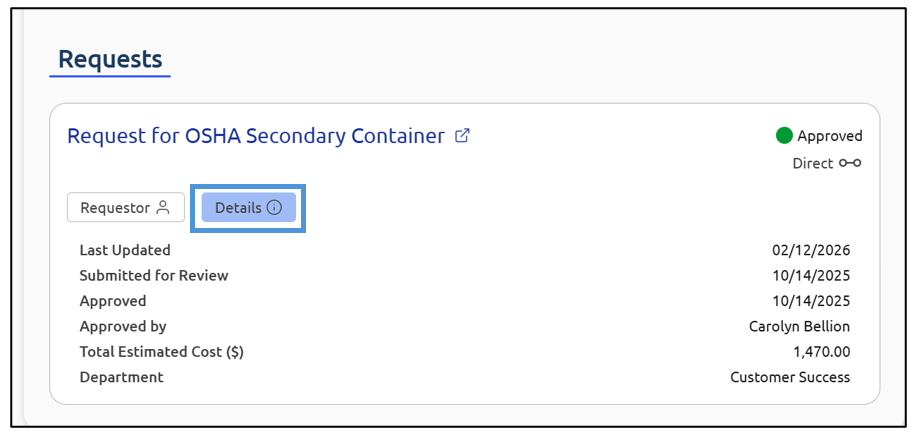
You will also be able to see the relationship between the Requests and the Solicitation:
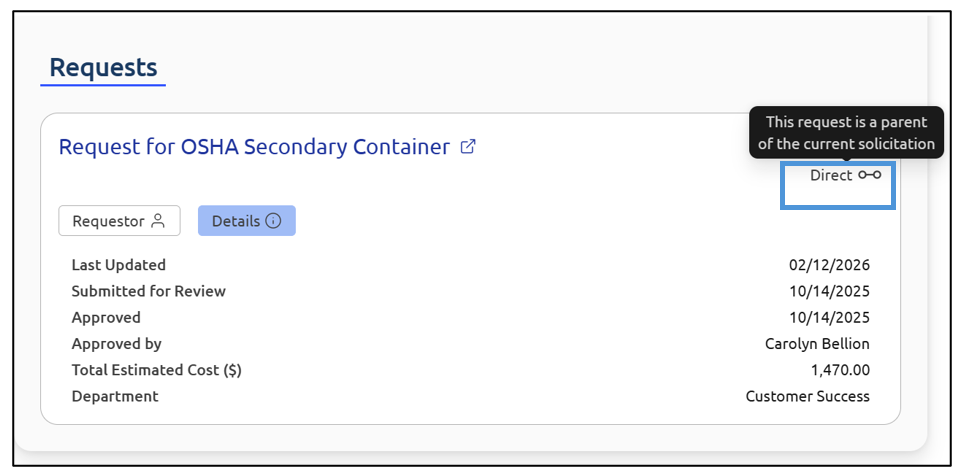
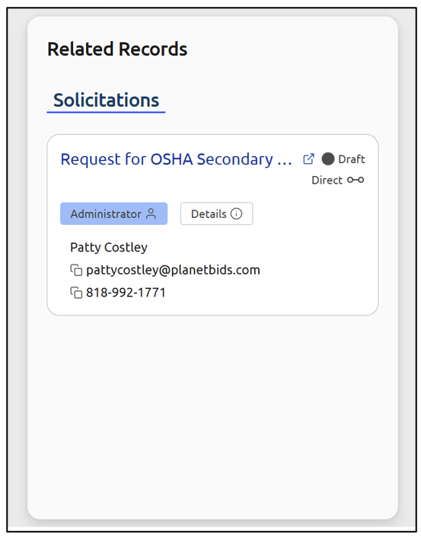
Back in the Request, a new card has been added to show related information between the Request and the Solicitation:
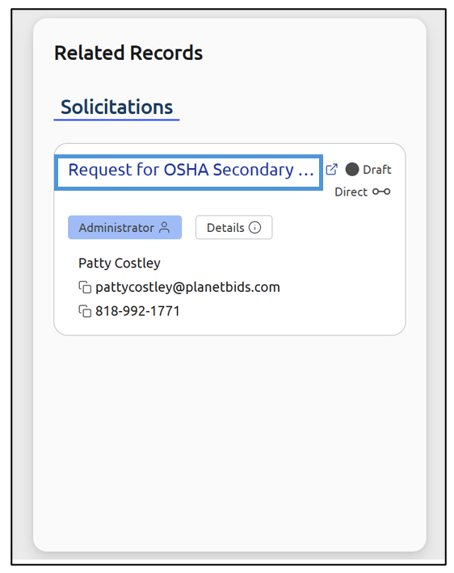
The hyperlink will take you to the Solicitation, if you have the correct permissions:
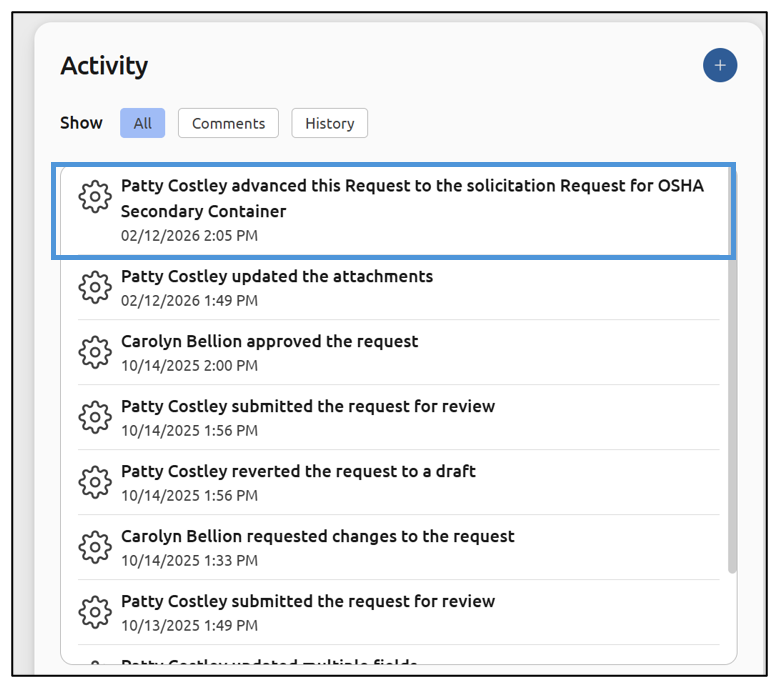
The Activity tab of your Request will also update, showing the Request was advanced to Solicitation: