![PlanetBids_Logo-Default.png]](https://training.planetbids.com/hs-fs/hubfs/PlanetBids_Logo-Default.png?height=40&name=PlanetBids_Logo-Default.png)
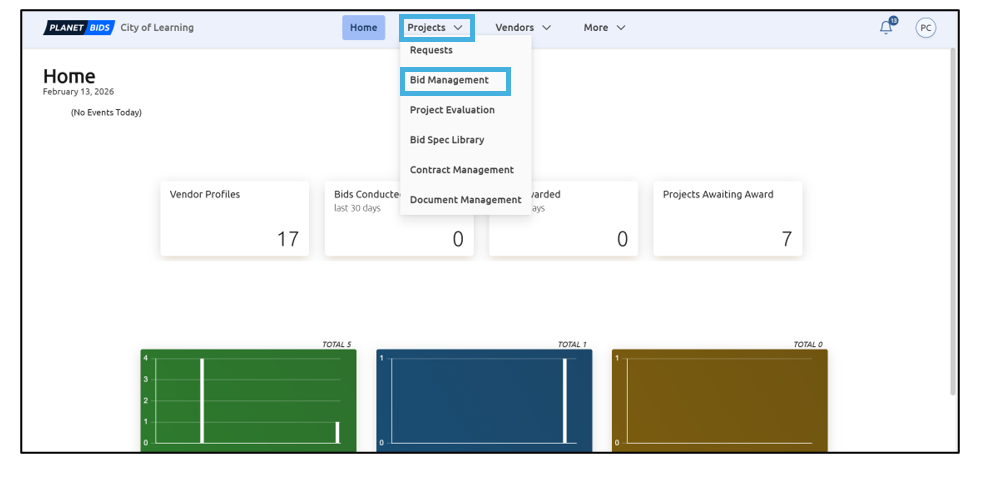
Once you have awarded a solicitation, you may want to create a contract. To advance the solicitation to a contract, locate the solicitation. From the Home page click Projects, then Bid (Solicitation) Management:
Choose the Solicitation from the list you would like to work with:
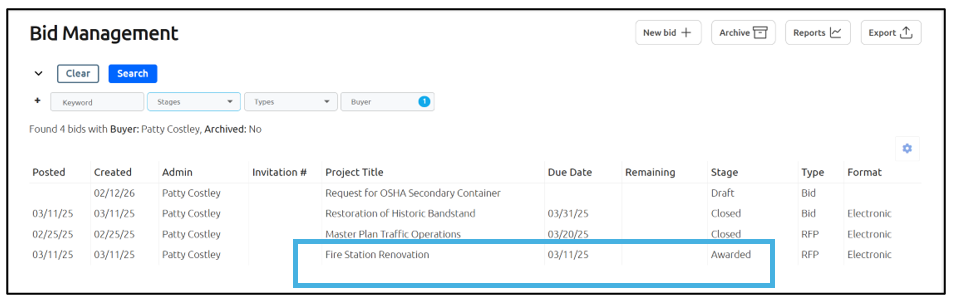
Note: The Solicitation must be in Awarded status.
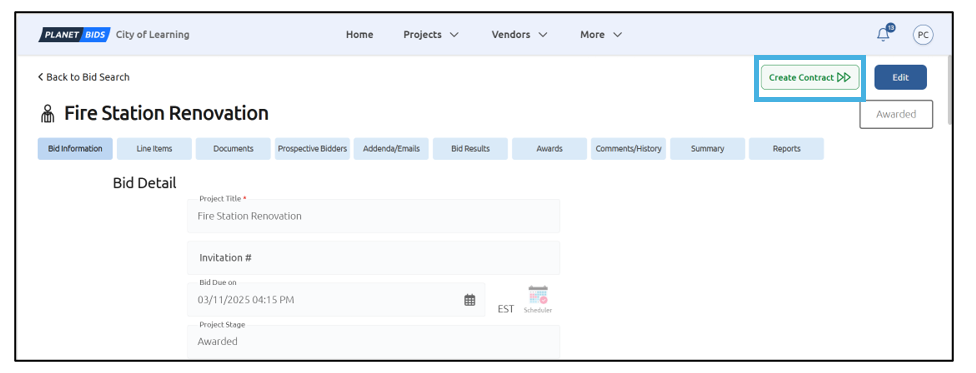
Click Create Contract:
If you would like to include attachments from the Solicitation, toggle the attachments button to YES. Then choose the vendor(s) you wish to create a contract for:
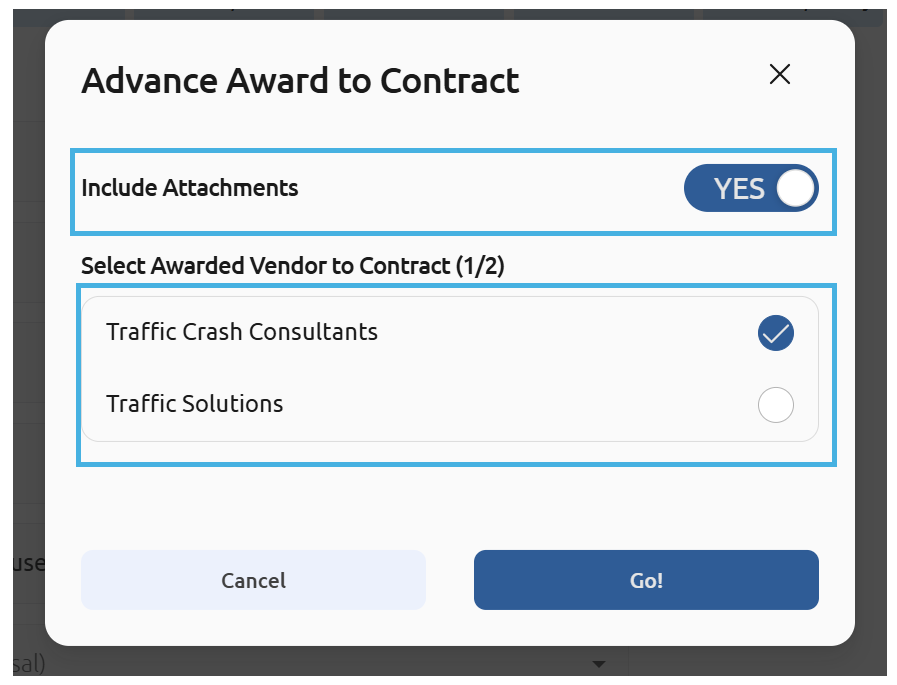
Note: Attachments will be included only if you or the specific vendor(s) uploaded them.
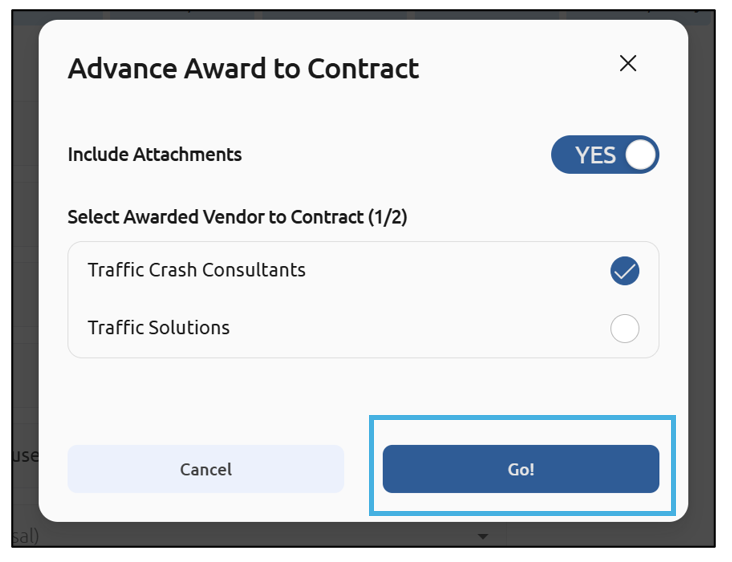
When you are finished, click Go!:
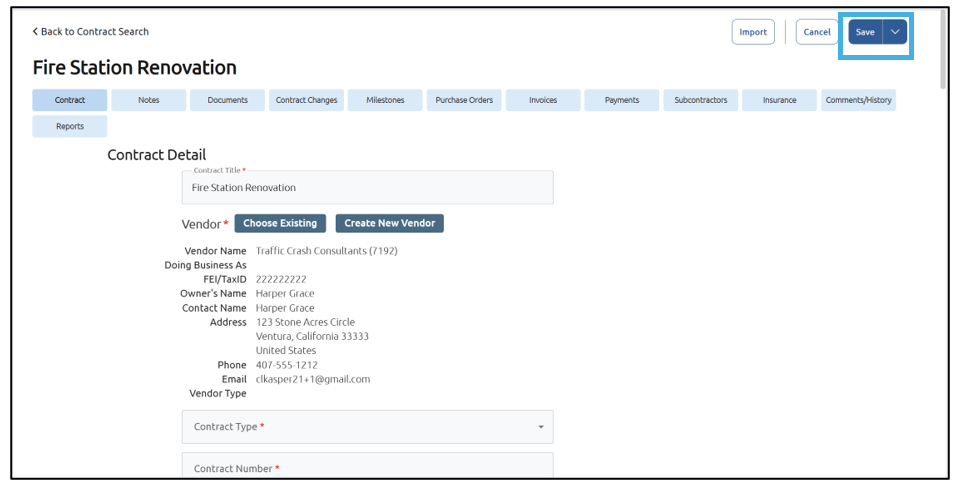
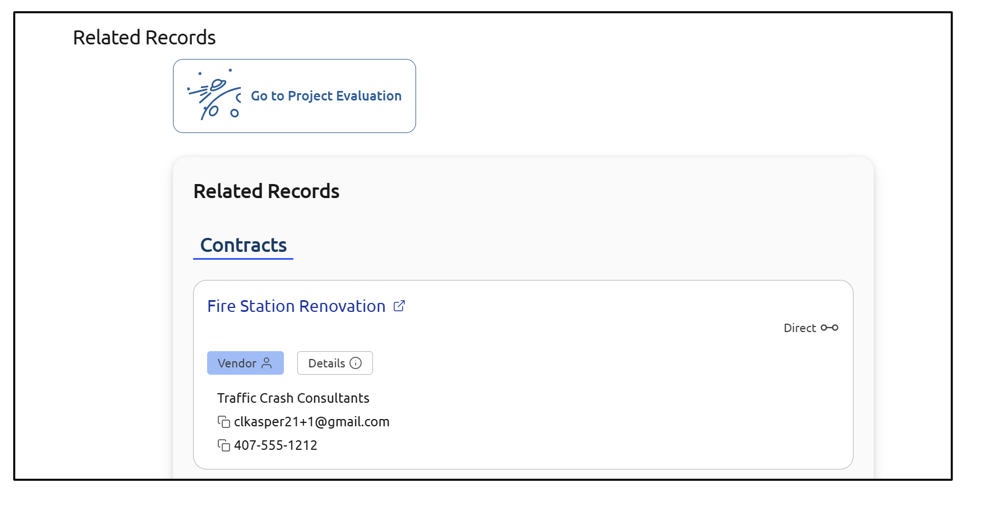
A Related Records section will now appear on the Contract. By default, you can see the information for the Administrator:
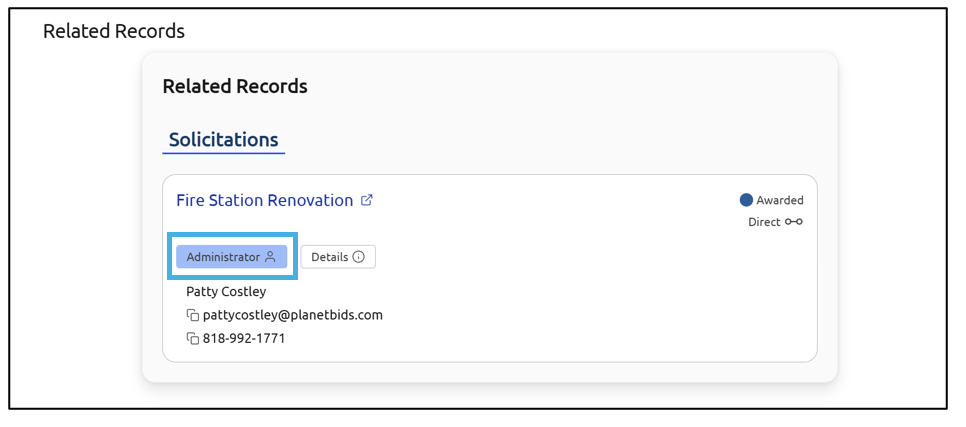
Clicking Details will give additional information about the Solicitation:
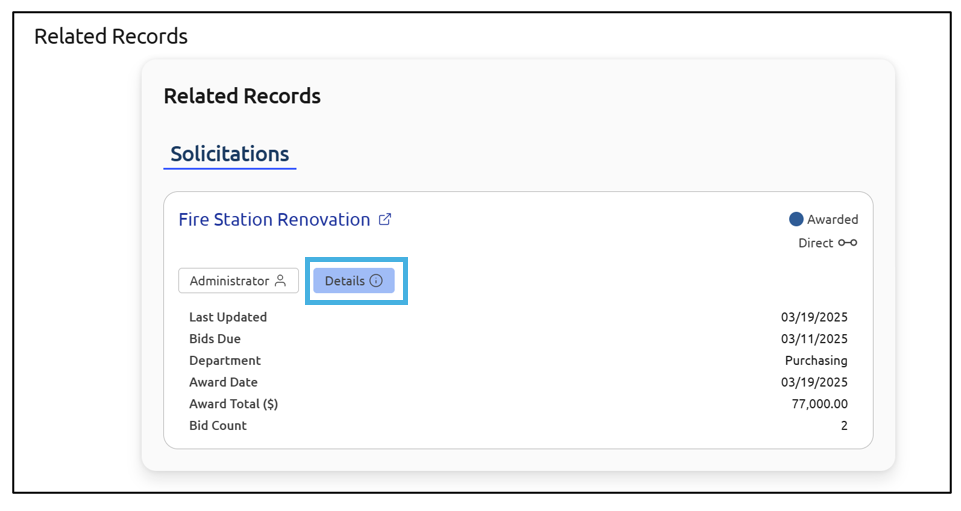
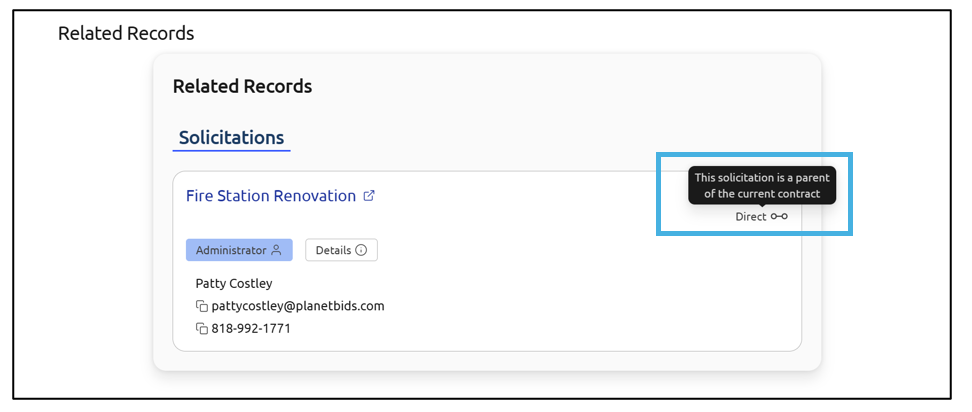
You can also see the relationship between the Related Records to the Contract:
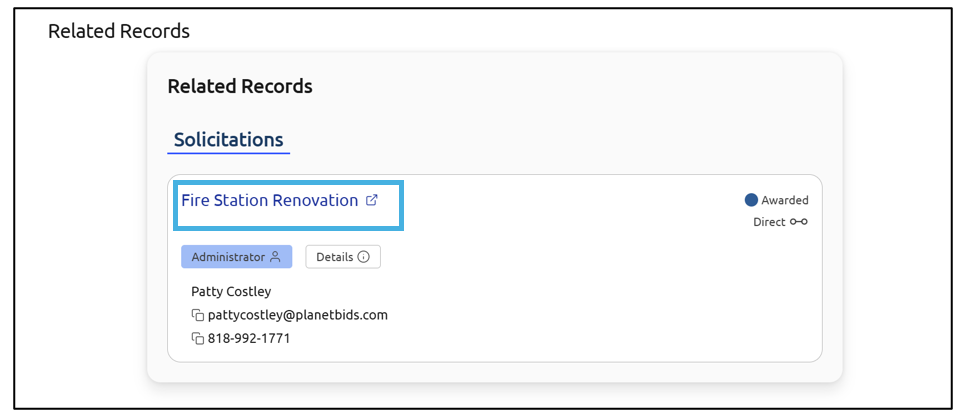
If you have permission to view the Solicitation, you can click the hyperlink. This will take you back to the Solicitation from where the Contract originated:
The Solicitation now has a Related Records section with additional information: