![PlanetBids_Logo-Default.png]](https://training.planetbids.com/hs-fs/hubfs/PlanetBids_Logo-Default.png?height=40&name=PlanetBids_Logo-Default.png)
Note: This feature is not yet available to all clients. If you don't see this functionality, stay tuned!
There are several places within the PlanetBids system where submitted business documents can be viewed. This article will outline these areas.
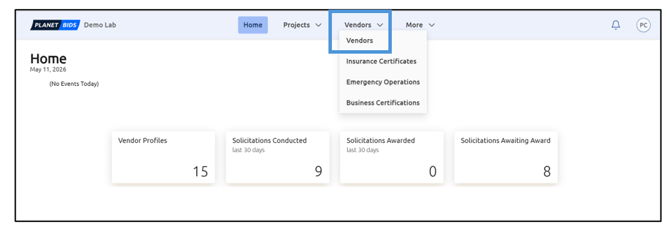
To view submitted documents for a specific vendor, click Vendors from the main menu:
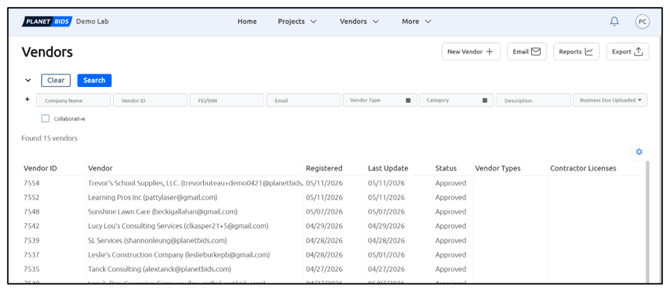
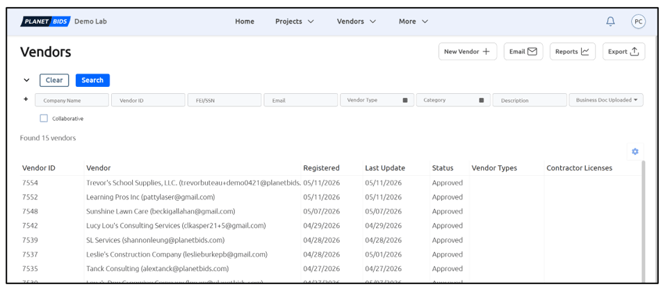
Choose the vendor from the list you wish to work with:
Scroll down in the Vendor Profile tab to Business Documents:
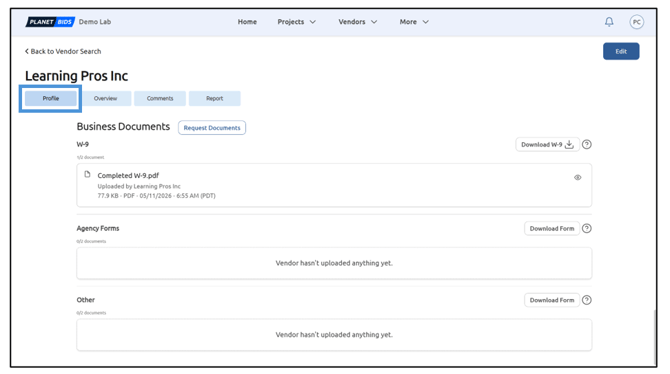
Here you will see which forms have been uploaded and which the vendor has not uploaded yet.
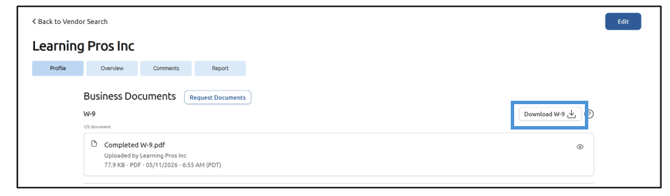
If you want to see the blank form template the vendor is using, click Download:
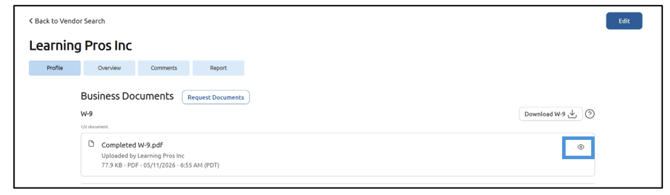
To view the completed form, click the eye icon. This will open the completed form in a new browser window, or it will download the document automatically (depends on file type):
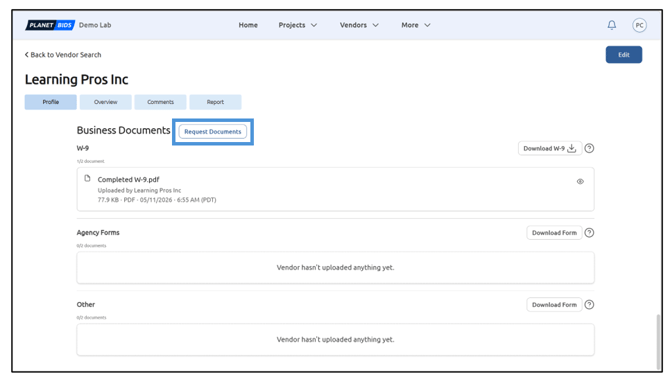
To request documents from a vendor, click Request Documents:
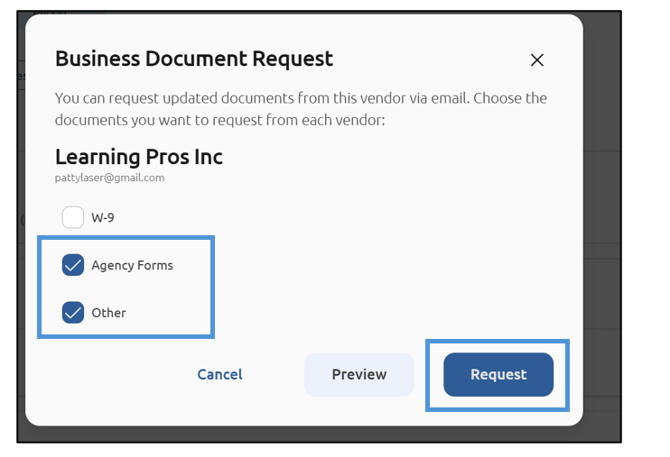
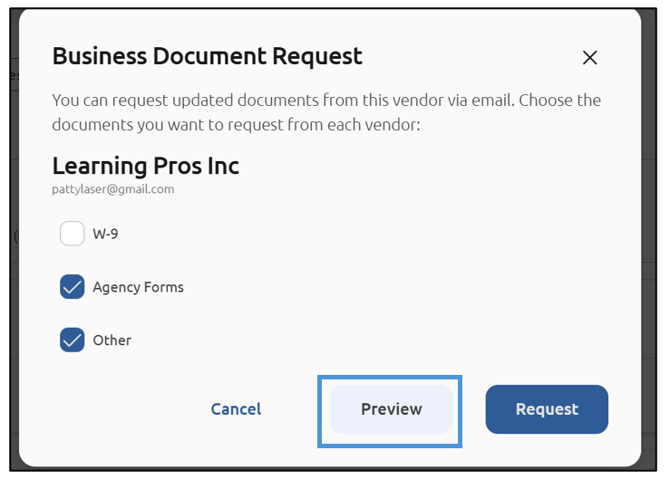
Check the corresponding box to select the document(s) you wish to request from the vendor:
To preview the email that will be sent, click Preview:
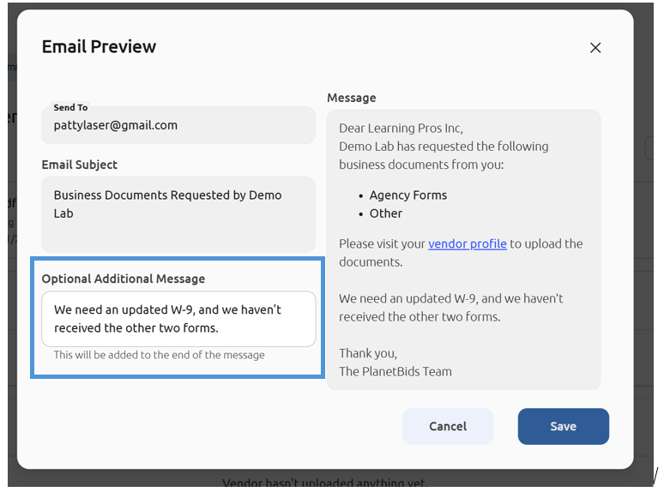
You can see the text of the email that will be sent, and you can add an Optional Additional Message:
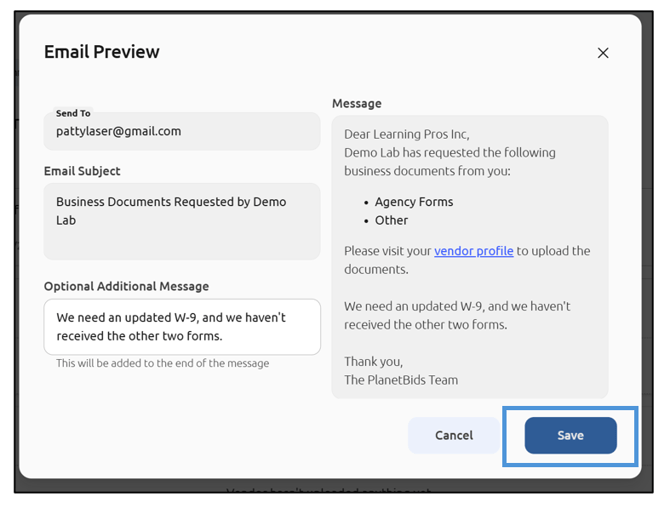
When you are finished, click Save:
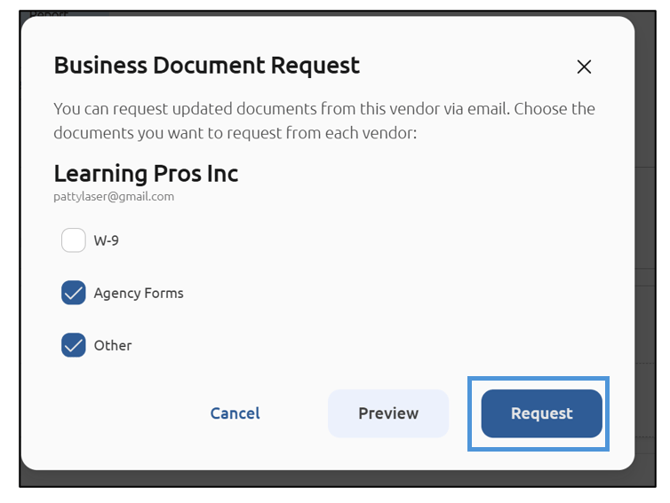
To send the email to the vendor, click Request:
In the Comments tab, you will see an audit trail of what has been requested, who requested it, and when it was requested:
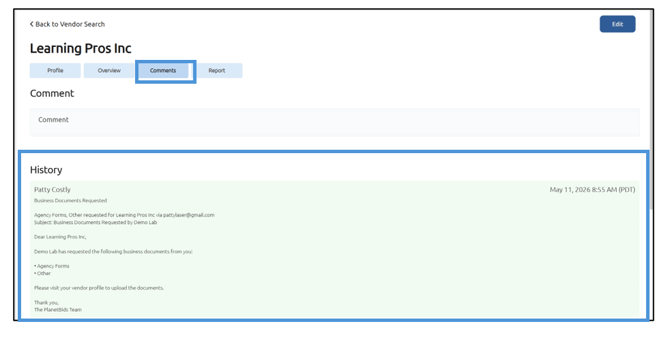
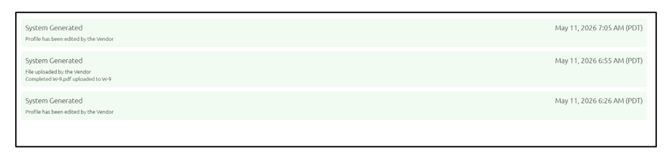
You are also able to see information about vendor activity in the Comments tab:
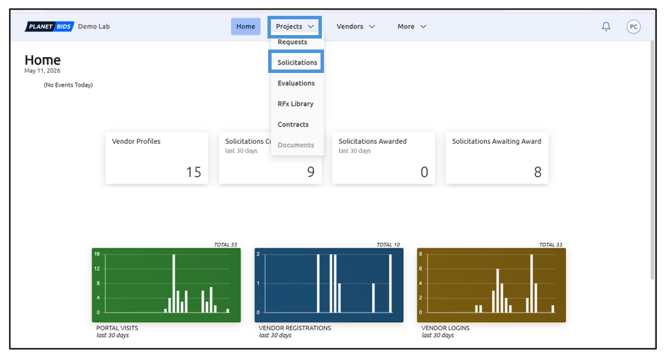
Within a Solicitation, you can also request a vendor to submit business documents. To view, go to Projects, then Solicitations from the main menu:
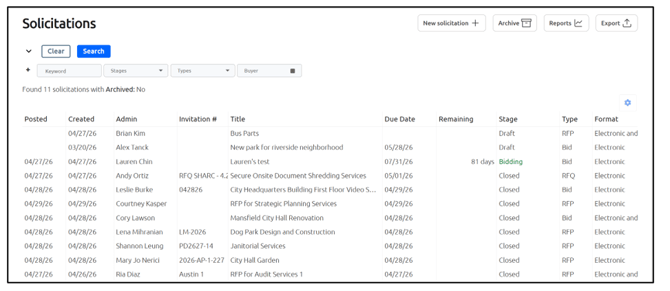
Choose the Solicitation from the list:
Click Submissions:
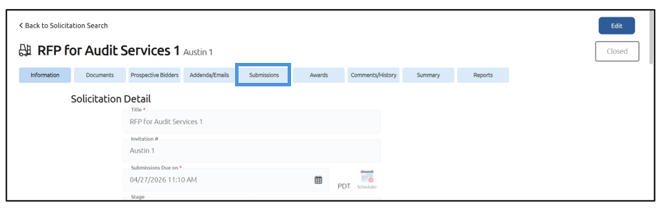
Click Request Documents:
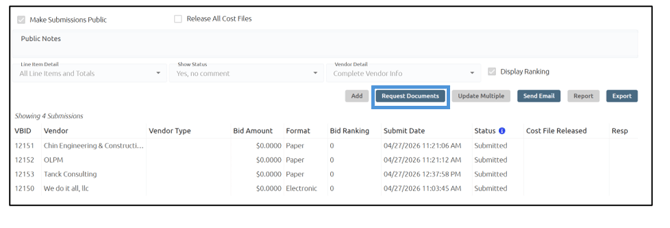
Choose the vendor(s) you wish to view or request documents from:
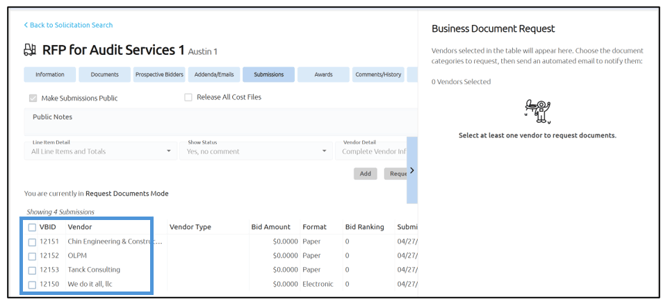
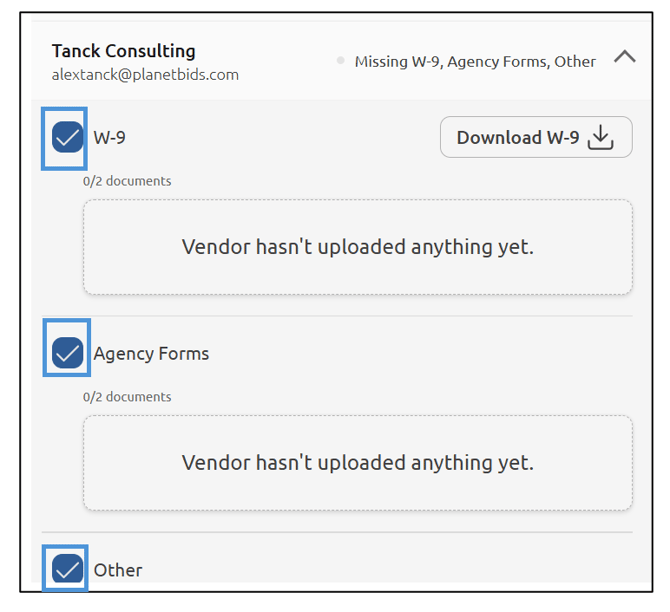
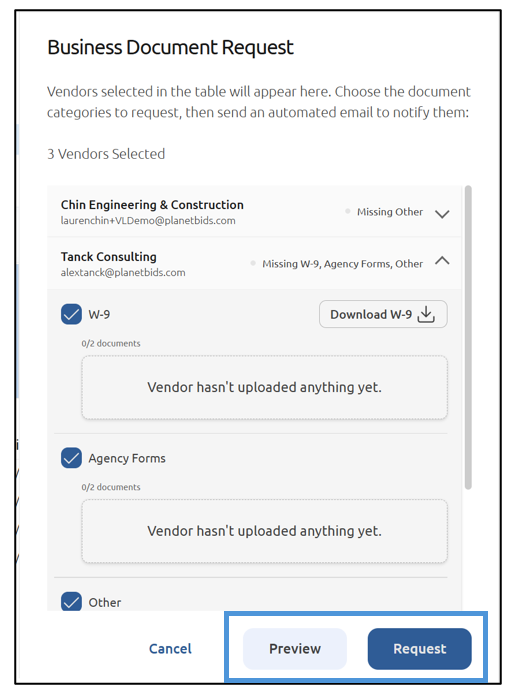
Vendors selected will appear in the box to the right. Expand the down arrow to each vendor to view and/or choose the documents you are requesting:
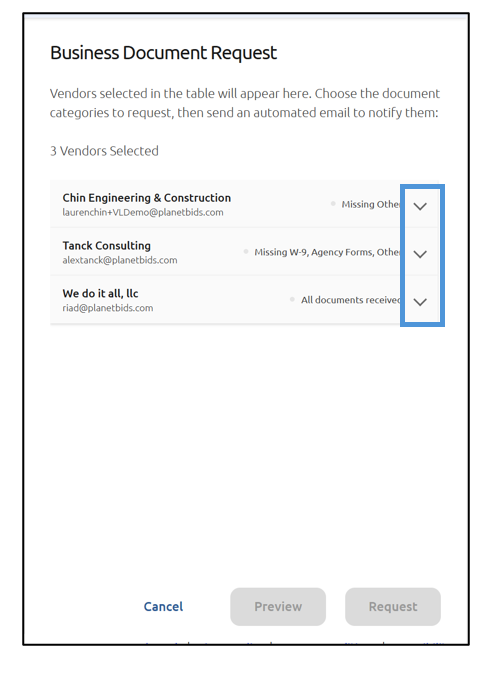
Check the box corresponding to the form you are requesting. Do this for each vendor:
As outlined above, you can Preview the email that will be sent and add additional information, or you can click Request to send:
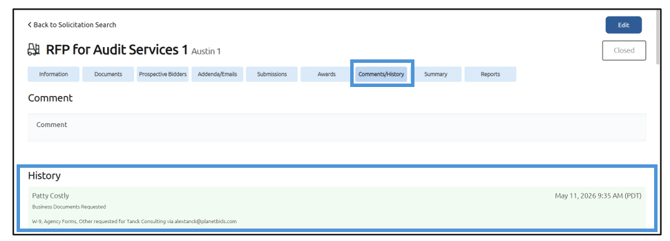
To view the audit trail of these actions, visit the Comments/History tab within the Solicitation:
Things to consider regarding user view-only permissions:
- When an agency user has the Limited View-only access to Projects permission enabled, THEN
- They CANNOT request business documents within the Submissions tab of a solicitation
- The Request Documents button is hidden
- They CANNOT view/download the uploaded business documents within the Submissions tab
- When an agency user has the View-only access to Projects permission enabled…..THEN
- They CANNOT request business documents within the Submissions tab of a solicitation
- They CAN view/download the uploaded business documents within the Submissions tab
- When an agency user has the View-only access to Vendors permission enabled…..THEN
- They CANNOT request business documents within the Vendor profile
- They CAN view/download the uploaded business documents within the Vendor profile