![PlanetBids_Logo-Default.png]](https://training.planetbids.com/hs-fs/hubfs/PlanetBids_Logo-Default.png?height=40&name=PlanetBids_Logo-Default.png)
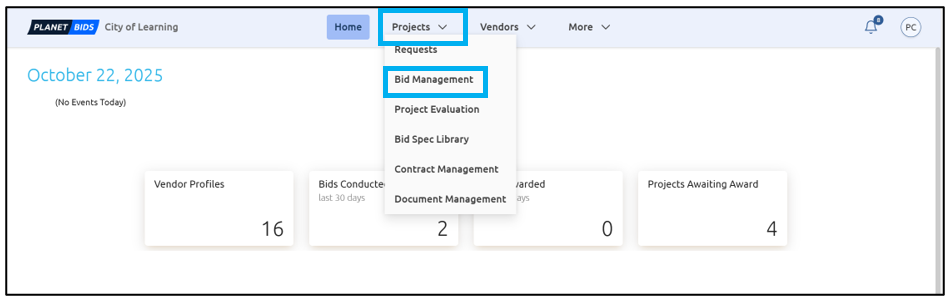
During the bidding phase, vendors sometimes submit questions to the agency. When there are many questions (some of which may be similar), it can be cumbersome to sort and answer them. The AI Q&A grouping feature helps to streamline this process. To access the questions, select Projects, then Bid Management from the PlanetBids home page:
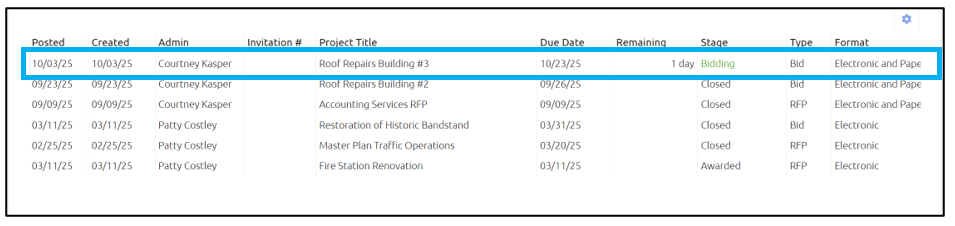
Select the solicitation you wish to work with from the list:
Click Q&A:

You will now see the list of submitted questions. The AI grouping feature groups questions that may be similar in topic, but can be answered with a single, succinct answer. To use this feature, click Edit Bid:

Click Group with AI:
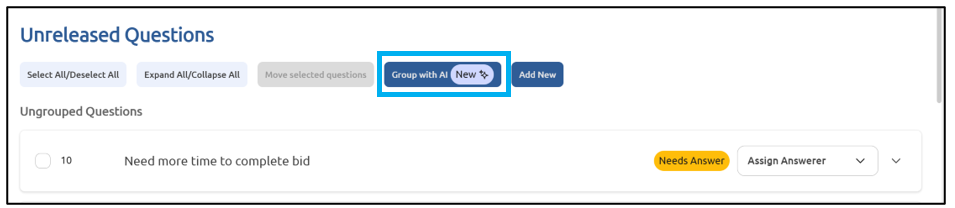
You will be asked to confirm whether you want to generate groups with AI.
Note: any previously created groups will be replaced with newly generated groups:
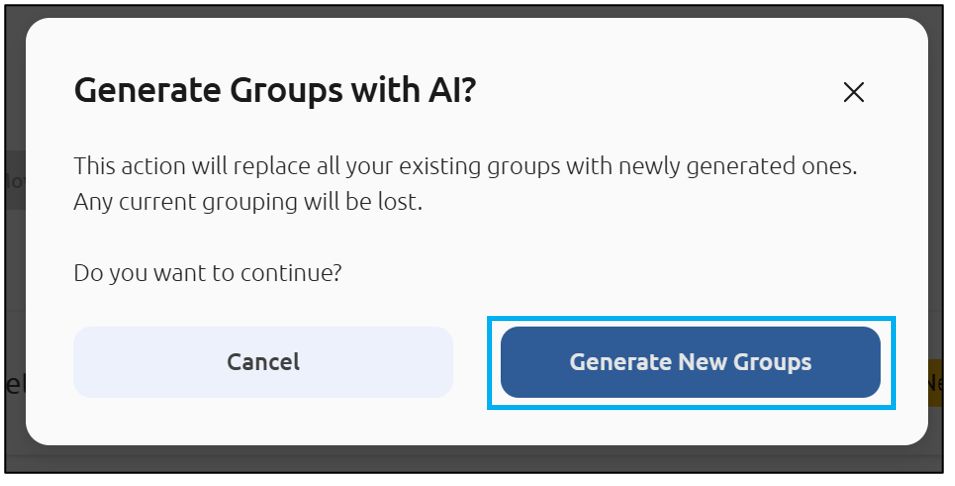
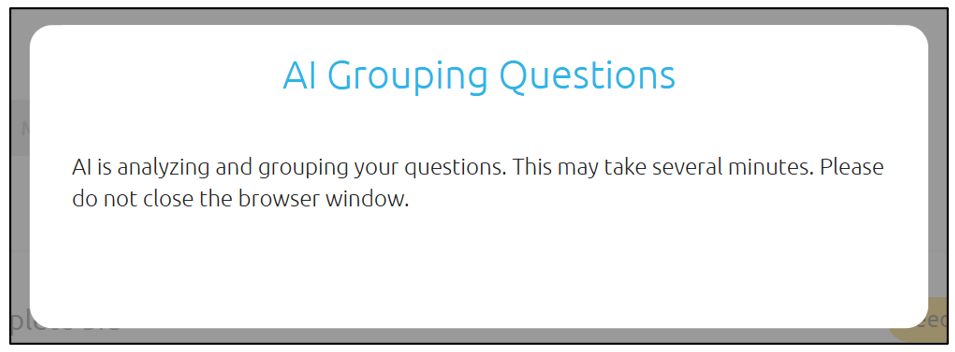
This process may take several minutes, especially if you are grouping 50+ questions. If it times out with no results, please try again:
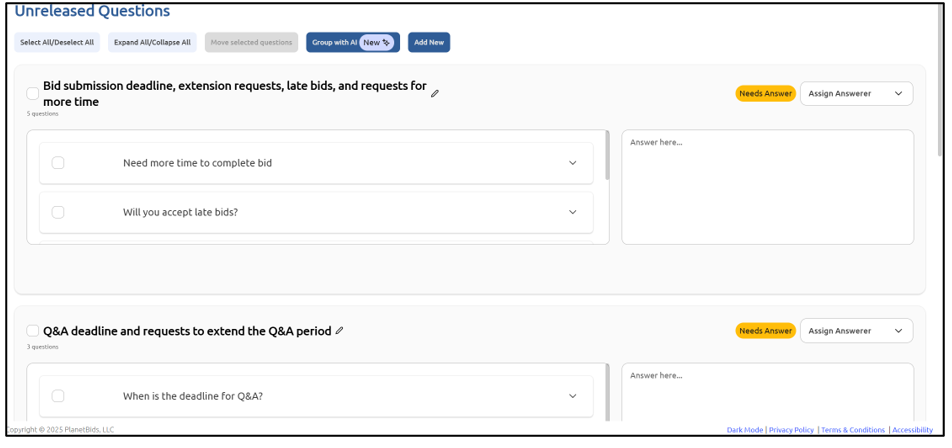
Your questions will be grouped by similar topics or questions that can be answered by one succinct answer:
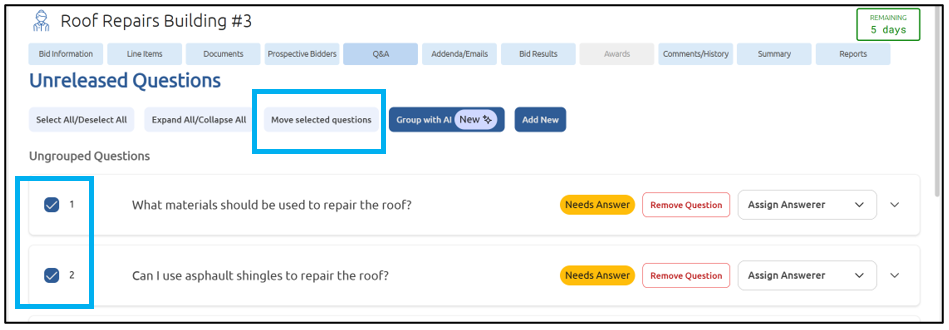
You can also manually group items together. To do this, select the questions you wish to group together by clicking into the box to the left of the question. Then, click Move Selected Questions:
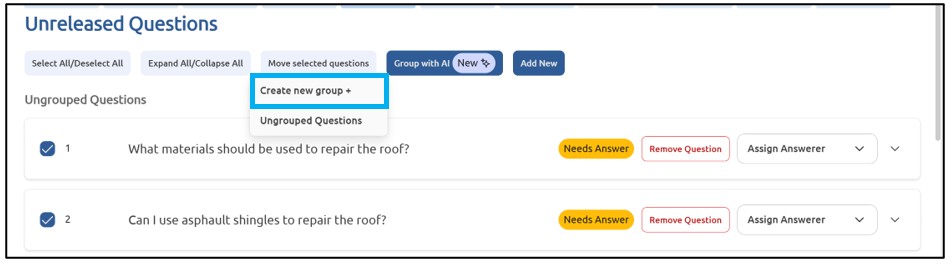
Then click Create New Group:
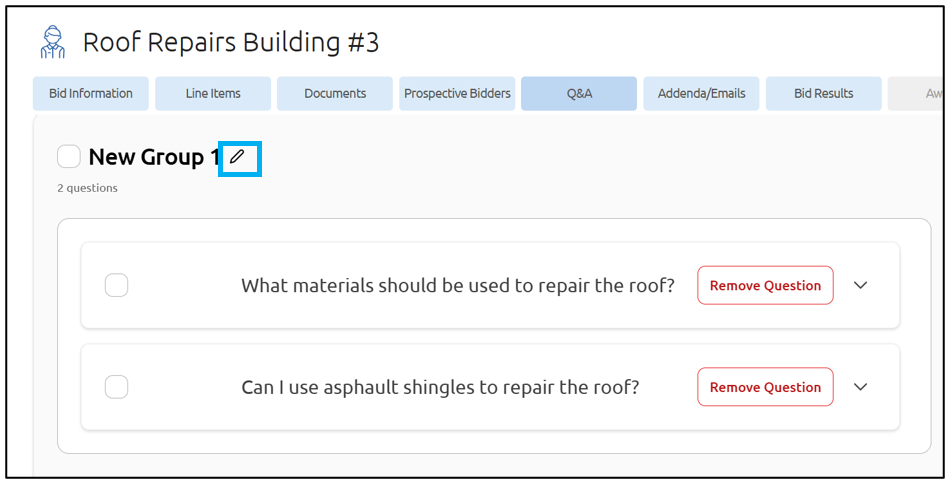
Name your group by clicking the pencil of the generic group name and typing in the new name:
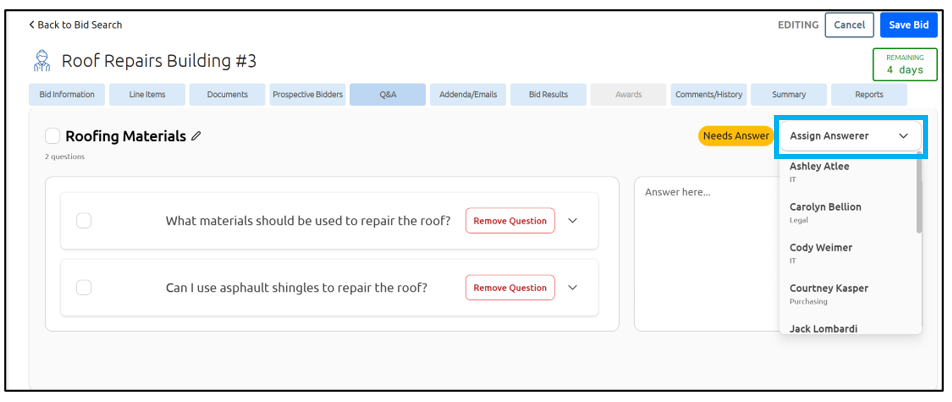
You can assign someone else to answer the question by selecting their name from the drop-down menu. They will receive an email alerting them about the question waiting for them:
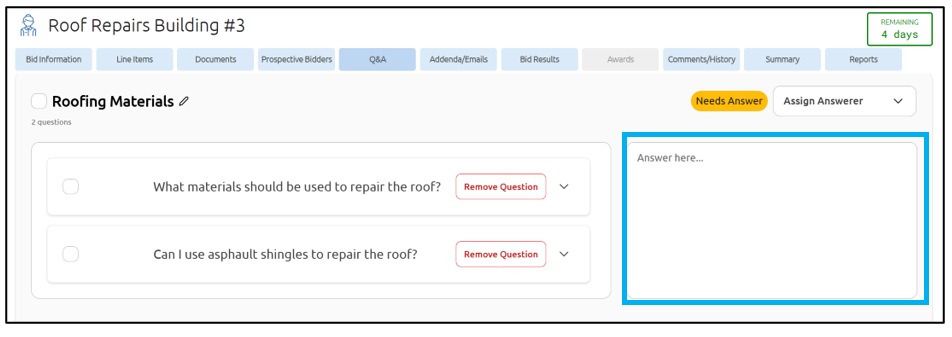
You can also answer the question yourself by typing the answer in the box:
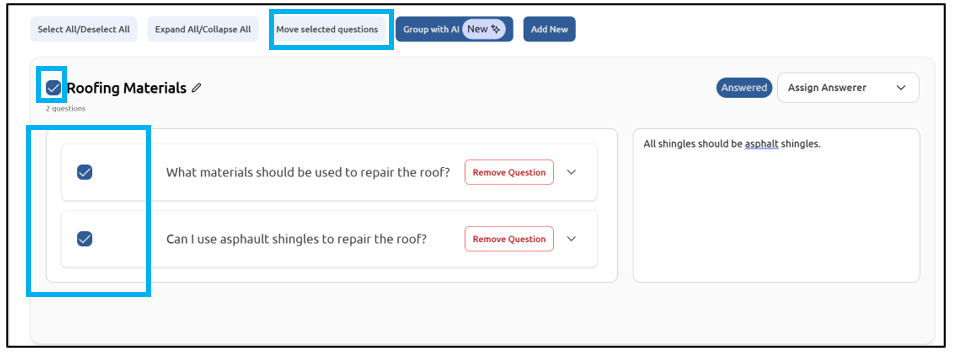
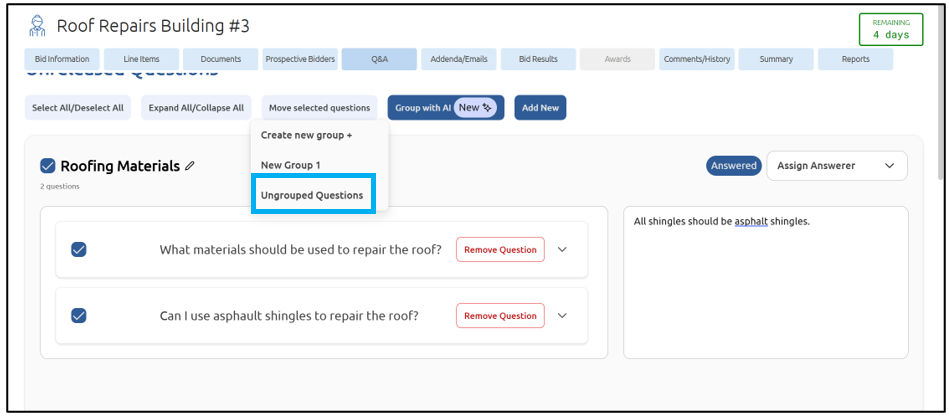
Questions can be ungrouped by selecting the check box to the left of the group name, or individual questions and clicking Move Selected Questions:
Then click Ungrouped Questions:
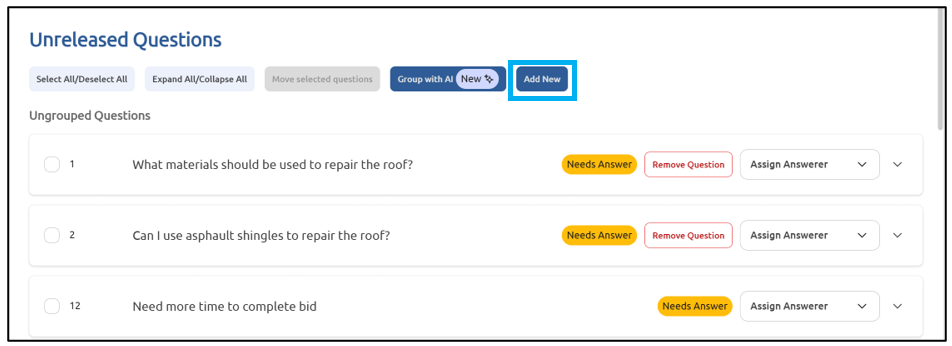
If a vendor submits a question via email or some other means, you can add that question in. To do that, click Add New:
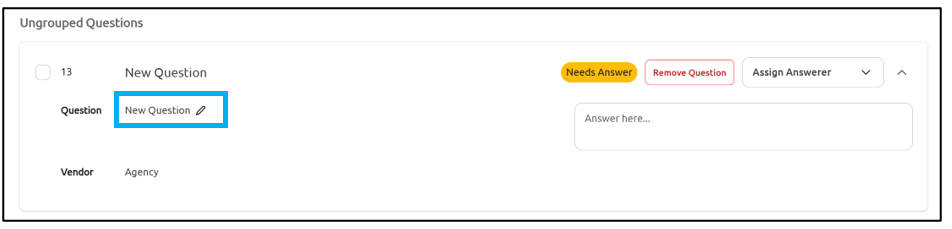
Click the pencil to the right of New Question and type the question in:
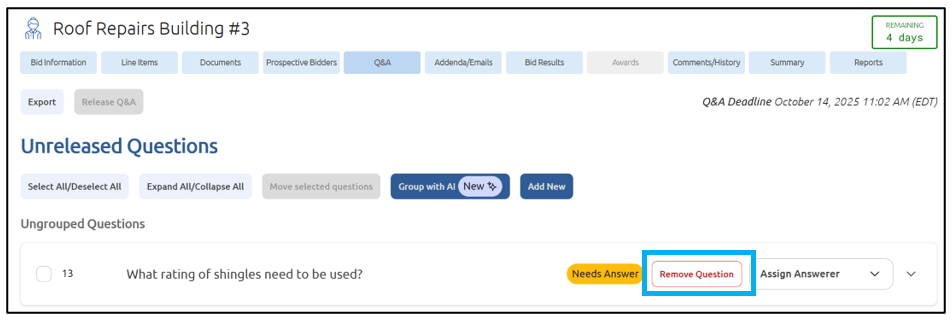
You can also remove any of the manually added questions by clicking Remove Question:
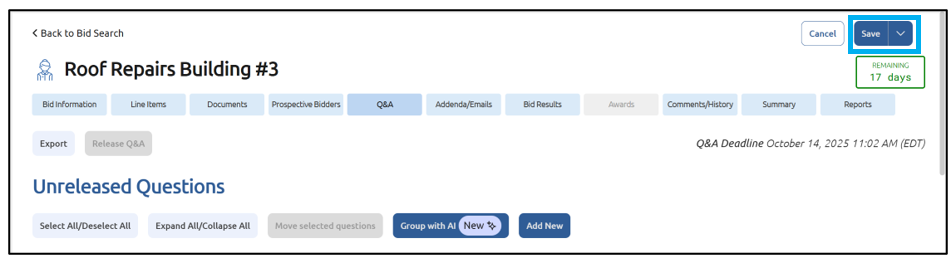
Once you have finished creating your groupings or answering questions, click Save:
When you are ready, you can release the Q&A to your vendors by clicking Select/Deselect All to release all groups, or you can click the check box to the left of the group(s) you wish to release:
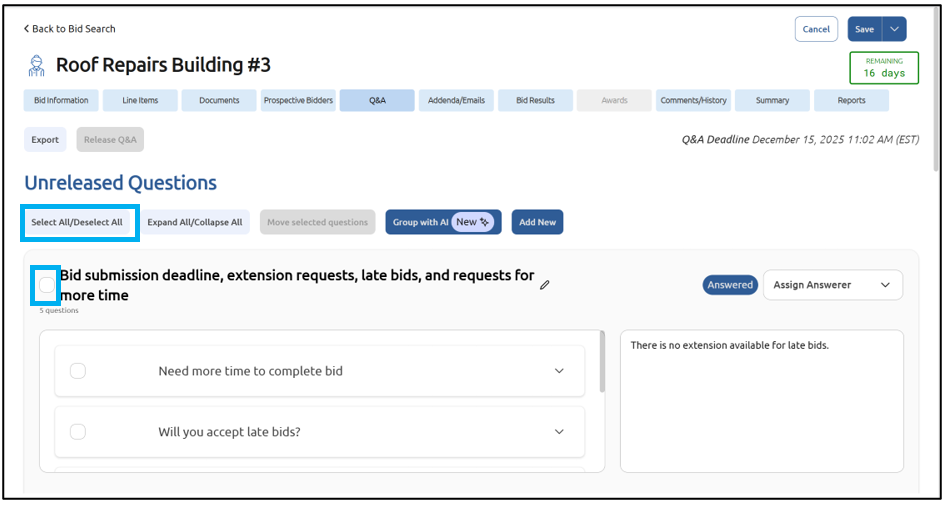
Note: partial groups of questions cannot be released. The entire answered group must be released.
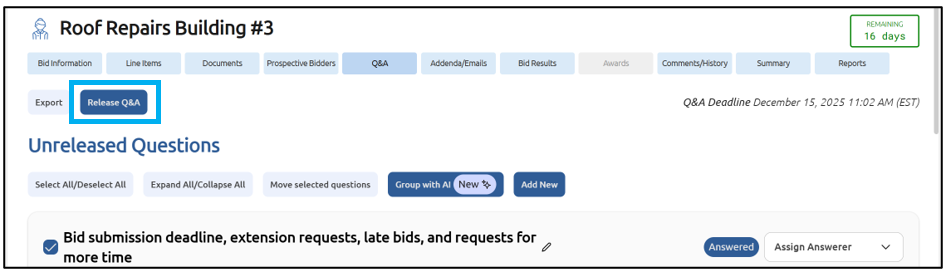
When you are ready, click Release Q&A:
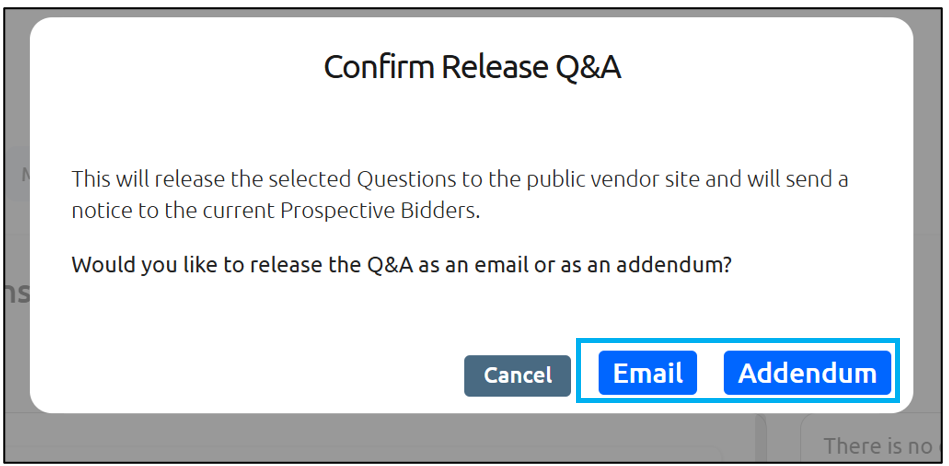
Confirm your intent to release the Q&A as either an Addendum or Email:
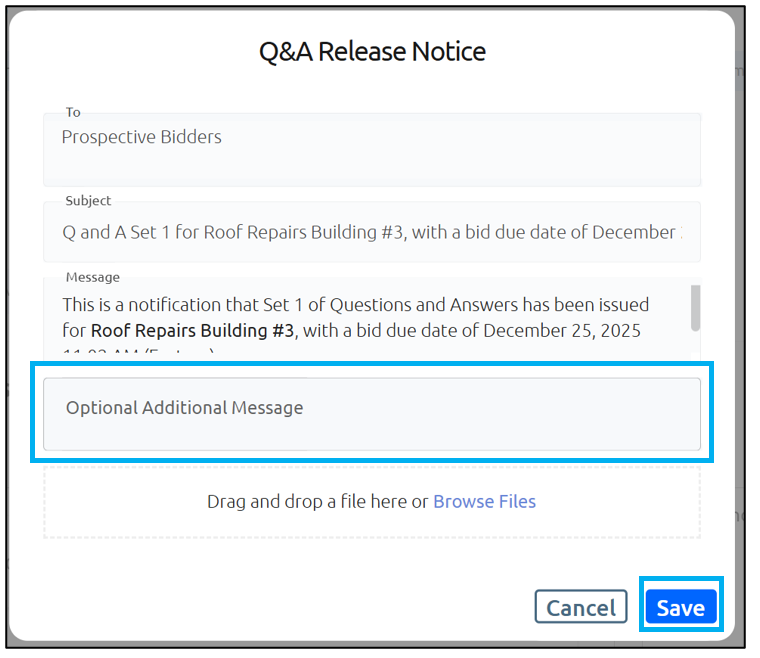
If releasing as an Email, you can add an Optional Additional Message. Click Save when finished:
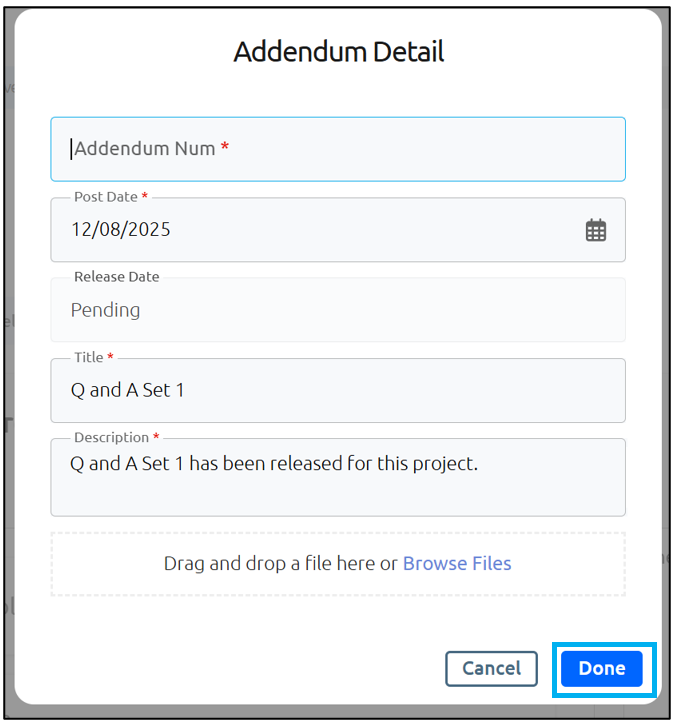
If sending as an Addendum, fill out the required fields and click Done:
Your vendors will be notified of the updated answers.