![PlanetBids_Logo-Default.png]](https://training.planetbids.com/hs-fs/hubfs/PlanetBids_Logo-Default.png?height=40&name=PlanetBids_Logo-Default.png)
You can now customize your solicitation templates by changing their names, icons, and fields (more customization options are coming soon).
IMPORTANT NOTE: When updating Solicitation Templates, these changes will reflect throughout the entire platform, and will change historical data associated with that template, including data for reporting purposes in the Bid (Solicitation) Activity Report and the Bid (Solicitation) Count Report. This will also include solicitations that have already been published.
NOTE: This feature is permission-based. To edit Solicitation Templates, a user must have Allowed to Edit Solicitation Templates in User Settings.
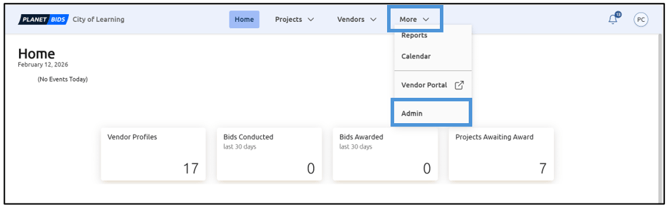
To access the templates, click More and then Admin:
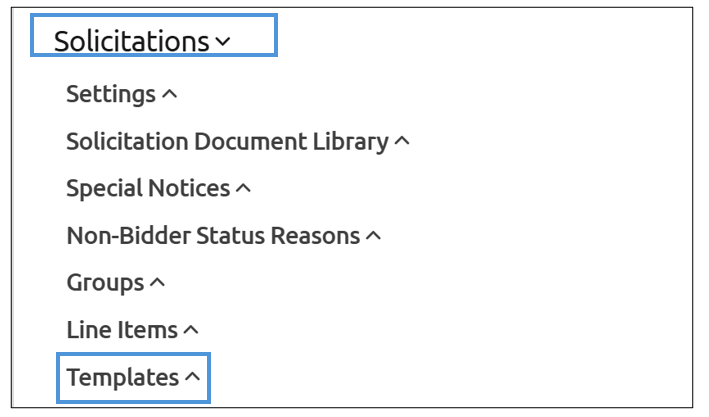
Expand Solicitations, and choose Templates:
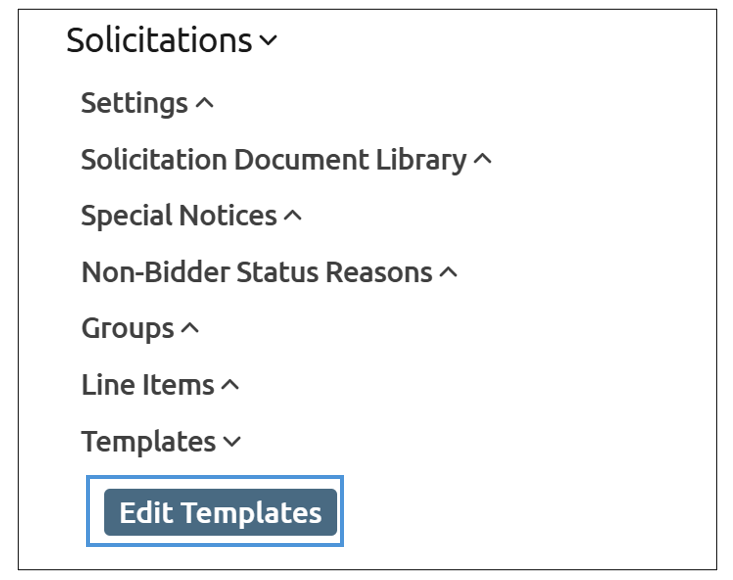
Click Edit Templates:
You will then see a list of available Solicitation Templates:
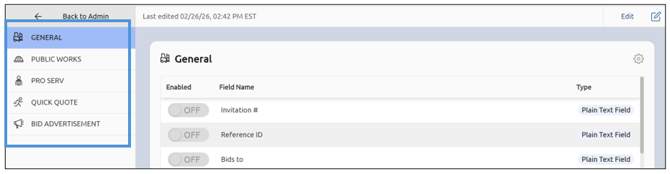
To make a change, click Edit:
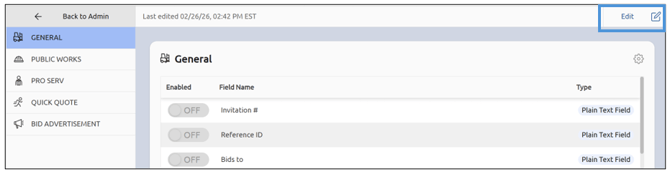
Choose the template you wish to edit, and click the gear icon:
You can now update the template name or icon. To update the template name, type in the Name box :
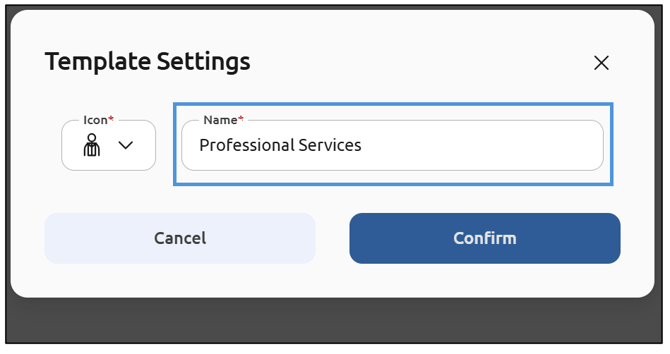
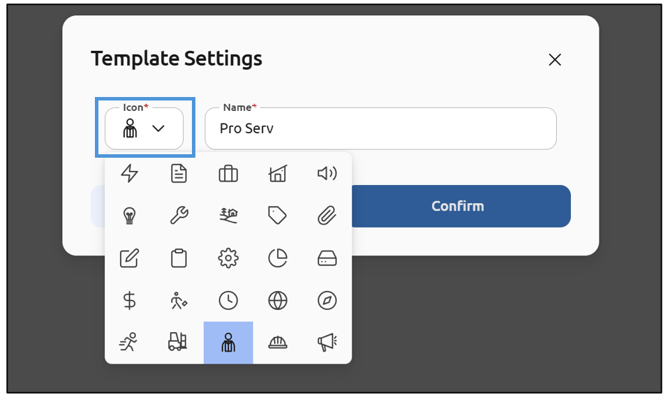
To update the icon, click the Icon drop-down menu and select the icon you wish to change to:
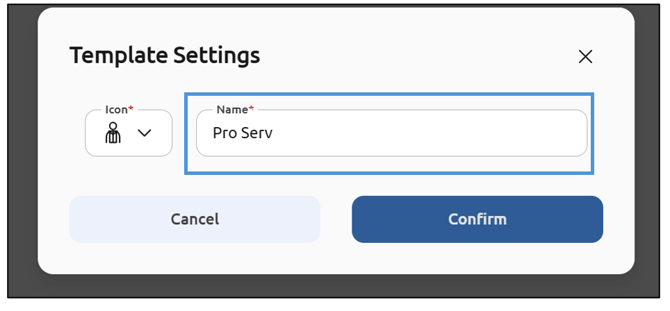
Once you have made the desired updates, click Confirm:
Once you have finished, click Save:
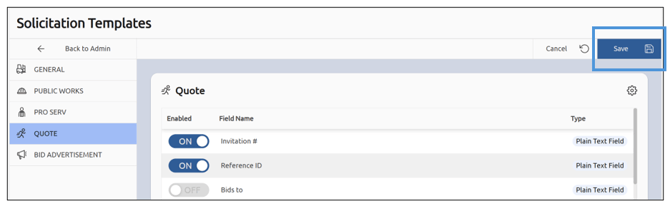
You can also update the fields that are displayed for each template.
Note: this will retroactively update all previous solicitations where the template has been used in the past.
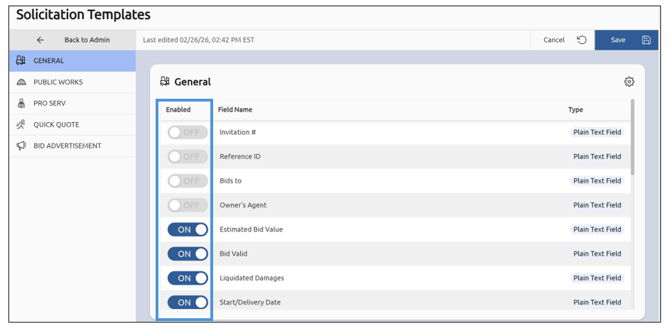
To enable or disable a field, use the toggle button associated with that field to turn it on or off:
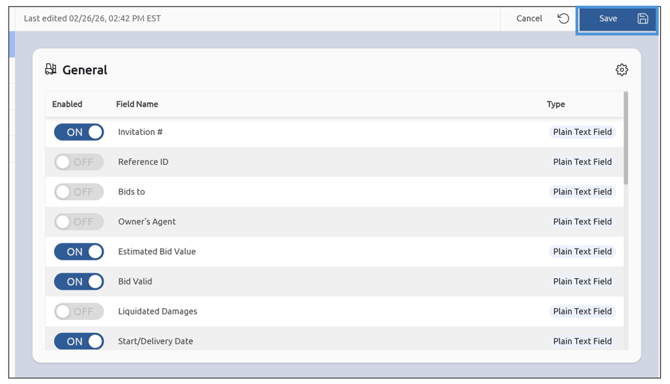
Once you have made changes to the template, click Save:
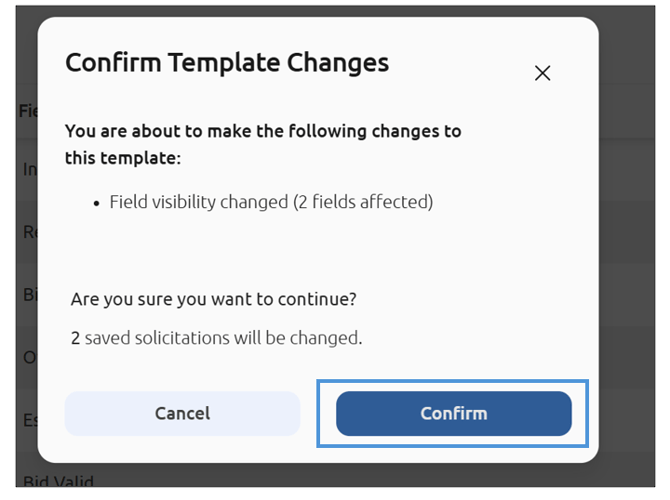
A message will be displayed to confirm the changes, showing how many fields are changing and how many previously saved solicitations will be changed. To continue, click Confirm:
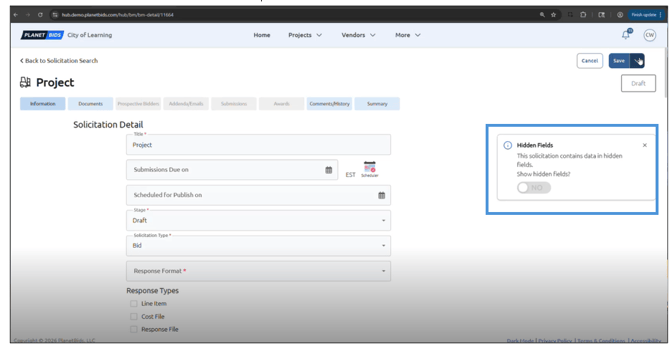
If you view a saved solicitation that has hidden fields, you will be told and given the option to toggle to view the information:
Note: the fields will not be editable.
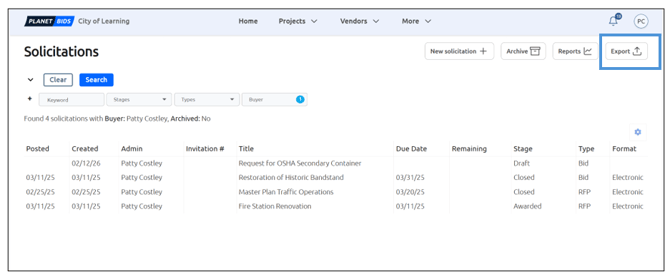
You can also view hidden fields and data when you export:
Note: If a user is viewing the Solicitation on either the VendorLine or Vendor Portal platforms, the hidden field will not be visible, even if it contains data.