![PlanetBids_Logo-Default.png]](https://training.planetbids.com/hs-fs/hubfs/PlanetBids_Logo-Default.png?height=40&name=PlanetBids_Logo-Default.png)
Before You Begin
- Confirm you have the Allowed to add a new vendor permission. If you don’t see the Import option, ask your agency administrator to confirm your permissions.
- Save your spreadsheet as an .xls, .xlsx, or .csv file.
- Enter one vendor per row, and include every required column listed below.
|
Required Columns |
Optional Columns |
|
Company Name |
Principal Owner/CEO |
|
FEI/SSN |
Doing Business As |
|
Phone |
Contact Name |
|
Address |
EXT |
|
|
Fax |
|
City |
Address 2 |
|
Zip |
State |
|
|
Country |
Commodity categories: Leave commodity categories out of your file. Vendors choose their categories when they claim their profile and finish registering.
Duplicate vendors: The import compares each email to existing vendors using an exact match and skips any row whose email already exists. PlanetBids treats different spellings of an address, such as jane@acme.com and jane.doe@acme.com, as different vendors.
Import Vendor Records
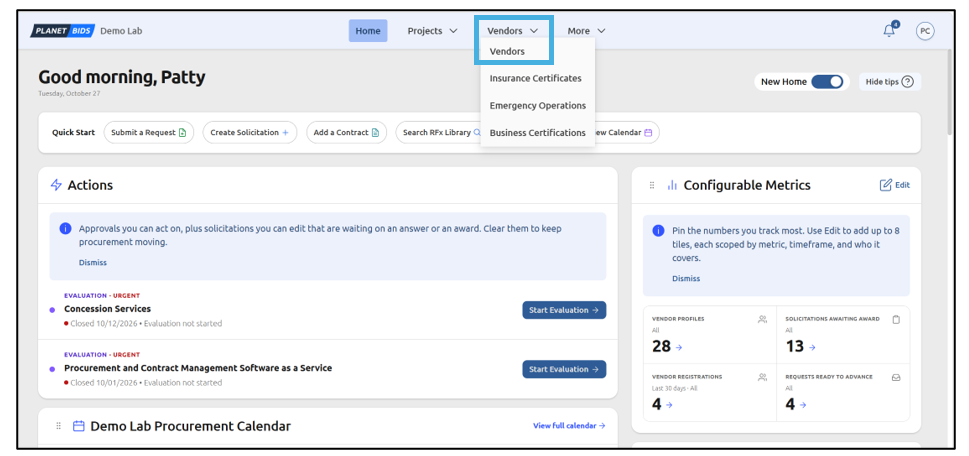
Go to the Vendors page:
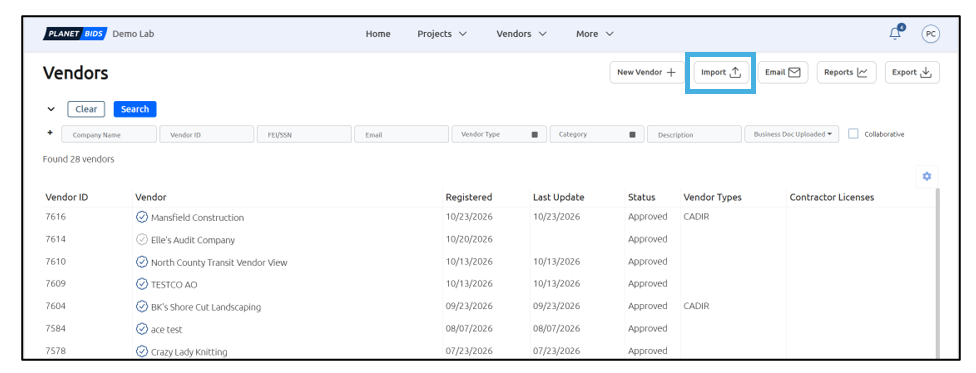
Click Import:
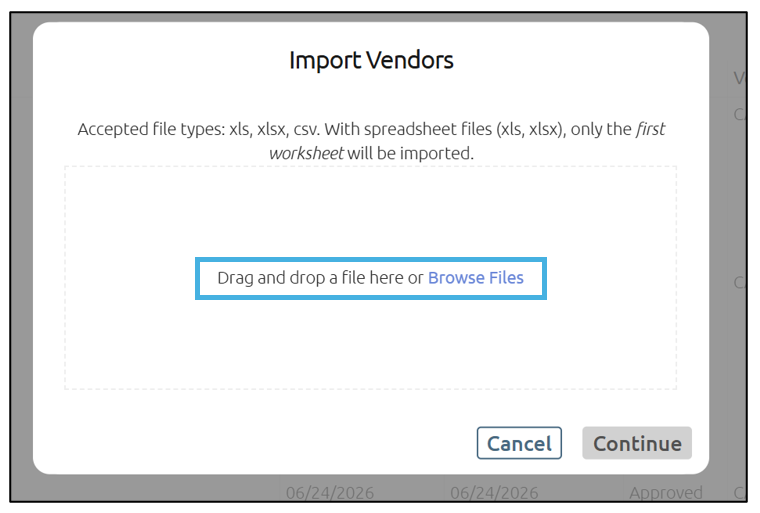
Import Vendors by dragging and dropping your file (.xls, .xlsx, or .csv ):
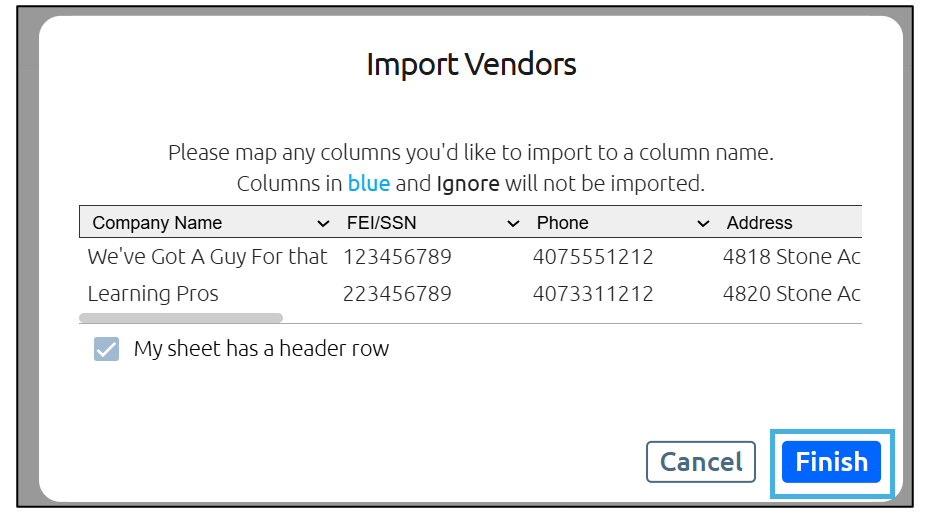
Once you have loaded your spreadsheet, click Finish. To close the window without importing, click Cancel:
Review the import summary for total rows processed, profiles created, and rows with errors:
PlanetBids creates a pre-registration profile for each valid row and sends each vendor the same registration email as a vendor you create by hand. If the summary lists any rows with errors, follow the steps below.
Fix Rows That Didn’t Import
The import saves every valid row and skips any row with a problem. It never partly saves a row. The error file uses the same layout as your upload and lists the reason each row failed.
Click the error file download in the import summary:
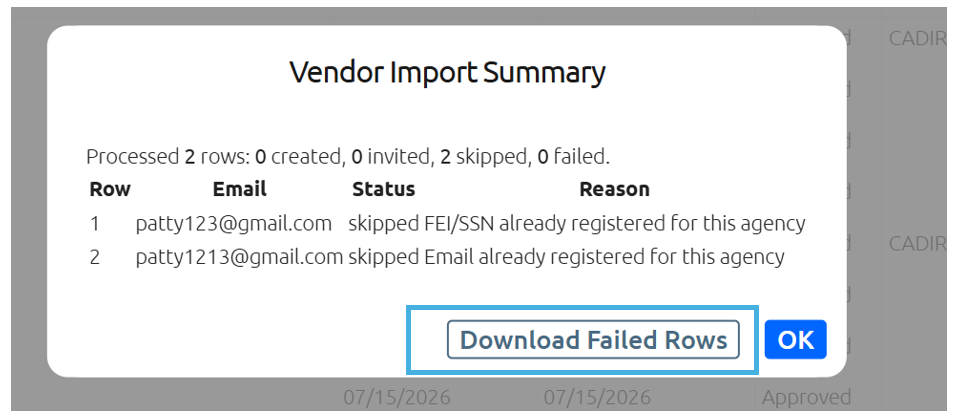
If every row imported, a success message displays instead.
Read the reason listed for each row in the error file:

Correct the data in the error file, then save it.
Upload the corrected error file by repeating the import steps above.
Note: Upload only the corrected error file. If you re-upload your original file, Agency Hub processes the rows that already imported again.
|
Reason |
How to Fix It |
|
Missing required field |
Fill in the field named in the error. |
|
Email already exists |
The vendor already exists in Agency Hub. Remove the row. |
Protect Vendor Data
Vendor spreadsheets and error files can contain FEI/SSN numbers, phone numbers, emails, and addresses. Upload files directly in PlanetBids, and avoid sending them by email. Store and delete error files the same way you handle the original file.