![PlanetBids_Logo-Default.png]](https://training.planetbids.com/hs-fs/hubfs/PlanetBids_Logo-Default.png?height=40&name=PlanetBids_Logo-Default.png)
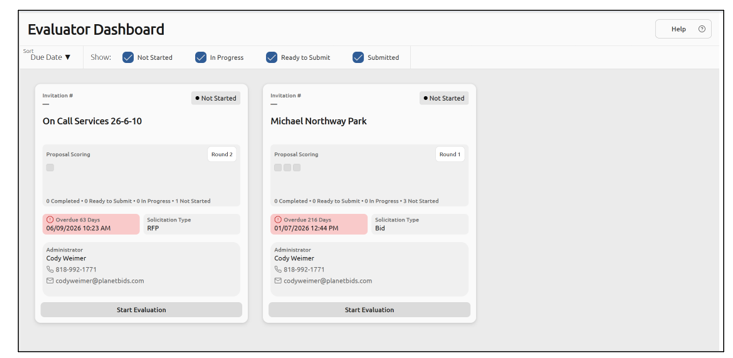
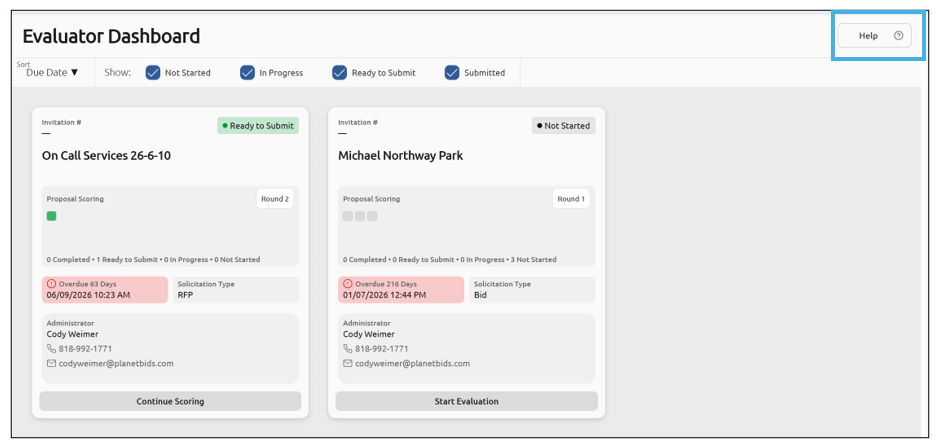
When an agency invites you to evaluate proposals, you receive your own unique evaluator link via email. Open that link to sign in and go straight to your Evaluator Dashboard. The dashboard provides a comprehensive view of all evaluation projects assigned to you:
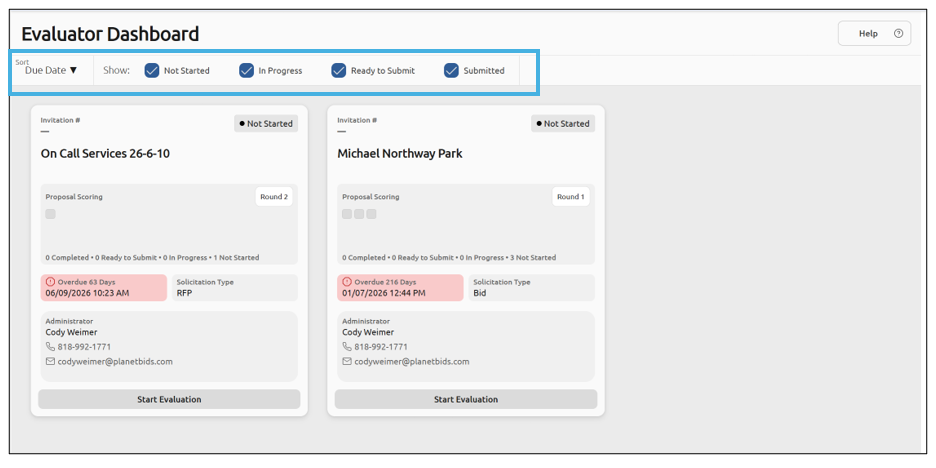
Get oriented with the dashboard The toolbar across the top allows you to narrow down your project list by sorting and filtering your projects:
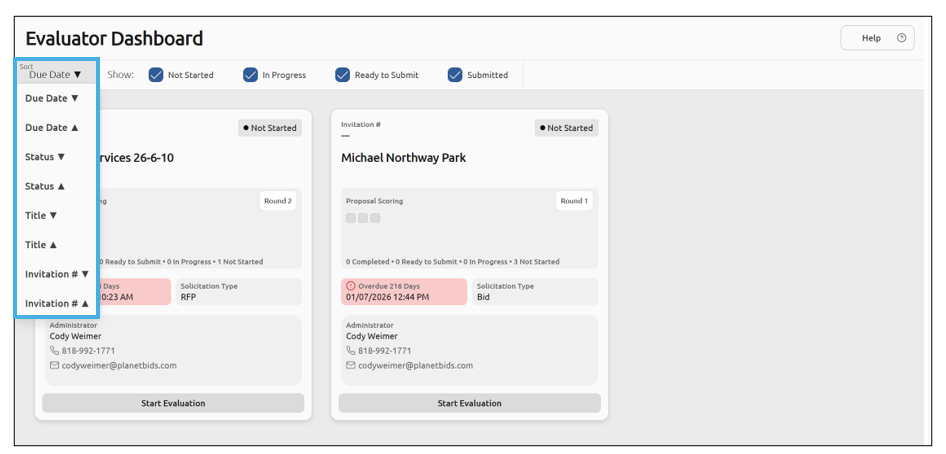
Sort by Due Date, Status, Title, and Invitation #:
You can also filter your projects by status. Use the filter options in the toolbar to narrow your project list to one status at a time:
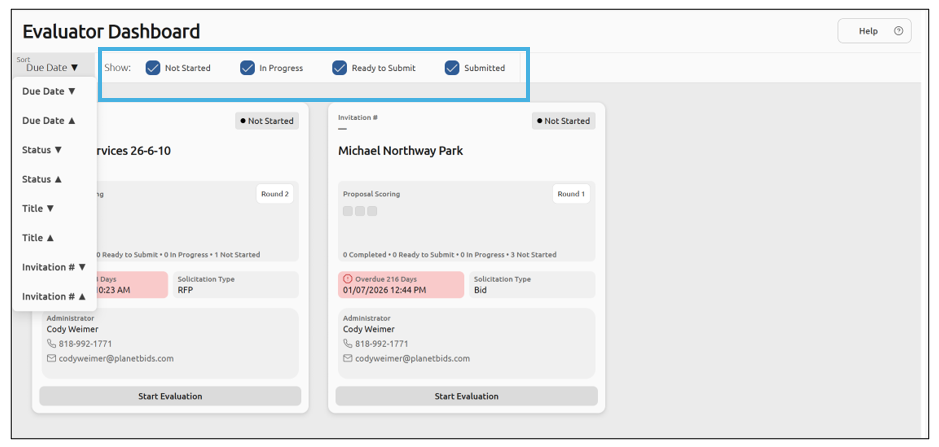
- Not started — Projects you haven’t begun evaluating.
- In Progress — Projects where you’ve started scoring.
- Ready to Submit – Projects that are ready to submit but have not yet been submitted.
- Submitted — Projects where you’ve completed your evaluation.
Clear the filter to return to the full list.
Read a project card
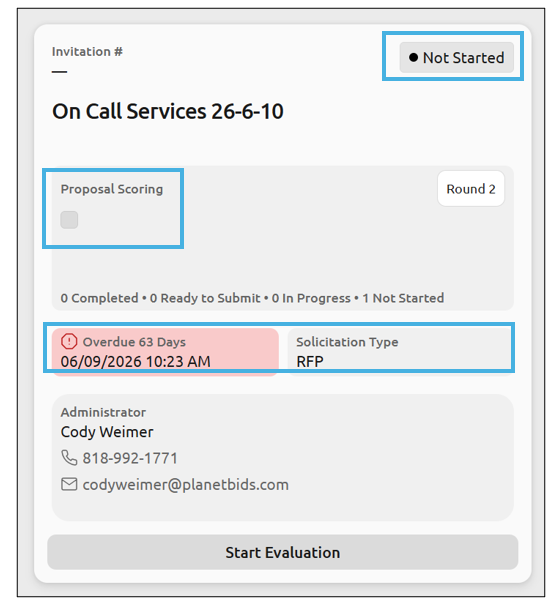
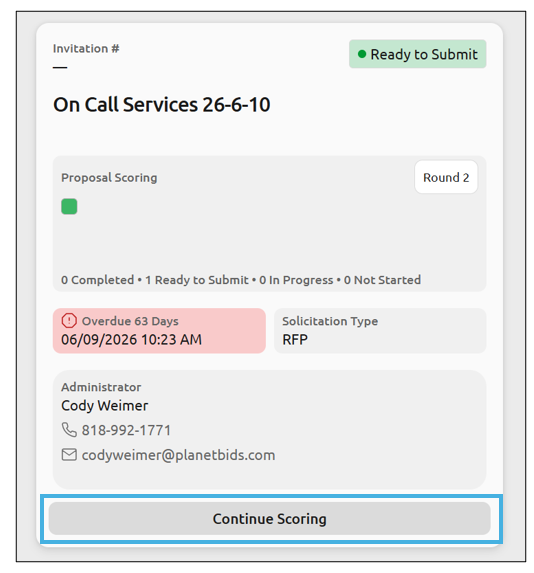
Each project is displayed as a card. Review the card to see at a glance:
- The project’s current status.
- The due date, which changes appearance as the deadline approaches or passes (for example, Due Soon or Overdue).
- Your scoring progress, showing how many proposals you’ve scored out of the total.
- The solicitation type.
Take action from a project card
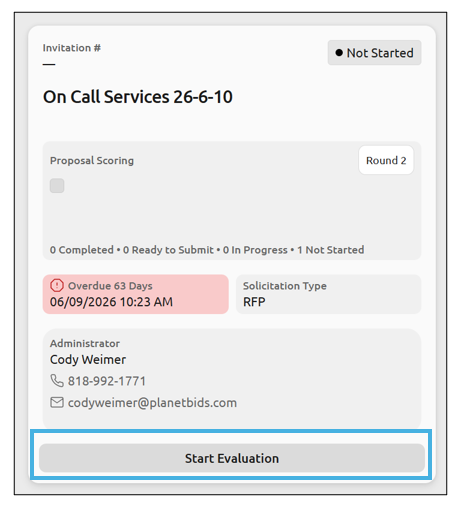
Each card provides a quick action based on where you are in the evaluation:
Start Evaluation— Begin evaluating proposals on a project you haven’t started:
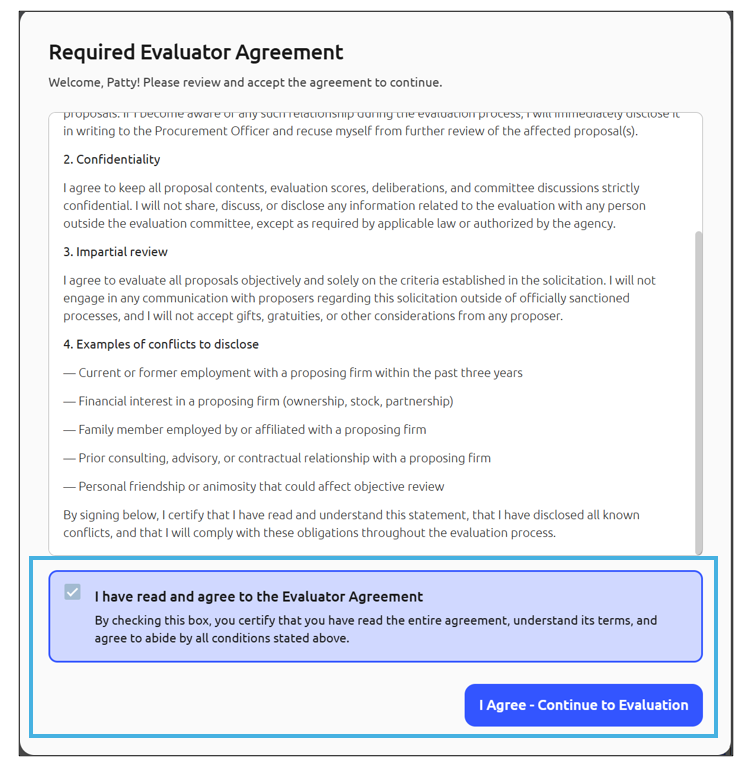
When you click this, you may be presented with the Evaluator Agreement. Scroll to read the agreement, then acknowledge and agree to move on to the Evaluation:
Continue Scoring - Resume incomplete work:
Open the Help Panel
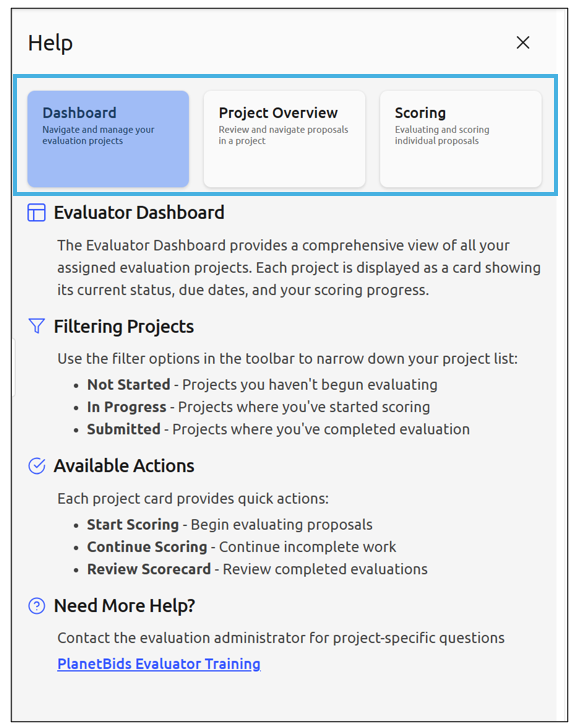
If you need help at any time during the Evaluation process, the Help Panel is a great resource. Click Help in the upper right corner of the Evaluator Dashboard:
Each tab gives you information about the phases of the evaluation. Click into the tab for more information: