![PlanetBids_Logo-Default.png]](https://training.planetbids.com/hs-fs/hubfs/PlanetBids_Logo-Default.png?height=40&name=PlanetBids_Logo-Default.png)
Note: The homepage feature is being updated very frequently. You may see slightly different cards on your home screen depending on modules purchased, permissions, and product updates.
Overview
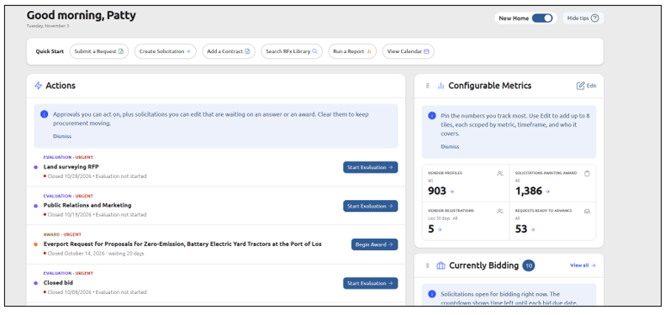
The home page is the first screen you see after you log in to Agency Hub. It brings together the items that need your attention, upcoming procurement dates, and key numbers from across the modules your agency uses, so you can start work without navigating through menus.
The page is made up of cards. Which cards you see depends on two things: whether your agency has the related module, and whether your user account has permission to use it. If a card does not apply to you, it does not appear:
Page Header
The top of the page includes a personalized greeting with your first name and today’s date, the Quick Start row, and controls for the page itself:

Quick Start
The Quick Start row gives you one-click shortcuts to common tasks. Depending on your agency’s modules and your permissions, shortcuts can include creating a request, creating a solicitation, creating a contract, and searching the RFx library.
In the Quick Start row, click the shortcut for the task you want to start.
Complete the task on the page that opens.

Switching Between the New and Original Home Page
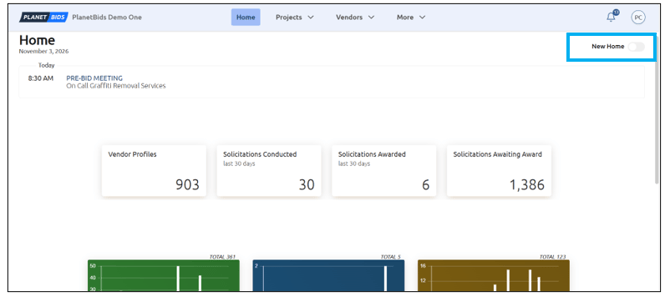
You can switch back to the original home page at any time. Your choice is remembered the next time you log in.
Click the New Home toggle at the top of the home page:

To return to the new home page, toggle New Home back on:
Turning Tips On or Off
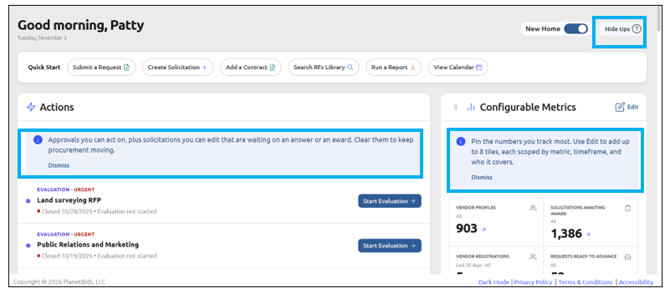
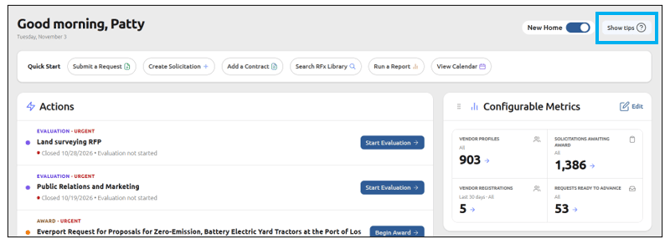
Each card includes a short tip that explains what the card is for. You can turn tips off for every card at once, or turn them back on.
Click Hide Tips to turn off the tips:
To show tips again, click Show Tips:
Actions
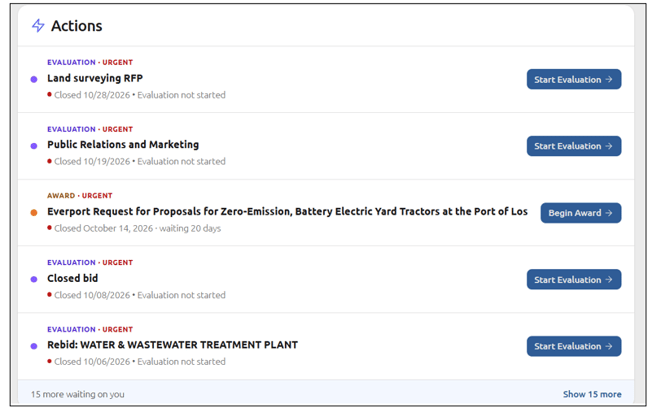
The Actions card is a single list of items that are waiting on you. It can include:
- Solicitation approvals and request approvals you are eligible to act on.
- Your own documents and requests that were returned with changes requested.
- Your solicitations with vendor questions that have not been answered.
- Closed solicitations where the evaluation has not started, or that have not been awarded.
- Your unfinished drafts, which appear below items that are blocked on you.
Click any item to open the related record. When nothing is waiting on you, the card shows a caught-up message. Users with read-only access do not see the Actions card.
The card shows up to five items at a time; you can expand it to see the rest:
The Actions card is a single list of items that are waiting on you. It can include:
- Solicitation approvals and request approvals you are eligible to act on.
- Your own documents and requests that were returned with changes requested.
- Your solicitations with vendor questions that have not been answered.
- Closed solicitations where the evaluation has not started, or that have not been awarded.
- Your unfinished drafts, which appear below items that are blocked on you.
Click any item to open the related record. When nothing is waiting on you, the card shows a caught-up message. Users with read-only access do not see the Actions card.
The card shows up to five items at a time; you can expand it to see the rest:
Procurement Calendar
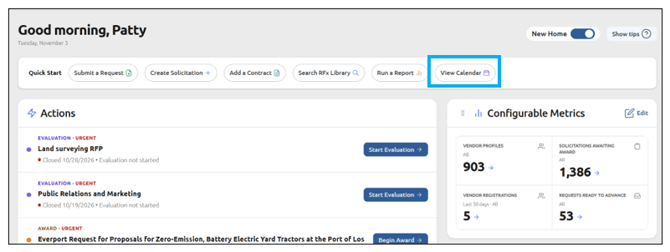
The Procurement Calendar shows key solicitation dates, such as bid due dates, on a calendar grid. Dates come from your existing solicitation records, so you do not need to enter them. To view the calendar, click View Calendar:
Moving Around the Calendar
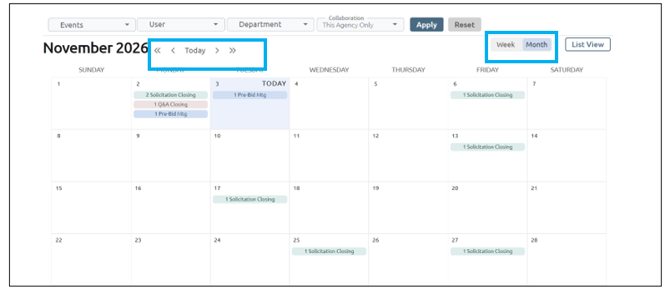
Use the controls to move between months, return to the current date, or to see one week at a time:
Viewing a Day and Opening a Record
Click a day on the calendar to see everything scheduled for that day:
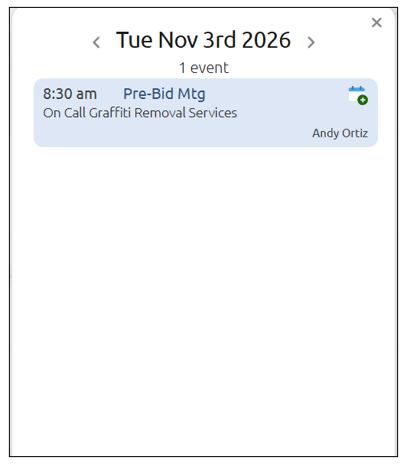
Click an item in the day’s list to open the solicitation or other record it belongs to:
Configurable Metrics
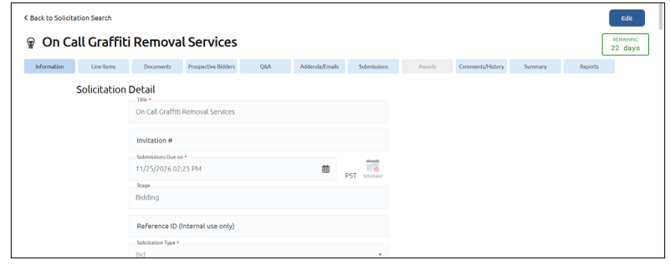
The Configurable Metrics card shows up to eight numbers you choose to track, such as counts or totals from your agency’s modules. A starting set of metrics is shown by default. Click any metric to open the related module’s search, filtered to the same records:
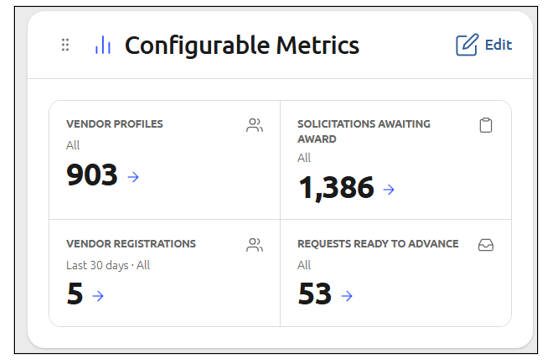
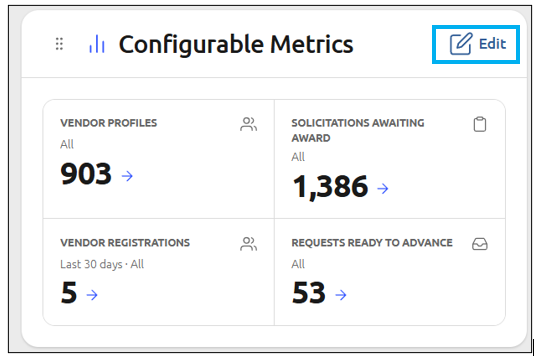
Metrics are chosen from a catalog organized by module, metric, timeframe, and scope. Only metrics from modules your agency has and that you can access appear in the catalog. Your selections are saved and appear each time you log in. To change the configurable metrics, click Edit:
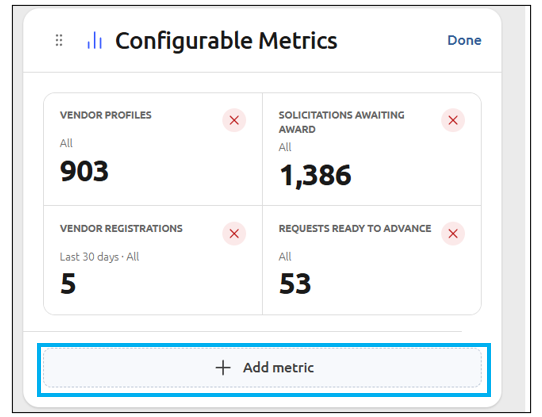
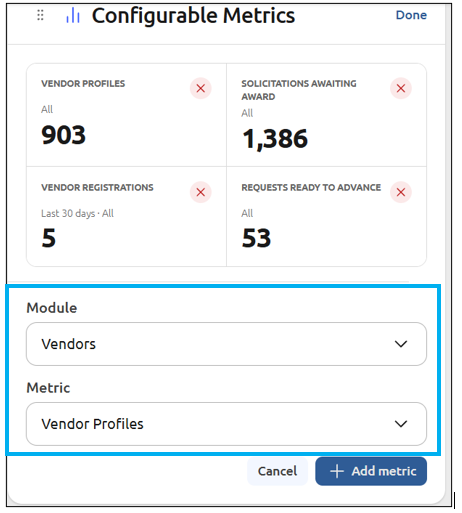
To add a metric, click Add Metric:
Choose the Module and Metric from the drop-downs:
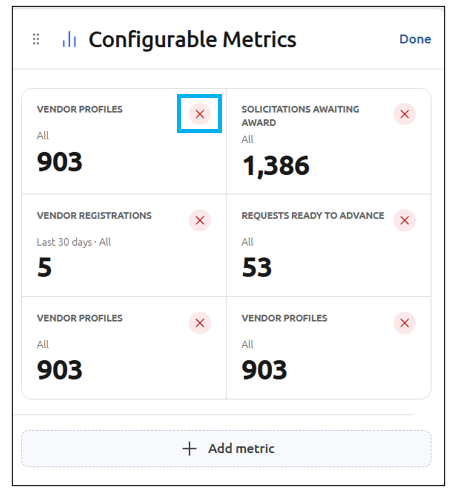
To remove a metric, click X on that metric:
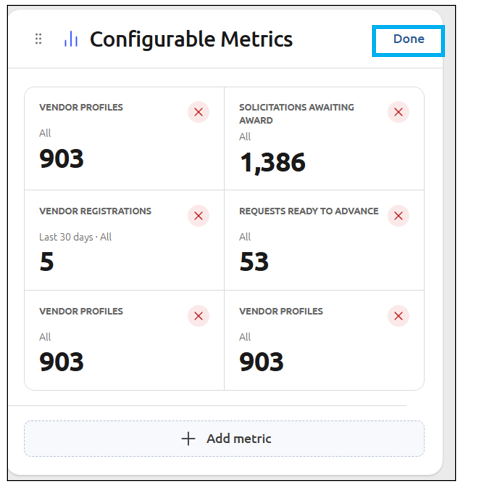
Click Done:
If you already have eight metrics, a message explains that you must remove one before adding another. If you don't have any metrics available, the card doesn't appear.
Help
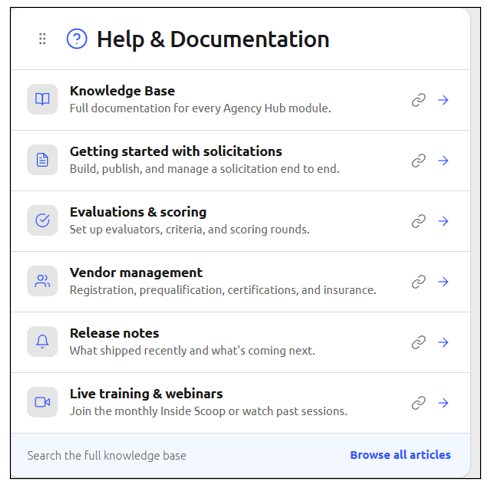
The Help card links to help resources. You can copy a resource’s link without opening it, so you can share it with a colleague:
Module Cards
The following cards appear when your agency has the related module, and you have permission to use it.
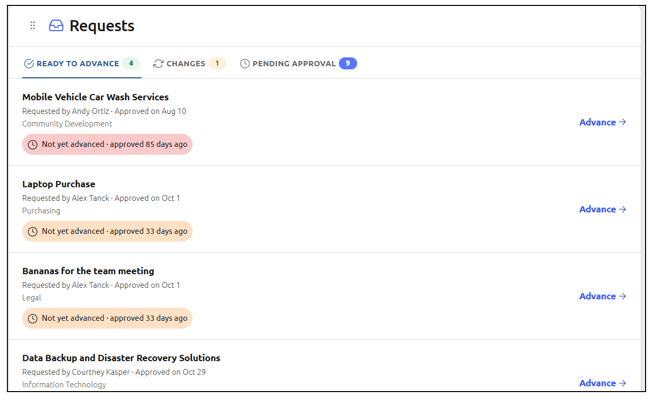
Requests
Shows your pending requests so you do not need to search for them:
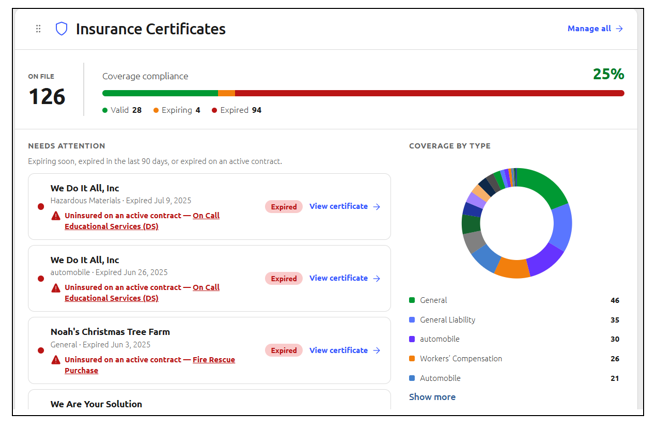
Insurance Certificates
Shows vendor insurance certificates that are expiring, so you can follow up before they lapse:
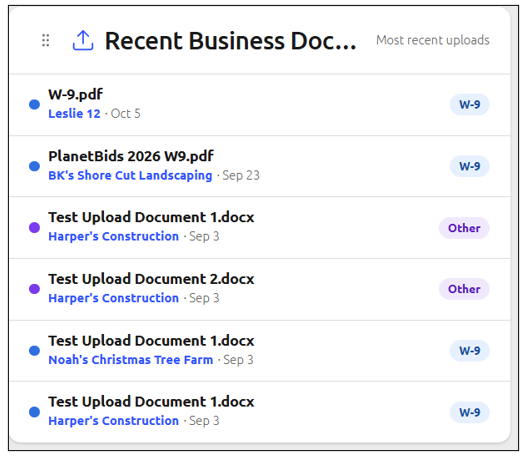
Recent Business Documents
Shows recent business document activity:
Vendor Insights
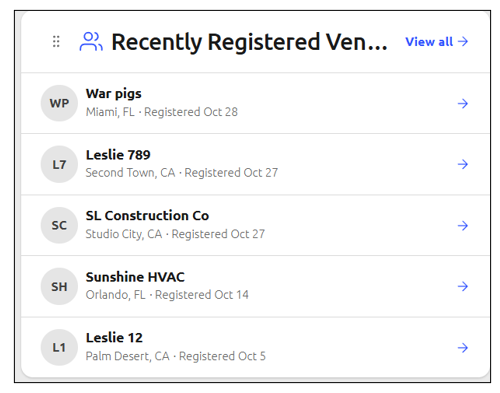
Three cards give you a quick view of the vendors connected to your agency.
- Recently Registered Vendors: vendors that registered with your agency recently:
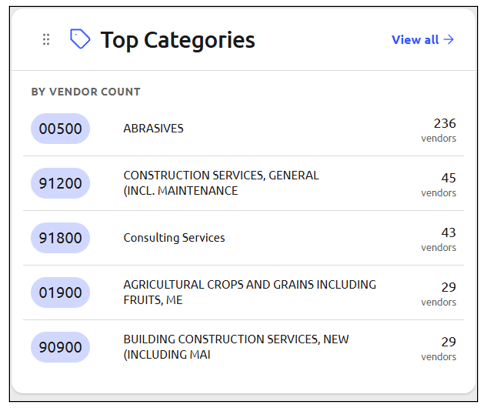
- Top Categories: the categories most common among your vendors:
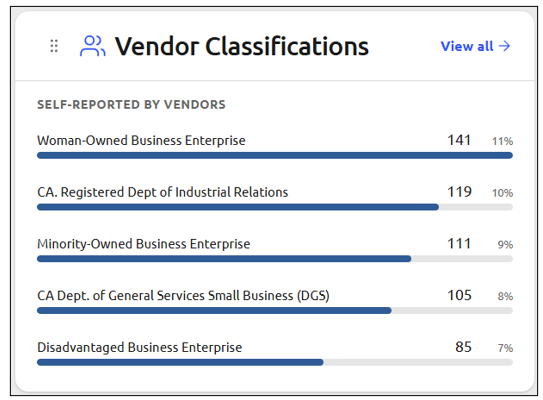
- Vendor Classifications: a breakdown of your vendors by the classifications your agency uses:
Why Some Cards Do Not Appear
A card is hidden, not shown empty, when it does not apply to you. A card may not appear if:
- Your agency does not have the related module.
- Your user account does not have permission to use that module.
- You have read-only access (applies to the Actions card).
- There is nothing for the card to show (applies to the Configurable Metrics card).
If you believe you should see a card, contact your agency’s system administrator about your permissions.