![PlanetBids_Logo-Default.png]](https://training.planetbids.com/hs-fs/hubfs/PlanetBids_Logo-Default.png?height=40&name=PlanetBids_Logo-Default.png)
Releasing a Cost File
This article explains how an agency user releases a vendor’s submitted Cost File in Solicitations, allowing cost proposals to be viewed and downloaded after a Solicitation has closed.
Before you begin
- Cost File release is available only for projects that use Cost File as a Response Type.
- You must have the Allowed to Release Cost File user permission.
- A Cost File can only be released after the solicitation has closed. Cost files are hidden from agency users by default so that responses can be reviewed for qualification and quality without being influenced by cost.
- Releasing a Cost File cannot be undone once the Solicitation is saved.
Release a Cost File
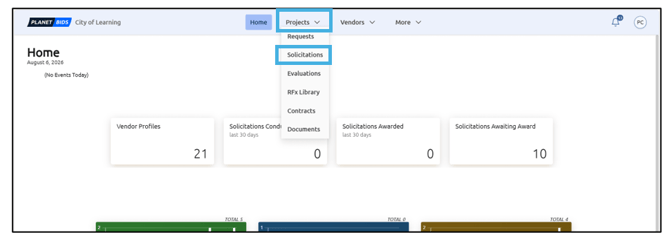
Click on Projects, then Solicitations:
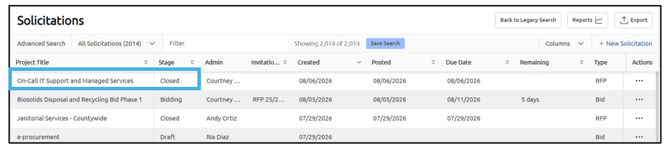
Search for and open the closed project whose Cost File you want to release:
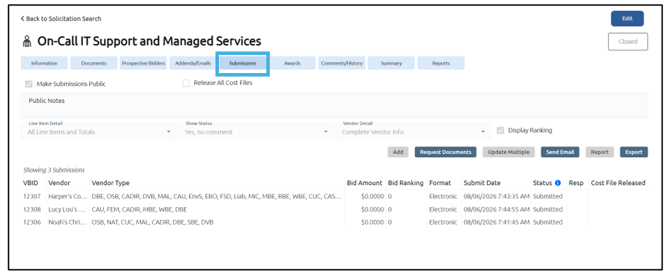
Select the Submissions tab:
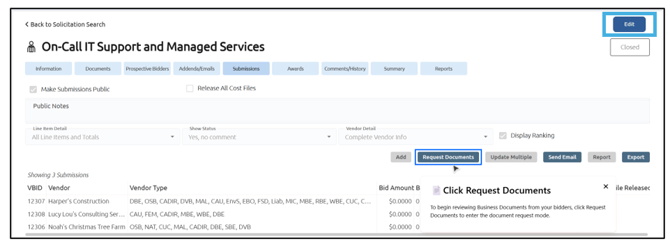
Click Edit:
Select the Release Cost File checkbox to release them all at once:
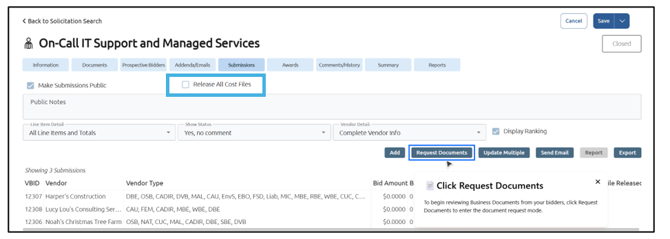
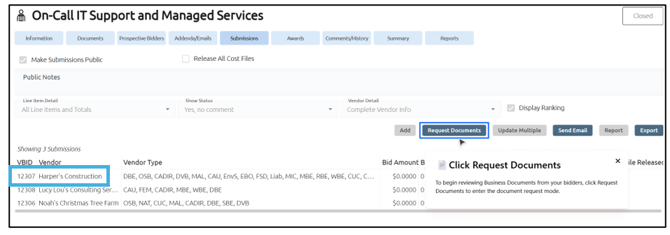
To instead release an individual submission, click on the Vendor Submission:
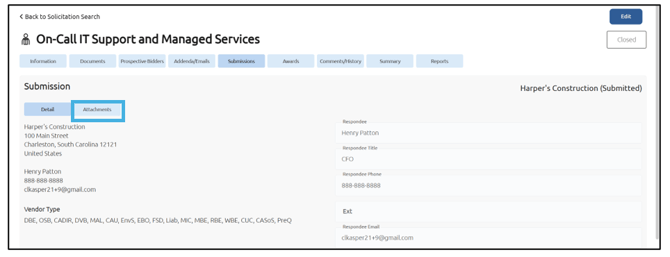
Click the Attachments tab:
Click Edit:
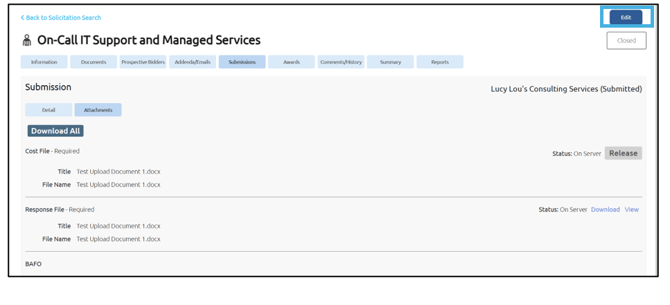
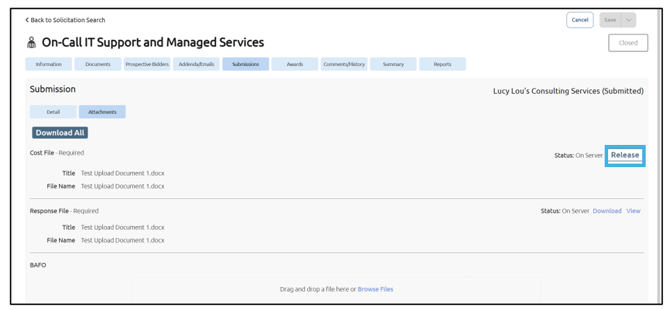
Click the Release button to release it individually:
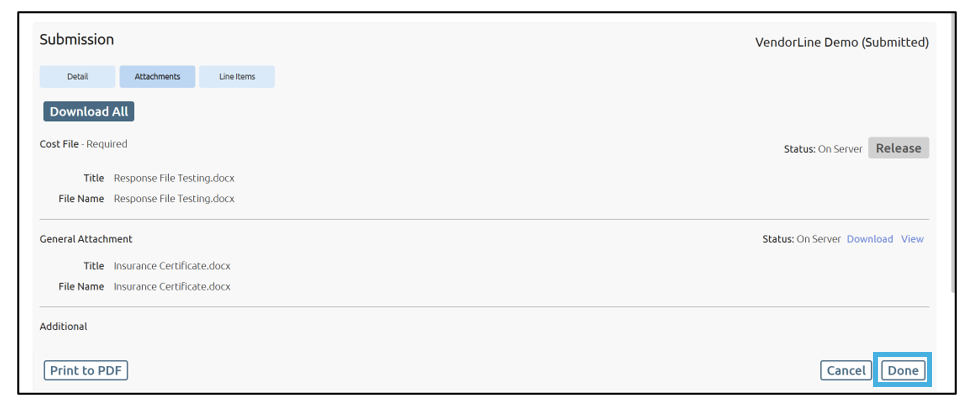
Then click Done:
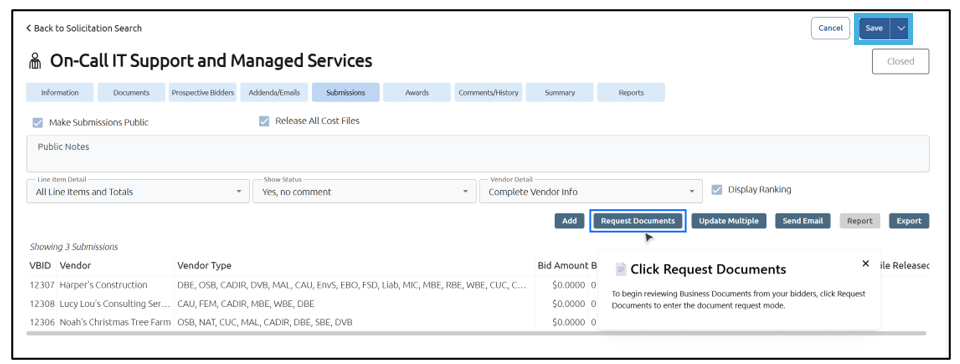
After completing either option, click Save:
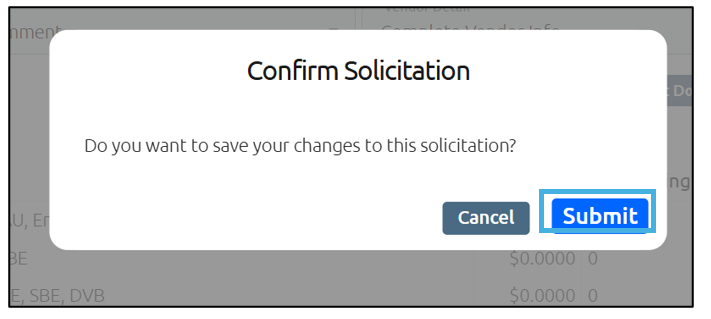
Confirm changes by clicking Submit:
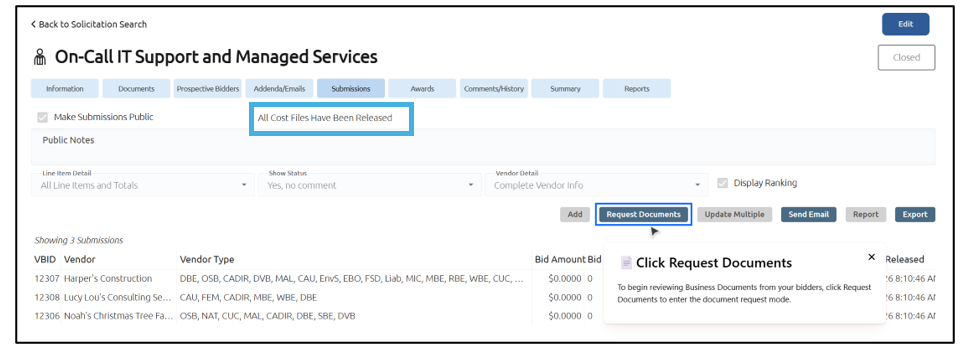
If all cost files are released, the checkbox is replaced with All Cost Files Have Been Released:
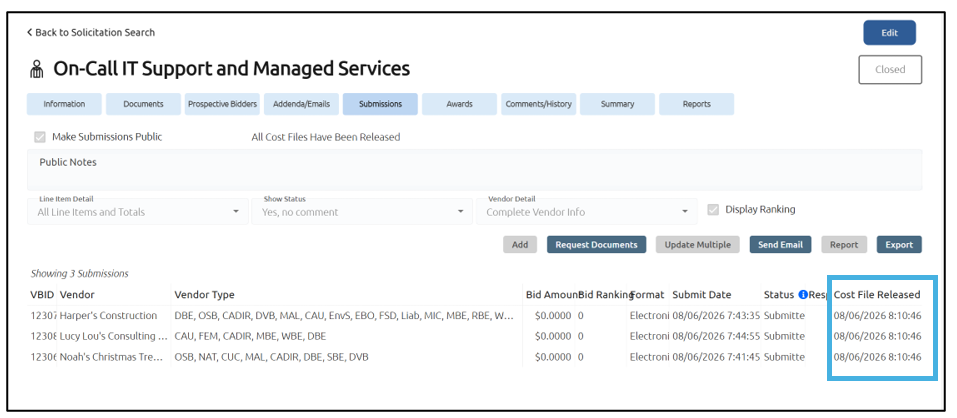
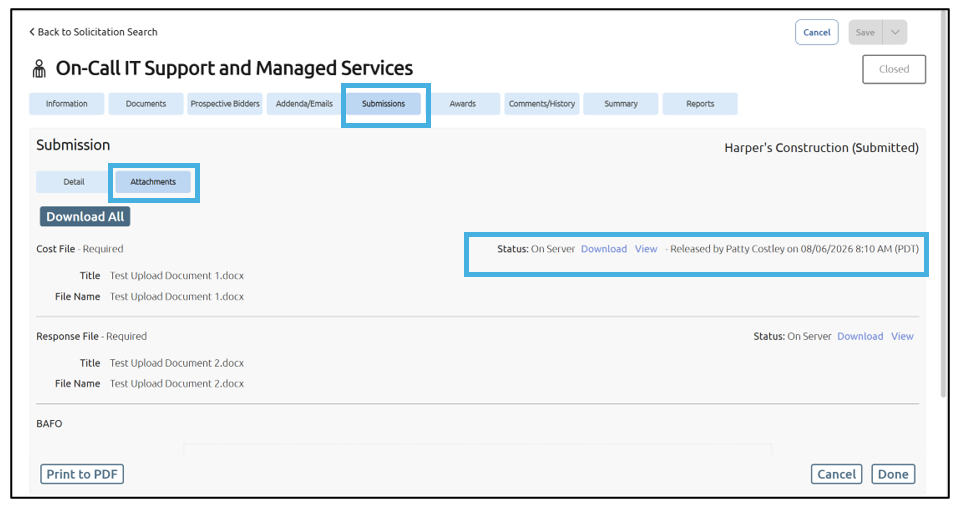
The system records the date and time the cost files were released:
Result
Note: If you have the Evaluations module and need Evaluators to view the cost, this will be done in the Evaluations Module. Select the Release Cost to Evaluators checkbox as well as the Release Cost File checkbox. Both of these must be selected for the evaluators to see the Cost File.