![PlanetBids_Logo-Default.png]](https://training.planetbids.com/hs-fs/hubfs/PlanetBids_Logo-Default.png?height=40&name=PlanetBids_Logo-Default.png)
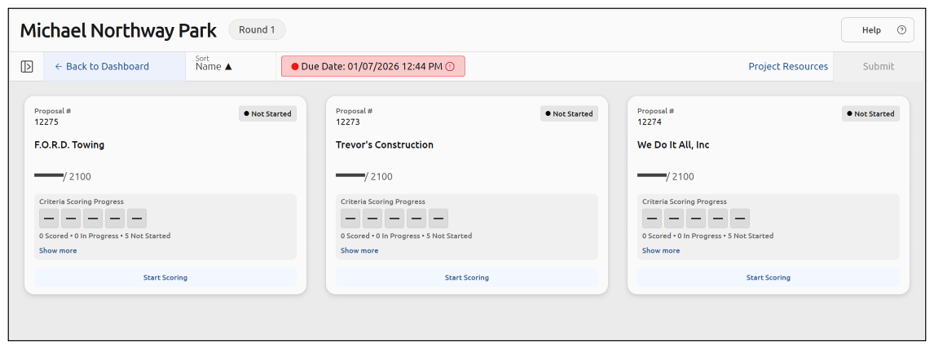
The Project Overview page displays all proposals submitted for a specific evaluation project. Each proposal card shows the vendor name, current score, and evaluation progress:
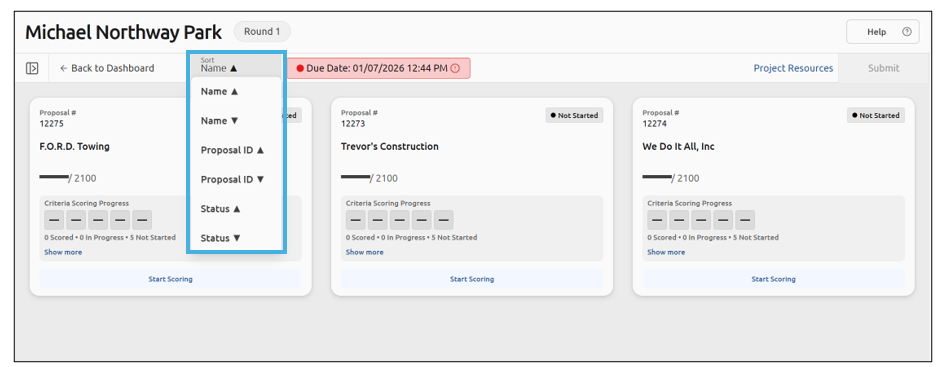
You can sort by Name, Proposal ID, or Status:
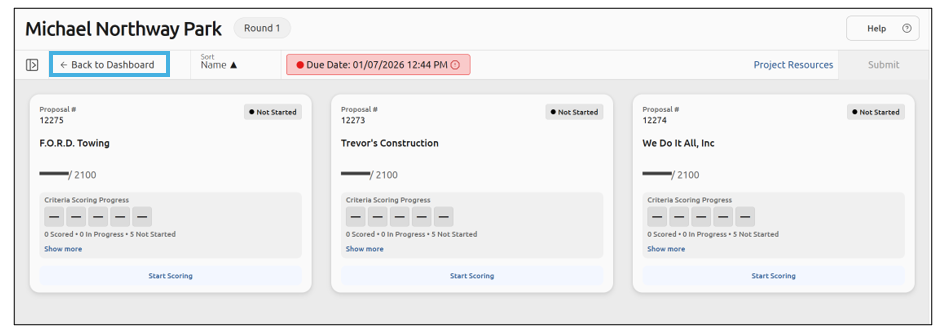
You can also return to your dashboard at any time by clicking Back to Dashboard:
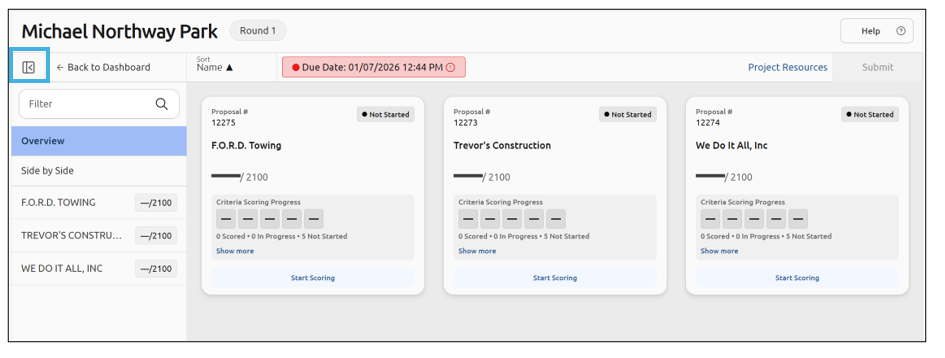
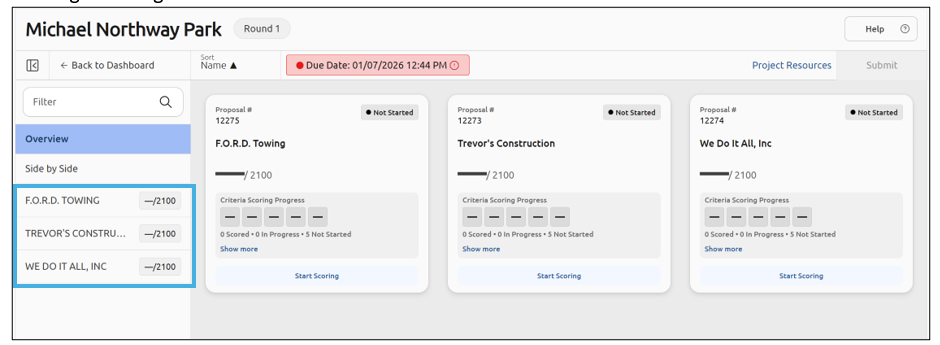
You can navigate between vendors using the left sidebar. To expand or collapse the sidebar, click the corresponding arrow:
Navigating Proposals
Use the left sidebar to switch between vendor proposals. Click the vendor name to open that card and begin scoring:
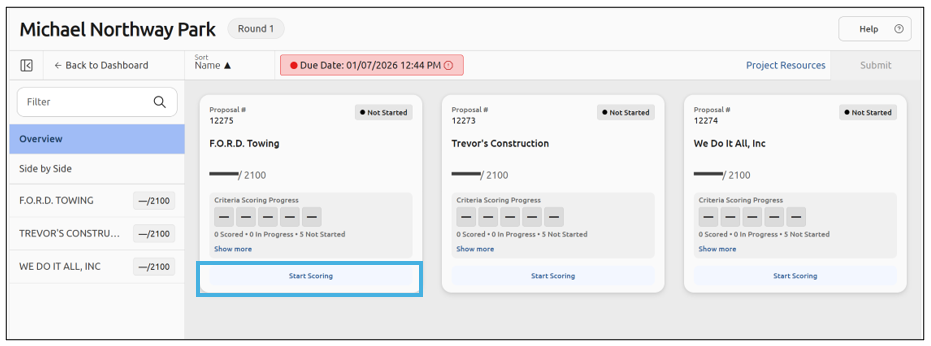
You can also click Start Scoring on the individual card:
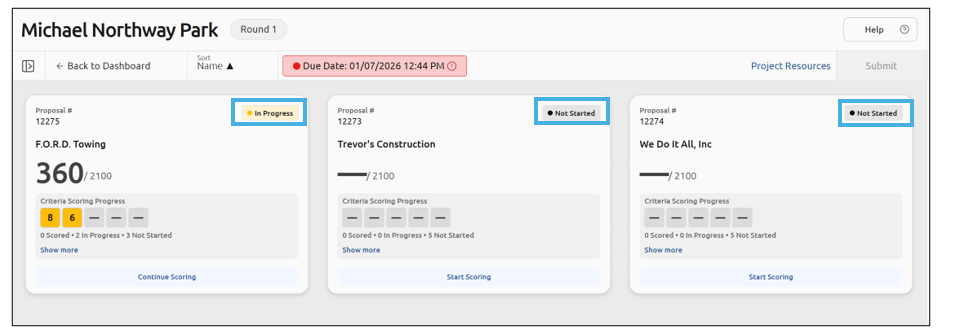
Each scorecard will show you a status in the upper right corner of the card:
If scoring is in progress, you can see a progress bar:
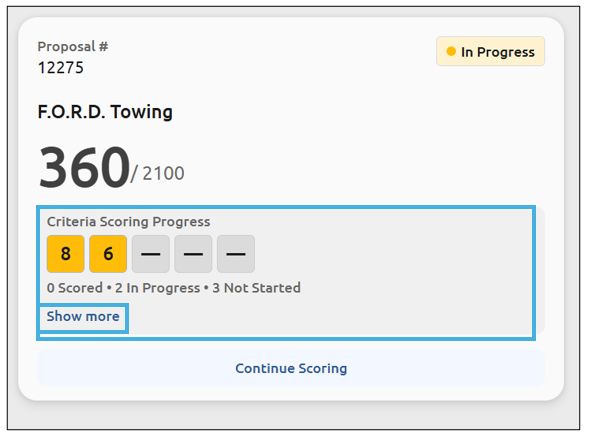
Clicking Show More provides additional information:
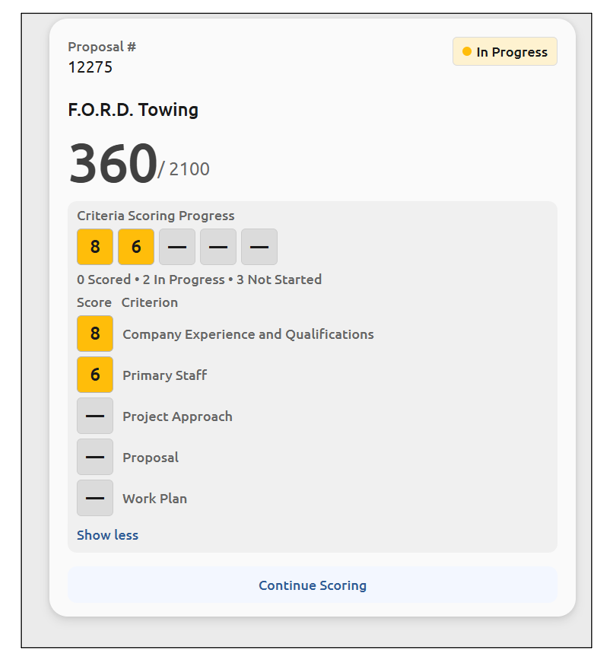
Each proposal displays individual criterion scores and overall progress. Colored indicators show the scoring status for each criterion.
- Continue Scoring - Resume evaluating a proposal
- View Scorecard - Review a completed evaluation