![PlanetBids_Logo-Default.png]](https://training.planetbids.com/hs-fs/hubfs/PlanetBids_Logo-Default.png?height=40&name=PlanetBids_Logo-Default.png)
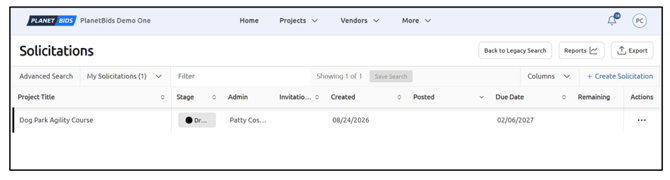
When you open Solicitation Search, solicitations appear in a results table. The controls for searching, filtering, arranging columns, and taking actions sit in the toolbar above the table.
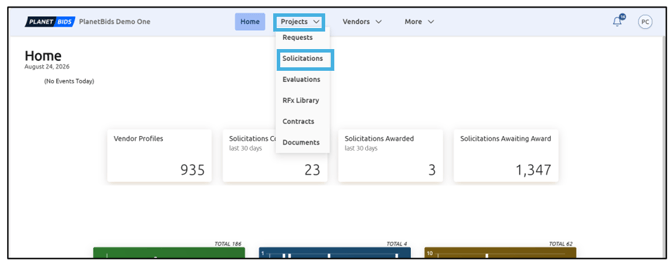
From the Home screen, click Projects, then Solicitations:
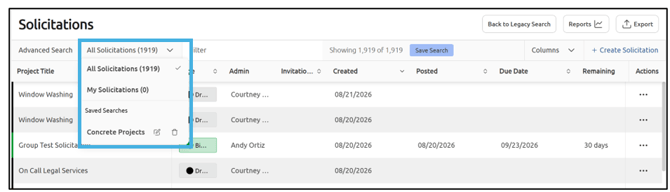
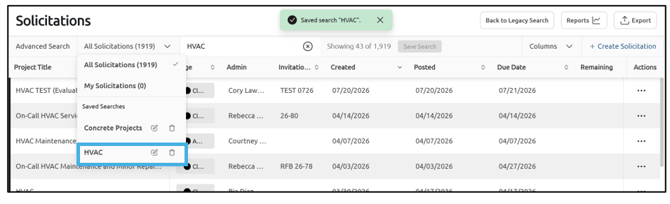
You can filter your solicitations by using the drop-down menu to look for My Solicitations, All Solicitations, or Saved Searches:
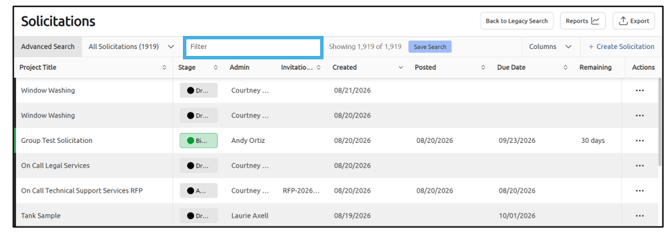
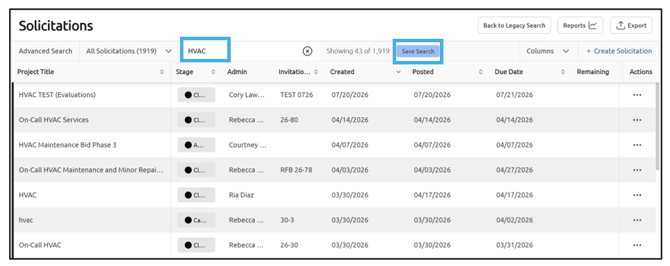
You can also use the Filter to look for certain keywords (must be at least three letters):
To save a search, click Save Search:
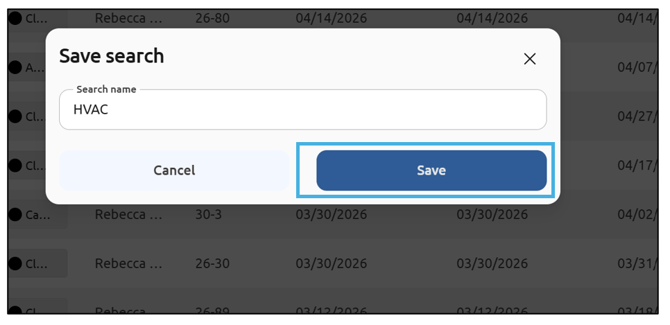
Type in a name for your saved search, and click Save:
This saved search will now appear in the drop-down menu:
Add a solicitation
To add a solicitation, click Create Solicitation:
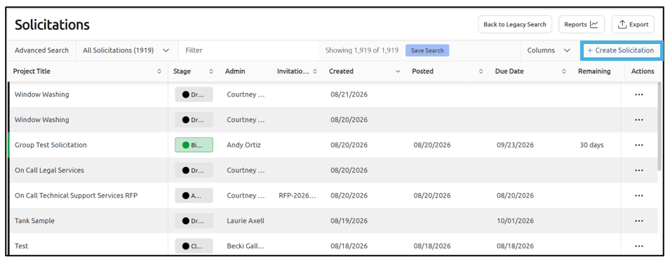
Note: This is available to users with permissions to create solicitations.
Follow the steps to create your solicitation. When you are finished, save the new solicitation. It then appears in the results table under My Solicitations:
Run an advanced search
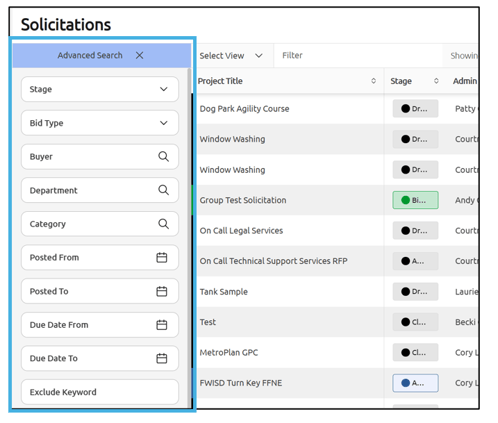
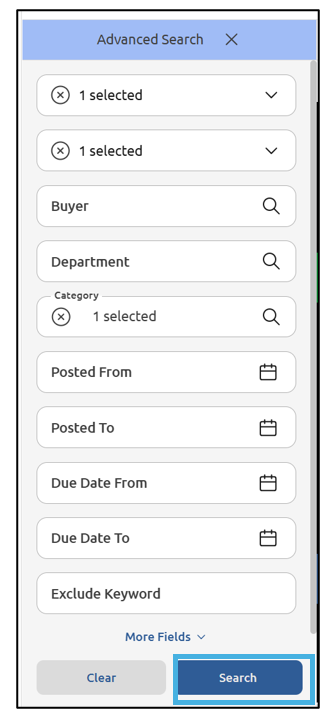
Advanced Search opens a panel along the left side of the results, where you can build a more specific search across multiple fields. The results update to match your criteria:
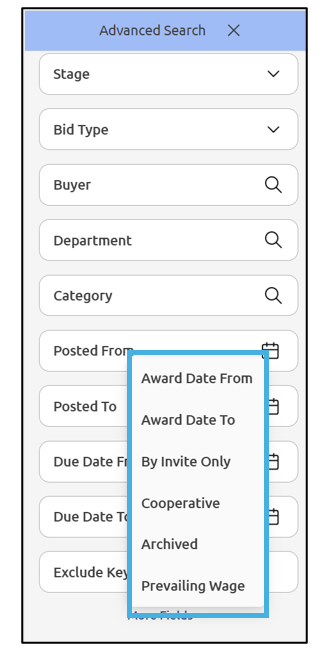
Click More Fields to expand the criteria available:
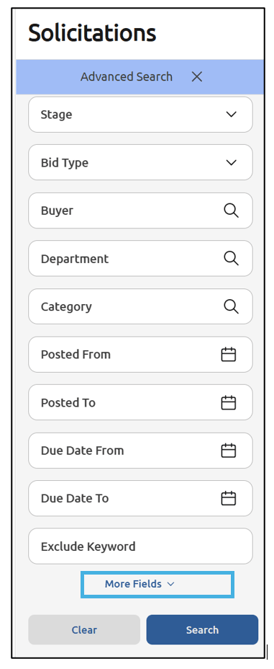
Once you have set your search parameters, click Search:
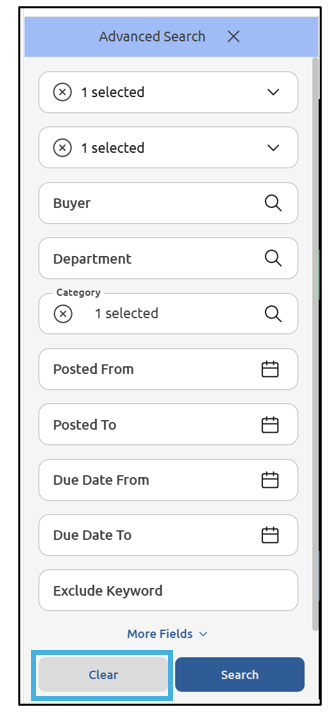
To clear your Advanced Search, click Clear:
Arrange the columns
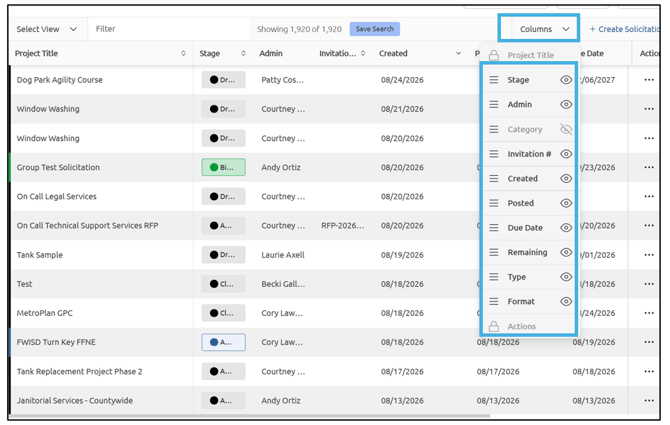
You can control which columns appear in the results table and the order they appear in, so the table shows the information most useful to you. Click the Columns drop-down to view available options:
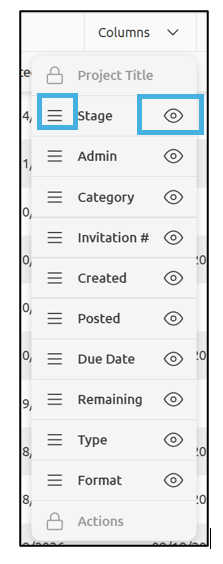
Use the three lines to drag columns into a different order, and use the eye icon to show/hide columns:
Take actions on solicitations
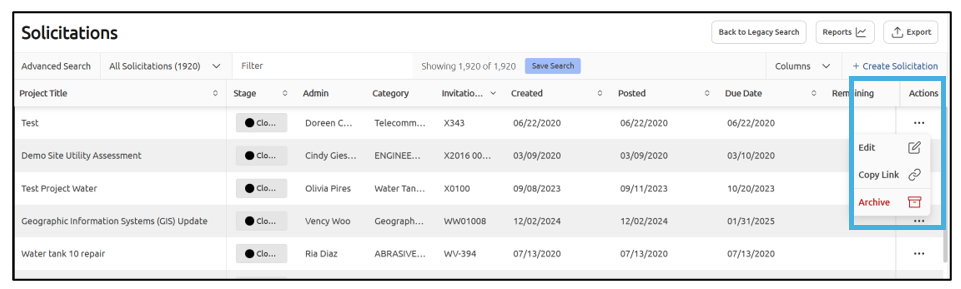
Use the actions available for a row to work with the solicitations you find. Click the three dots to the right of a solicitation to see the available actions: