![PlanetBids_Logo-Default.png]](https://training.planetbids.com/hs-fs/hubfs/PlanetBids_Logo-Default.png?height=40&name=PlanetBids_Logo-Default.png)
*This is a new feature rolling out in stages. If you don't see it yet, stay tuned!**
Note: This feature is permission-based. To allow a User to turn on track changes, go to AdminàUsers and select the user. Scroll to Documents and check Can toggle track changes mode. If you would like this user to be able to accept/reject changes, also check Can accept/reject changes.
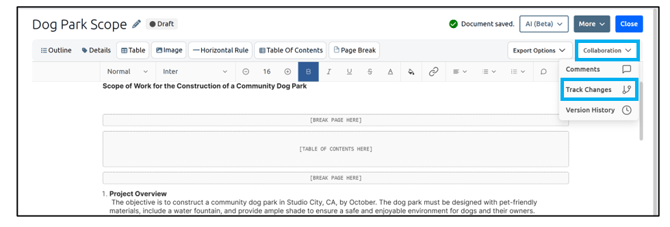
To turn on Track changes, click Collaboration from within a document, then Track Changes:
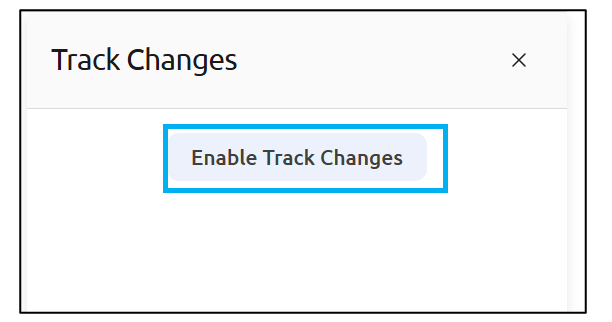
Then click Enable Track Changes:
Select the text or make the changes you wish to make. The old text will display in red, the new suggestion(s) will display in green:

There will be a list of proposed changes on the right side of the document window, showing who made the change and when, what type of change it was, and what the specific change was:
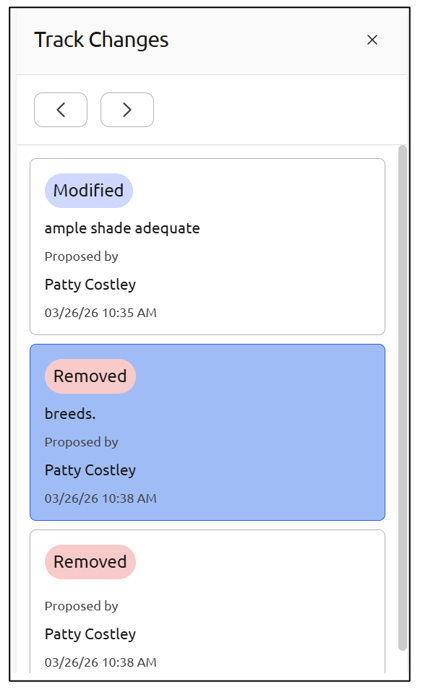
You can toggle through the changes by using the arrows, and it will display the change in the body of the document:
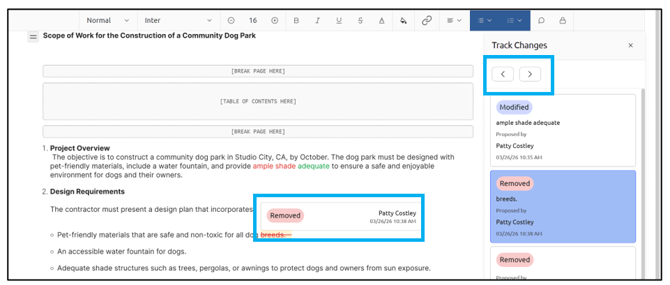
If you are a person who has permission to accept/reject changes, you can use the arrows to scroll between the suggested changes:
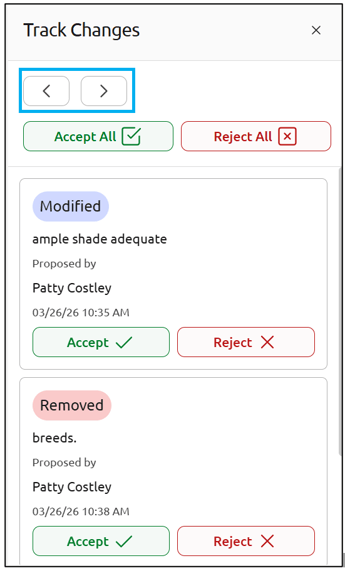
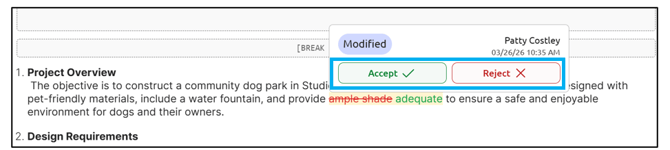
You will be taken to the change and given an option to Accept or Reject it:
You can also Accept or Reject in bulk from the side panel, or Accept or Reject individual changes:
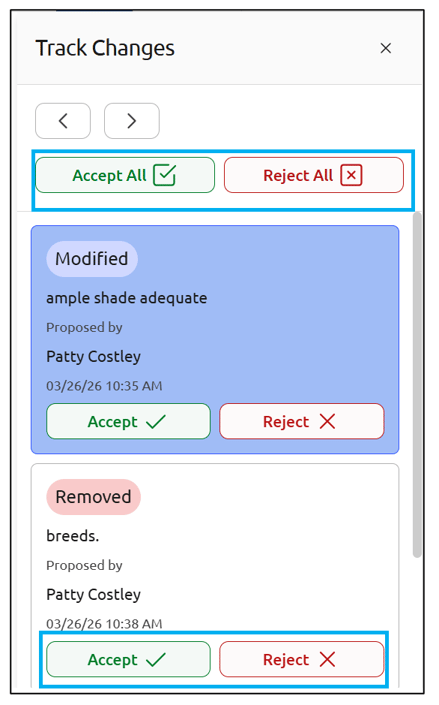
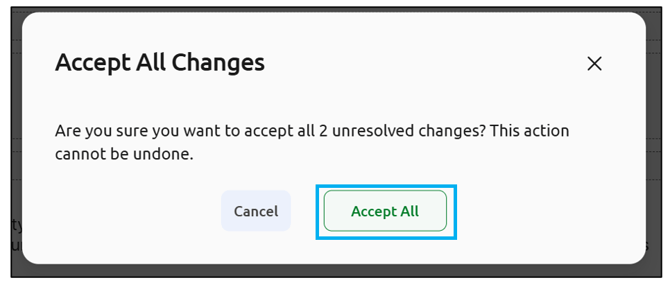
If you choose to Accept or Reject in bulk, you will be asked to confirm your choice:
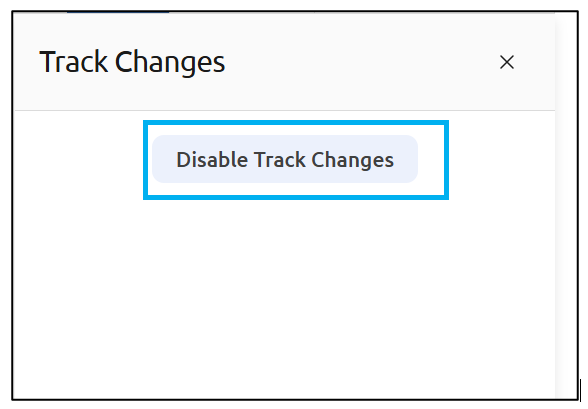
Once all suggestions have been accepted or rejected, you can Disable Track Changes: