
Note: This feature is not yet available to all clients. If you don't see this functionality, stay tuned!
Business Documents allow vendors to upload important documents (W-9, etc.) to their profiles for storage and viewing by agencies whose projects they may bid on.
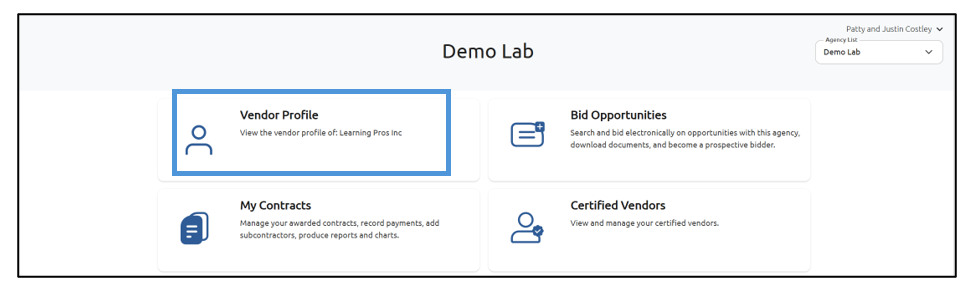
To access Business Documents, select Vendor Profile from the main page of Vendor Portal (you must be logged in):
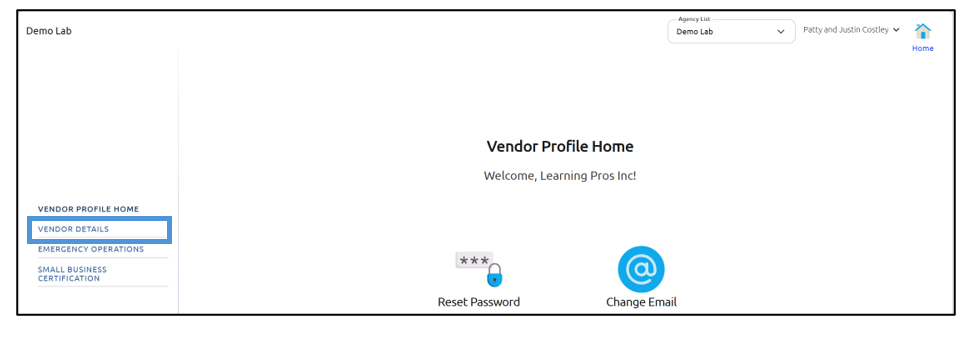
Select Vendor Details:
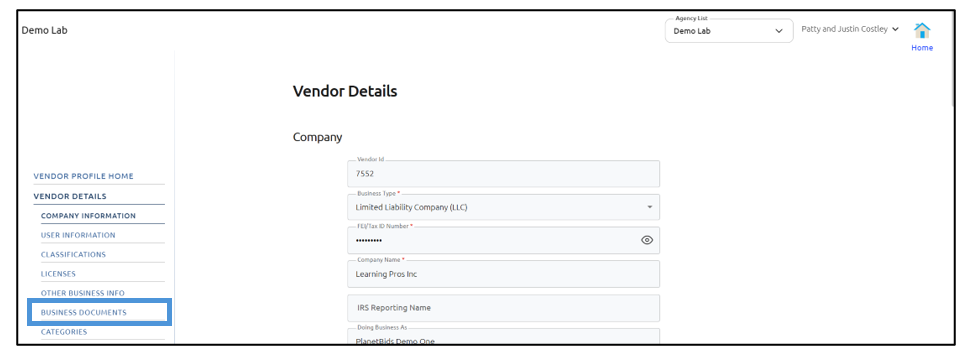
Then select Business Documents:
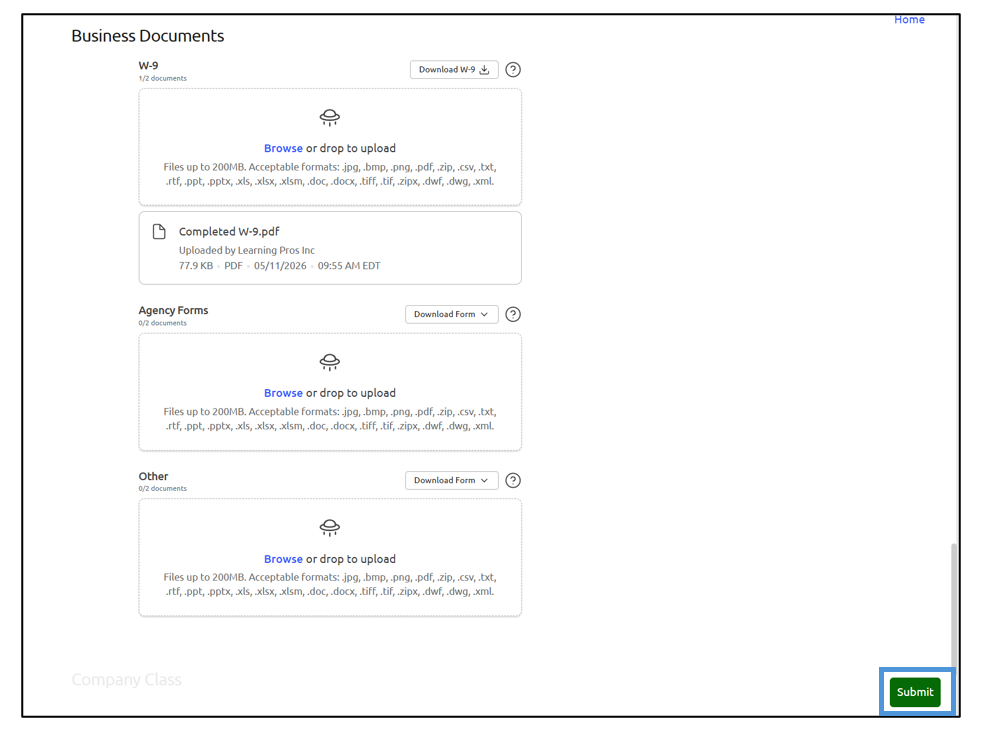
There are three sections within Business Documents: W-9, Agency Forms, and Other.
Hovering over the question mark to the right of the download button will give you additional information regarding the form if the agency has configured any; a question mark will not always appear if the agency has not configured a message:
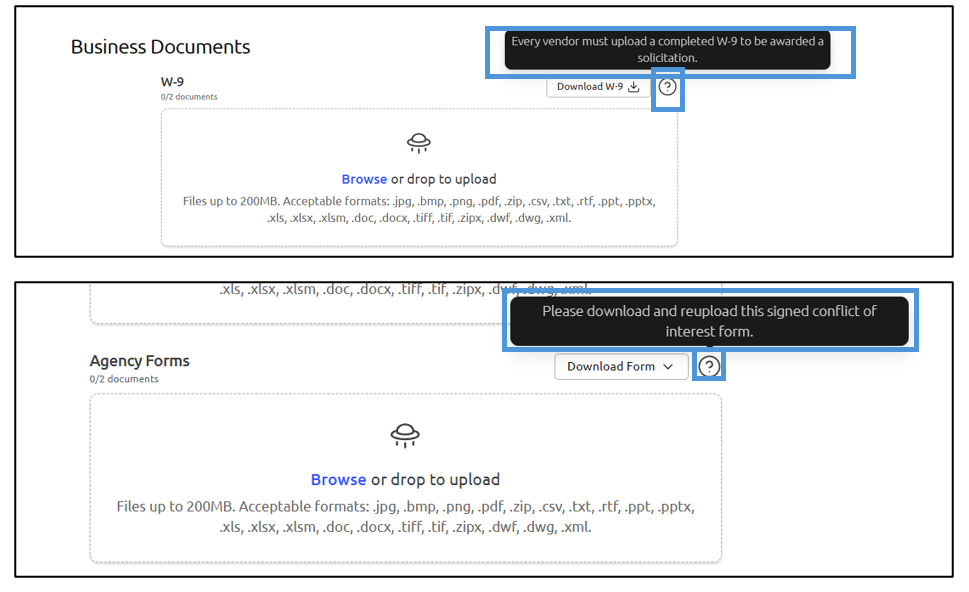
Downloading the form will give you the most recent version of the form template. For instance, when you download the W-9, you'll get the most recent blank W-9 (this will open in a separate browser tab):
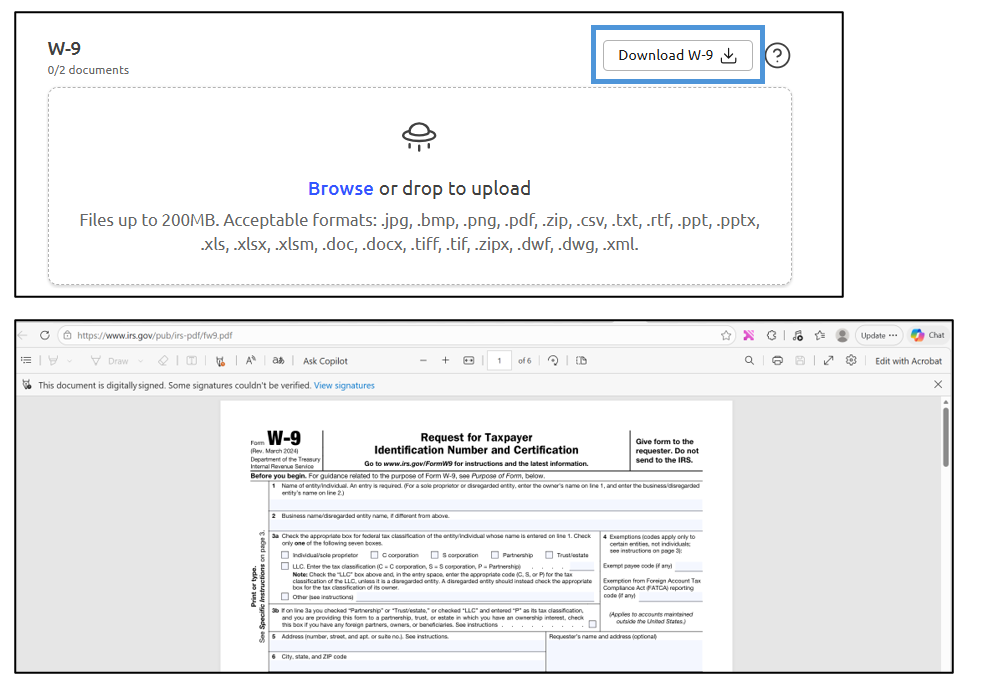
NOTE: For non-W-9 business categories (if an agency provides it), a Download Form button will appear with the file name for the vendor to download.
Once you have filled out your form, click Browse to find the form on your computer, or drag and drop the completed form into the box:
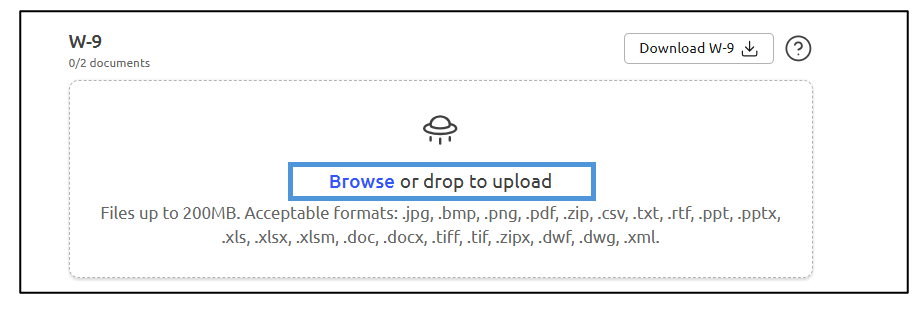
Note: There is a limit of two documents per category
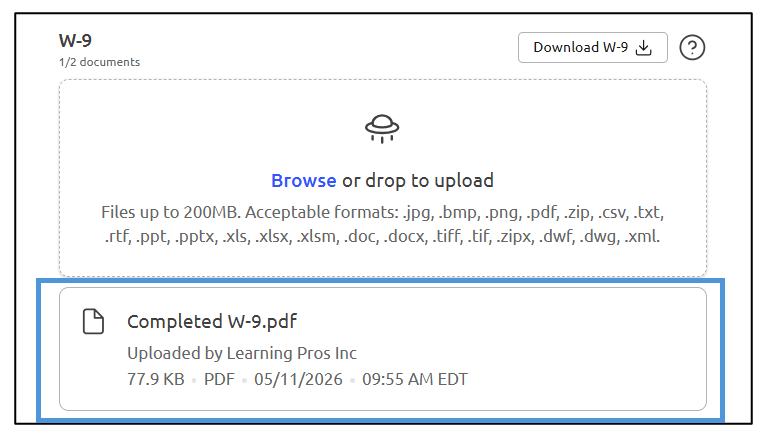
Once the form has been uploaded, it will show who uploaded the form, when it was uploaded, the file size of the document, and the file format of the document:
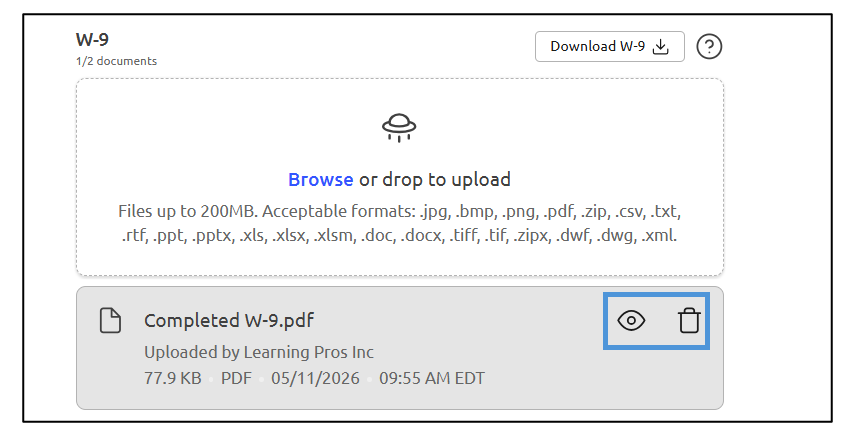
If you hover over the uploaded form, you can view the completed form or delete it:
Once you have finished uploading the necessary forms, click Submit:
Your vendor profile has now been updated.