
Keywords in your VendorLine profile help define the bid opportunities that automatically match to you, through both Matched Bids and the VendorLine Today daily email. To add or edit your keywords, click the drop-down under your business name in the upper right corner of your screen, and click My Account:
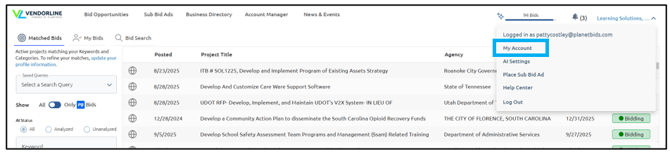
Then, click VendorLine Profile:

Scroll down to the Keywords section of Bid Matching, and click Edit:
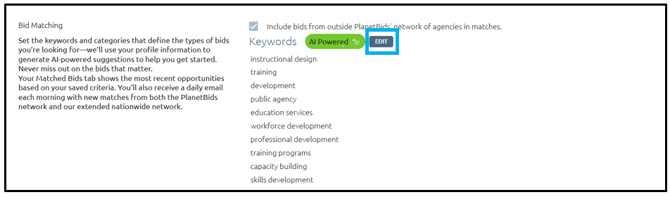
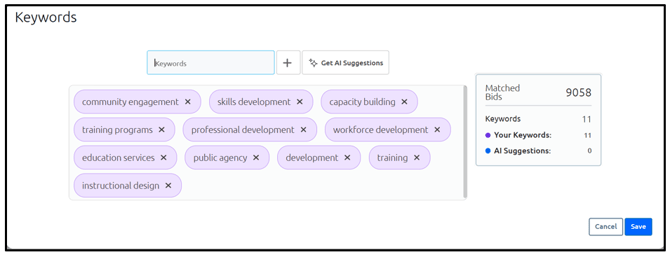
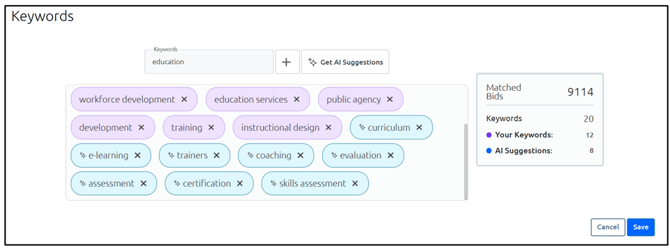
Any existing keywords (if applicable) you may have chosen will display in purple boxes:
You can add keywords using the Keywords box by typing your keyword in and clicking the plus sign, and you can also click Get AI Suggestions for additional options:
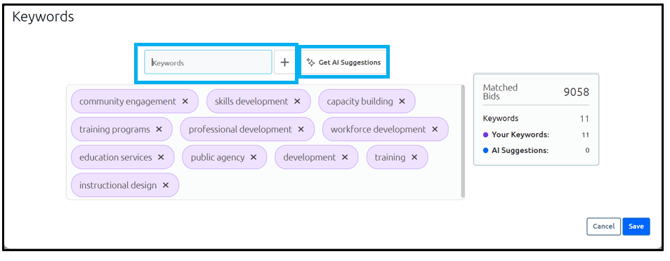
Note: Get AI Suggestions is available for VendorLine Pro and Pro Plus AI members but is not available for Basic).
Your AI Suggestions will show up in blue boxes. Any keywords can be removed by clicking the X in the upper right corner of the keyword:
Tip: If the results don’t meet your expectations, make sure the Industry field of your profile is accurate and updated. This will assist with generating keywords in line with your field of work.
Once you have added/removed keywords, click Save:
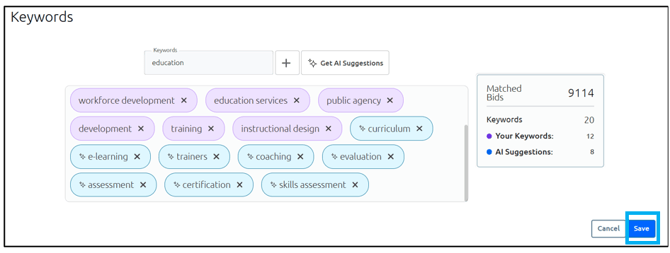
Submit your changes at the bottom of the page:
