Keeping your insurance current with an agency no longer means retyping everything by hand. Upload your ACORD 25 Certificate of Insurance (COI), and PlanetBids reads it for you, pulls out the key details, and lets you review and apply them to your insurance record in a few clicks.
What it does
When you upload a COI, PlanetBids automatically extracts:
- Producer details (name and address)
- Insurer information
- Policy numbers
- Coverage types and limits (Each Occurrence / Aggregate)
- Effective and expiration dates
You review each field, accept the values you want, and apply them to your record. Nothing saves until you apply it, and blank extracted fields never overwrite information you already have on file.
Prefer to enter it yourself? You can still add and update your insurance manually, exactly as before. Auto-Fill from COI is an option, not a requirement, but it will save you time.
Before you start
- The agency sets up an insurance record for you and requests insurance. Once it does, the record appears on your My Insurance card after you log in.
- Save your ACORD 25 COI as a PDF, JPG, or PNG.
- Have an ACORD 101 (Additional Remarks) form too? Upload it as well — PlanetBids adds its remarks to the Description of Operations field.
From the Agency’s Vendor Portal Page, select My Insurance:
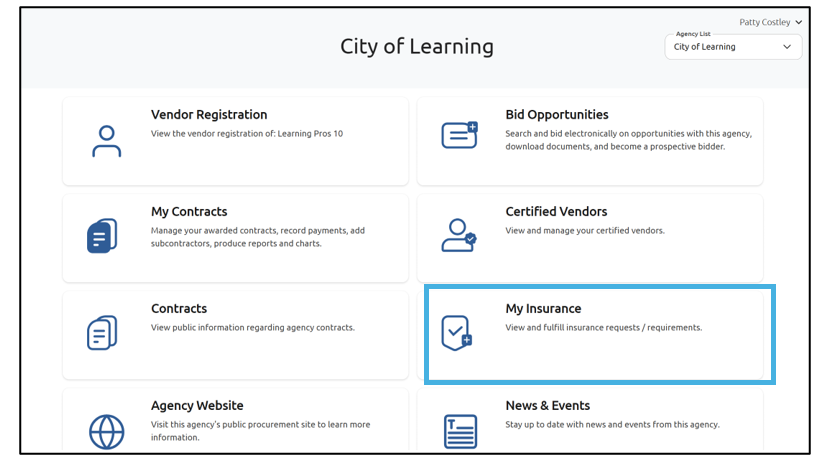
Note: You must be logged in to the Vendor Portal
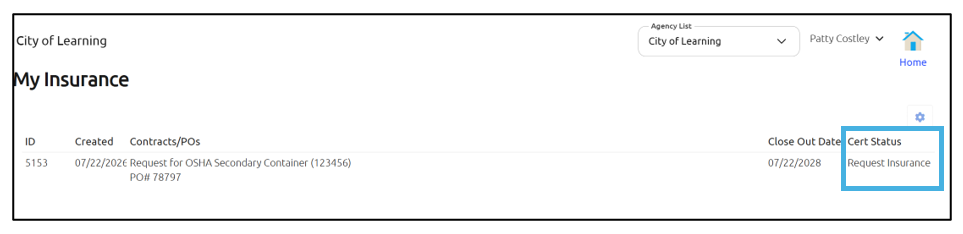
My Insurance card in your Vendor Portal, open the insurance record you want to update:
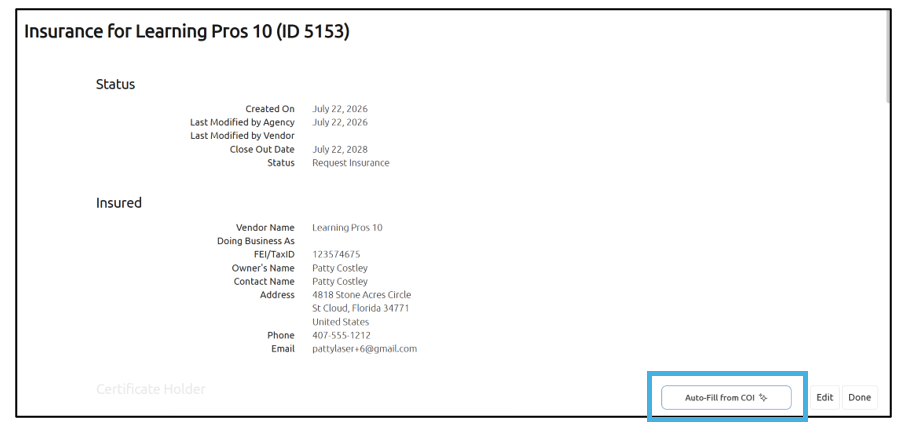
Click Auto-Fill from COI:
Drag and drop your COI file or Browse to find it (PDF, JPG, or PNG). PlanetBids reads the document in the background, so you don’t have to wait on the screen:
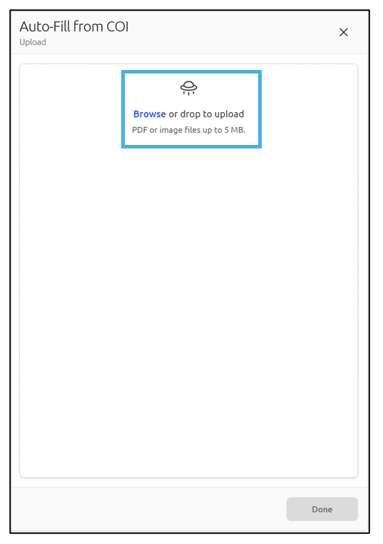
Note: the file size limit is 5 MB
Click Done when finished, or simply navigate away:
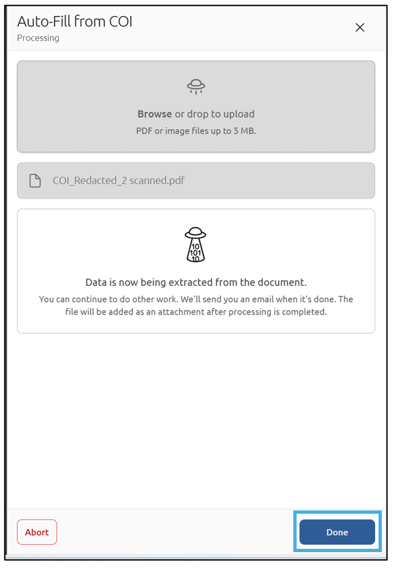
PlanetBids emails you when processing finishes ( or if something goes wrong) with a link straight back to this record. If you need to stop an upload while it’s still processing, click Abort.
Note: If the document is the wrong type (not an ACORD 25 or ACORD 101 form), unreadable, or password-protected, you’ll see a clear message and can try again with a different file.
You will also see COI Processing Ready when the file has been processed. Click to view your COI information:
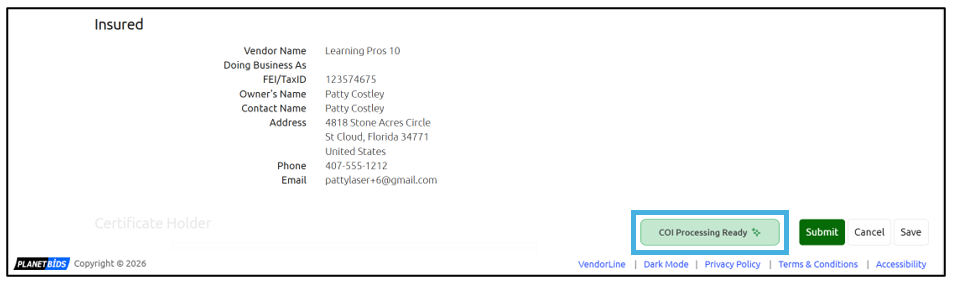
PlanetBids lays out the details section by section: General, Producer, Insurers, and Coverage. Each field in the Insurers tab shows a label so you know what changed:
New — extracted value was not listed in the original record
Match — the extracted value matches what’s already on your record
Not Found — Insurer listed from the original record was not found on the extracted COI
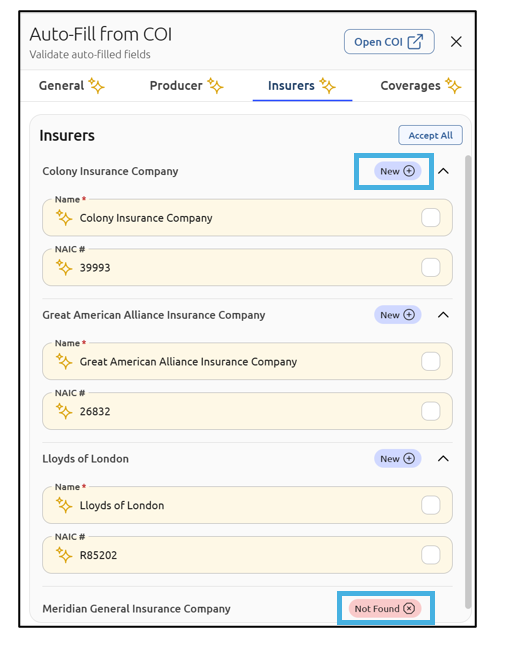
Your original values stay visible as read-only reference next to the extracted values, so you can compare them before you accept changes. Blank extracted fields never overwrite the original information you already have on file.
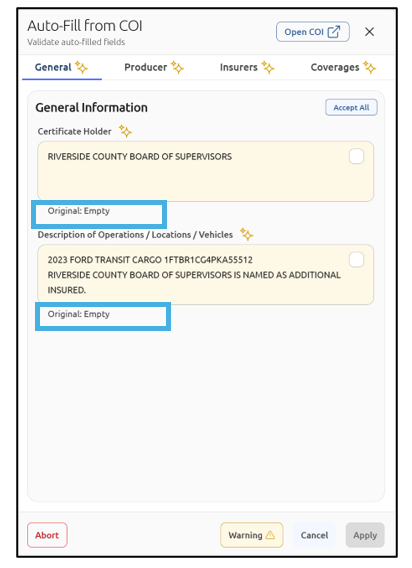
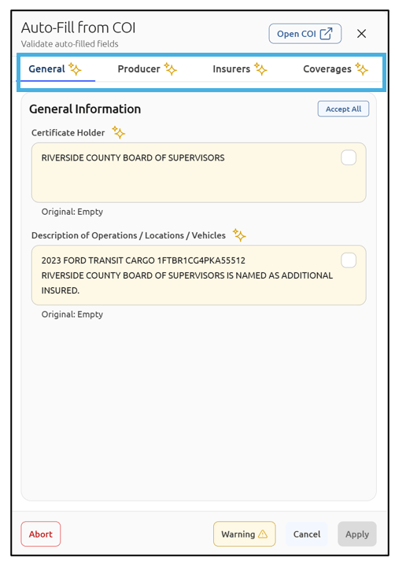
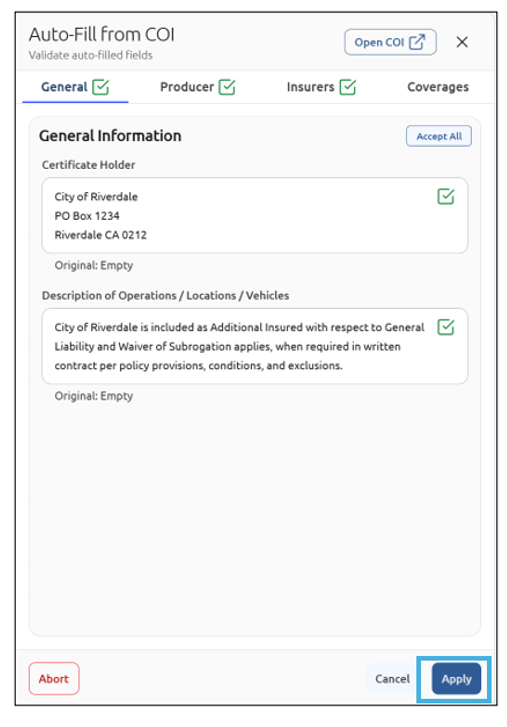
Compare information from your uploaded insurance certificate to ensure accuracy. Accept values one field at a time, or use Accept All on a card to accept an entire section at once. Repeat this for the Producer, Insurers, and Coverages tabs across the top of your Auto-Fill fields, filling in or updating any information that may need tweaking:
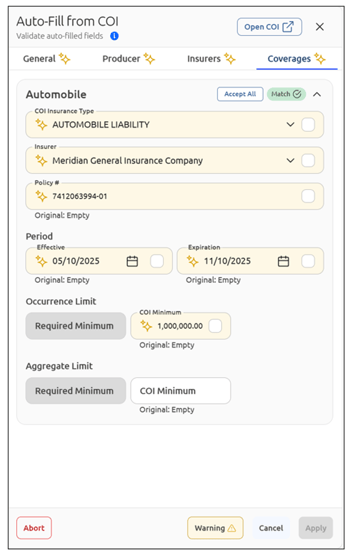
For Coverages, you can update anything that might not have come over correctly by typing in the box or using one of the drop-down options:
If the field is correct, use the checkbox to accept or click Accept All:
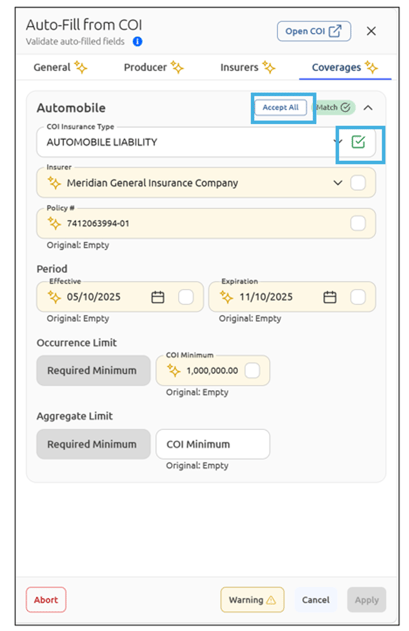
If you have multiple coverages, you will need to accept each section.
Click over to the Coverages section on the main page and either add a coverage or add from a template:

Adding one coverage will prompt all listed coverages to then be captured by AI.
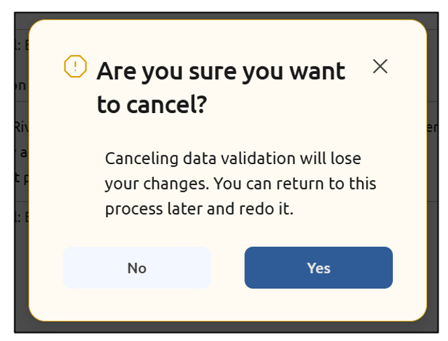
Note: If you click Cancel or X at any time during this process, a warning will pop up alerting you that all changes will be lost and you’ll have to return to the process later and redo it:
Once you’ve reviewed and accepted the information in the tabs across the top, click Apply (this is only available after all changes have been accepted from each section):
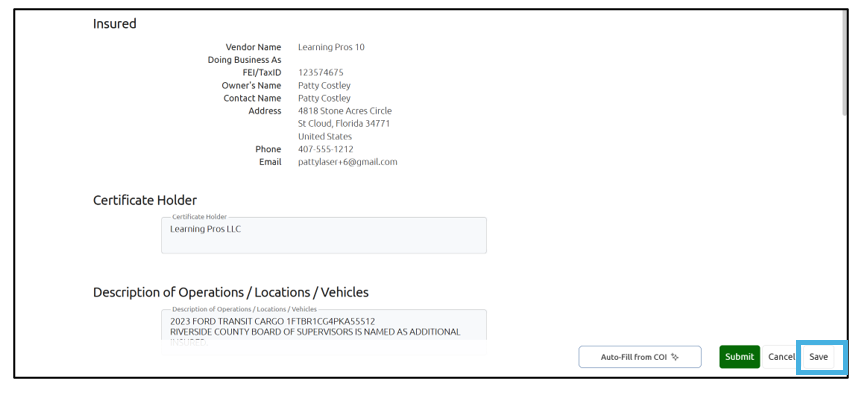
Once you have finished updating the Insurance Certificate Information, click Save:
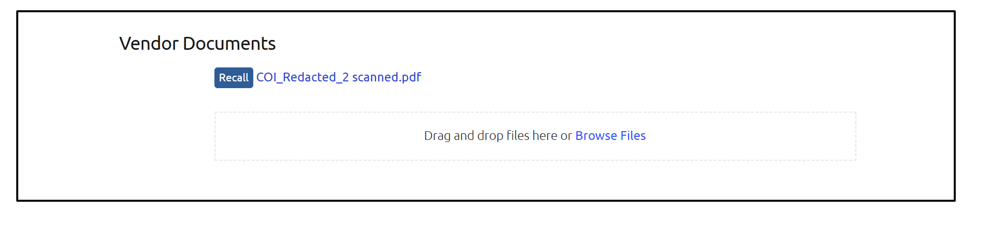
A copy of your Insurance Certificate will be located on the main My Insurance page under Vendor Documents: