![PlanetBids_Logo-Default.png]](https://training.planetbids.com/hs-fs/hubfs/PlanetBids_Logo-Default.png?height=40&name=PlanetBids_Logo-Default.png)
*These features are being released in cycles. If you don't see this yet, stay tuned! *
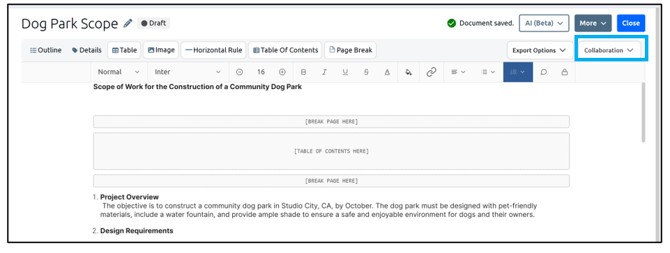
In Documents, you can view the document's version history. To access this feature, click Collaboration from within one of your documents:
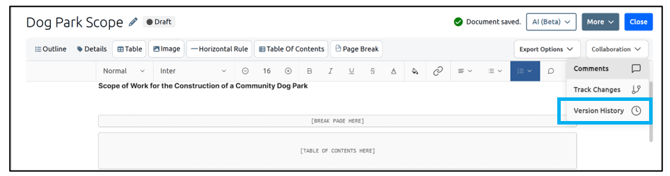
Then select Version History:
You will see current and previous versions in a list:
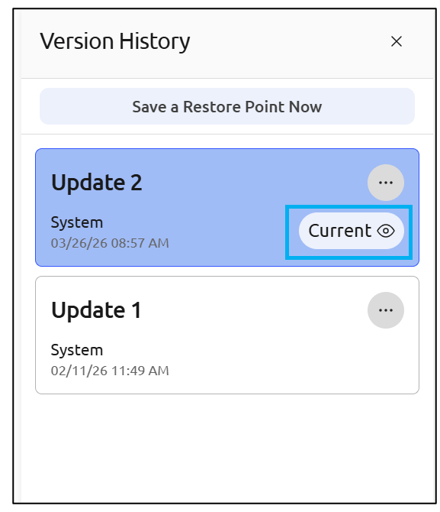
To view the version, click the three dots on the right-hand side and select View:
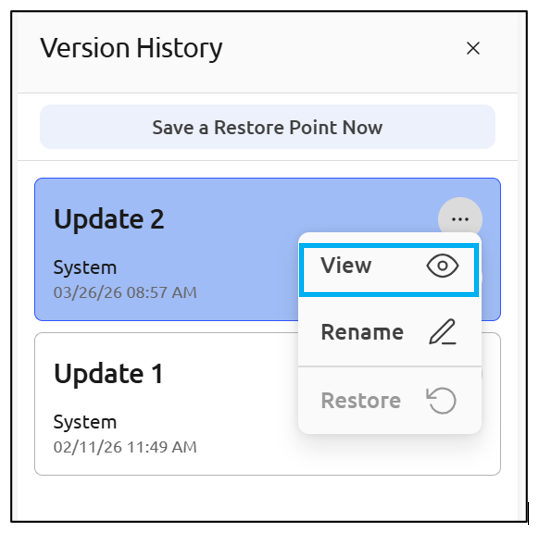
Note: only the current version of the document can be edited. See below for instructions on restoring a previous version.
To rename the version, click the three dots on the right-hand side and select Rename:
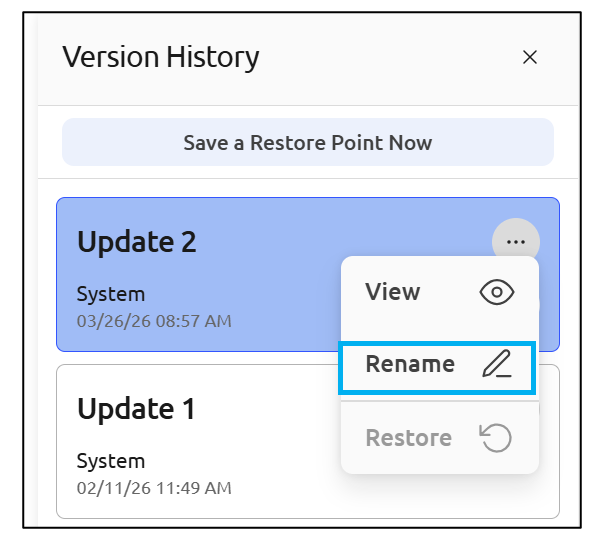
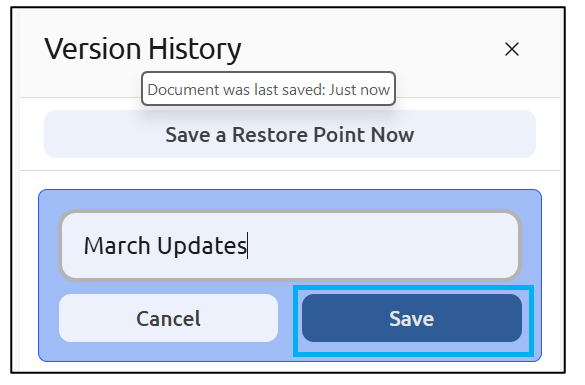
Type the new name in the box, and click Save:
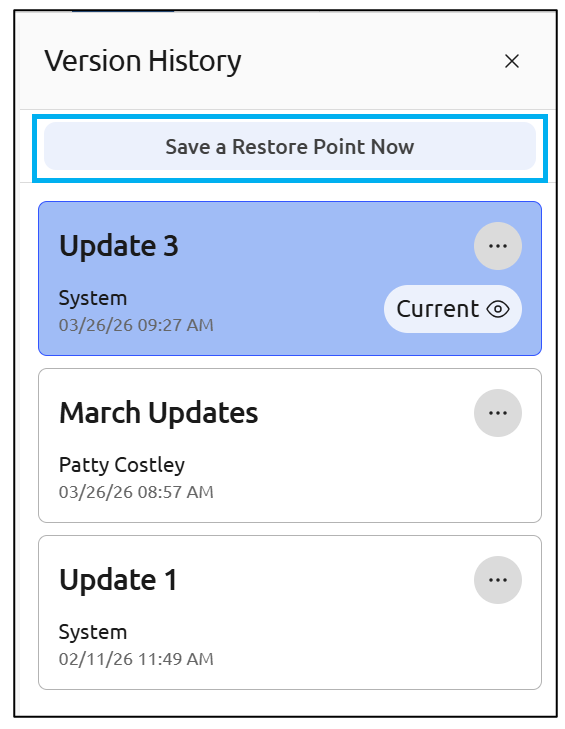
If there are changes, a new version will automatically be saved every 20 minutes. You can save a new version/restore point at any time by clicking Save Restore Point Now:
If you’d like to restore a previous version to the current version, click the three dots to the right and select Restore :
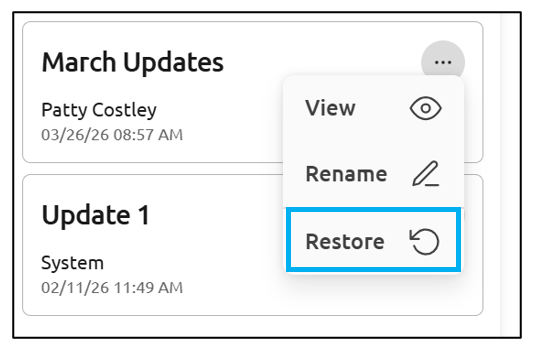
Confirm you want to restore that version to the latest editable version by clicking Restore:
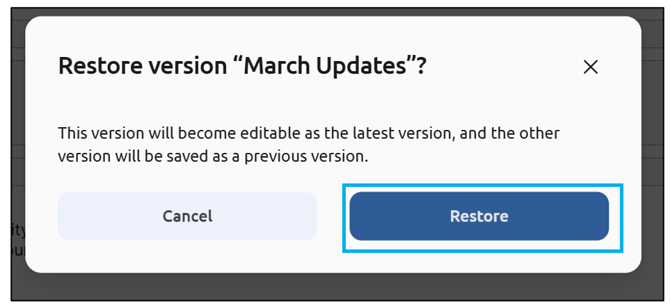
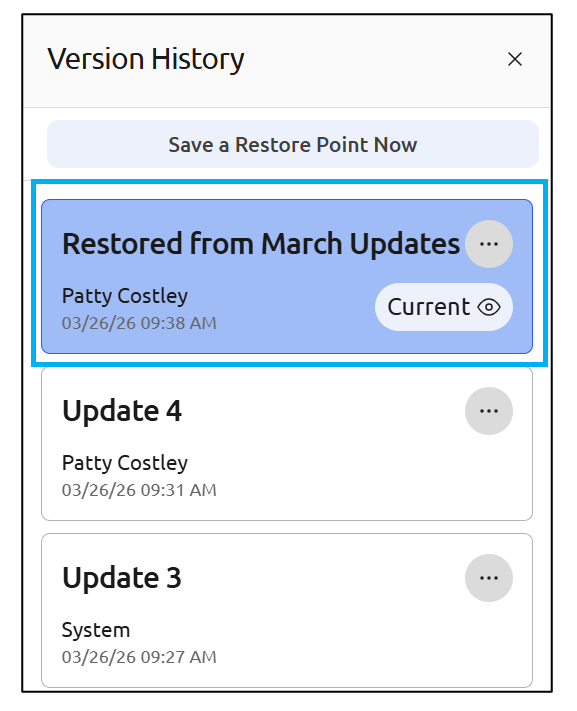
The restored version will move to the top of the list as the current, editable version: